Housekeeping Reporting
Overview
The Housekeeping Reporting section provides a detailed, configurable report of all housekeeping tasks for a selected property. It allows users to review task details for specific rooms and dates, apply multiple filters, customize visible columns, and export the report for offline use.
Accessing Housekeeping Reporting
Navigate to Reporting from the main menu.
Select Housekeeping Reporting.
Default View
By default, the report displays:
- Today's tasks
- Tasks from the past 7 days
All tasks belonging to the selected property are included in the report.
Date Range Filtering
Users can control the reporting period using the Date Range filter.
Selecting a custom date range updates the report to show tasks only within the chosen dates.
Report Columns
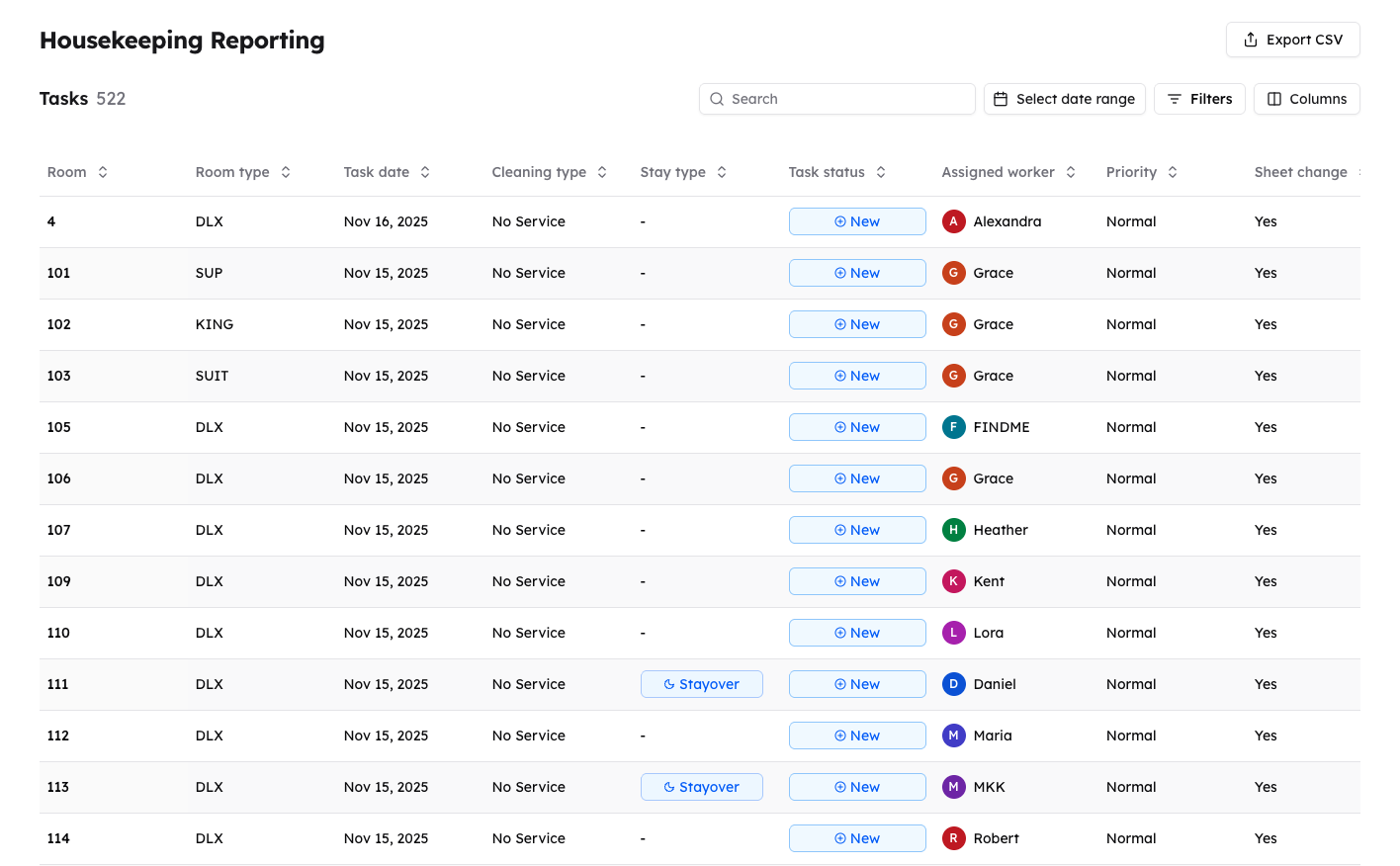
The Housekeeping Report includes the following columns:
- Room
- Room Type
- Task Date
- Cleaning Type
- State Type
- Task Status
- Assigned Worker
- Priority
- Change Sheet
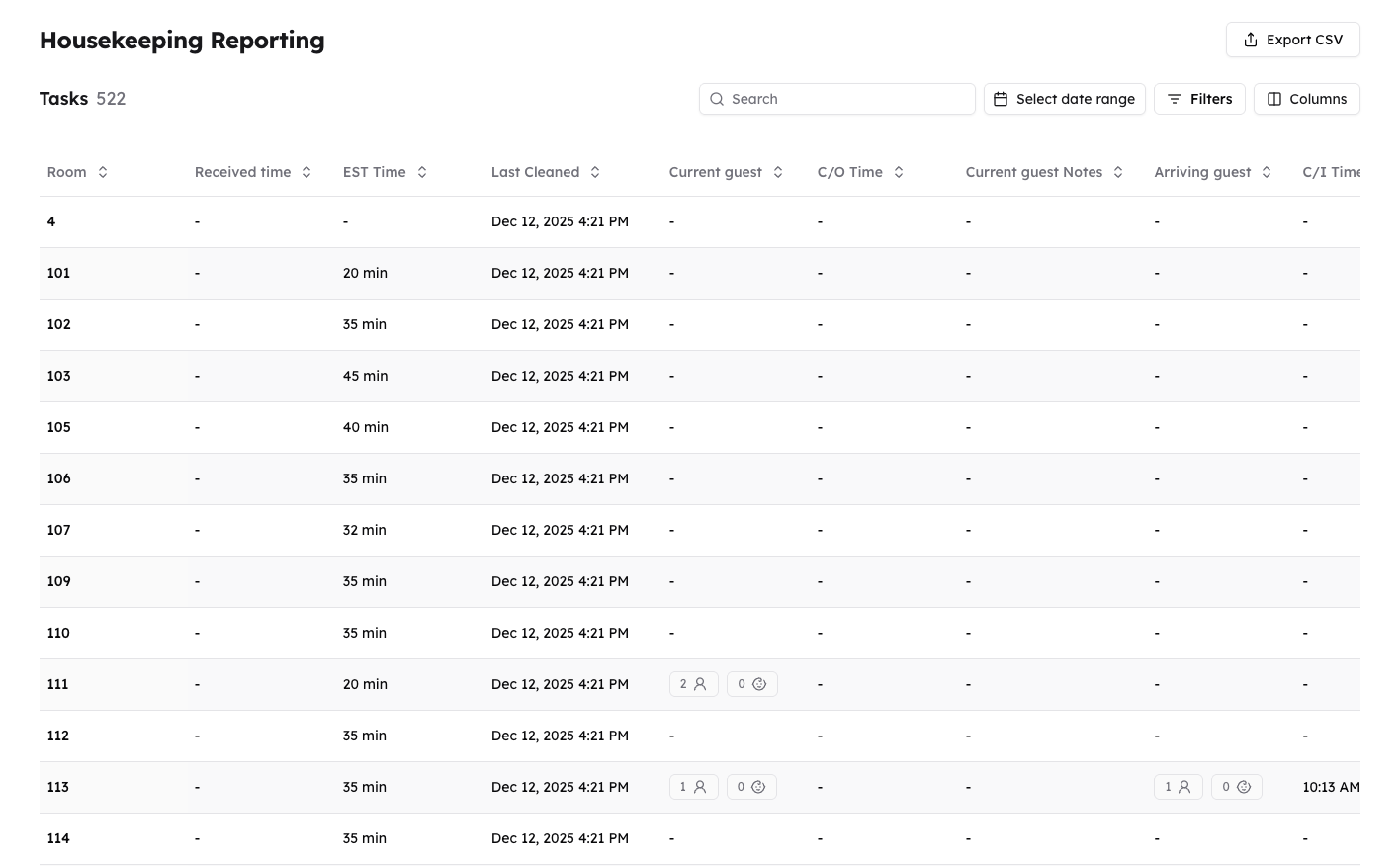
- Received Time
- Estimated Time
- Last Cleaned
- Current Guest
- Checkout Time
- Current Guest Note
- Arriving Guest
- Check-in Time
- Arrival Notes
- Inspection
- Inspection Updates
These columns allow users to view complete housekeeping and guest-related information for a specific room on a specific date.
Filtering Options
Users can refine the report using the following filters:
- Room Type
- Cleaning Type
- State Type
- Task Status
- Assigned Worker
- Priority
- Change Sheet
- Inspection
Filters can be combined to narrow down results and focus on specific tasks or conditions.
Column Customization
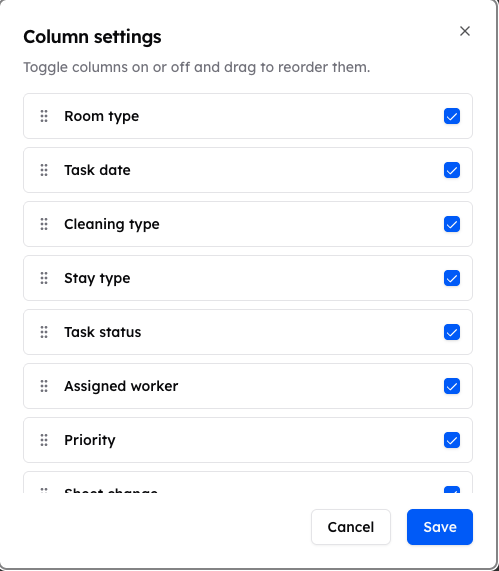
Users can control which columns are visible in the report using the Columns button.
The Columns pop-up displays a list of all available columns, each with a checkbox:
- Checked columns are displayed in the report.
- Unchecked columns are hidden from the report.
Reordering Columns
Within the Columns pop-up, users can change the order of columns.
Columns can be moved before or after others to match the user's preferred layout.
The report updates immediately to reflect the selected column order.
Exporting the Report
Users can export the Housekeeping Report by clicking the Export CSV button.
When clicked:
- A CSV file is downloaded to the user's desktop.
- The exported file includes only the columns and data currently configured and visible in the report, including applied filters and column order.
This allows users to easily share, analyze, or archive housekeeping task data outside the system.