PWA for Web
This guide explains how to install roommaster Web as a Progressive Web App (PWA) on your desktop or laptop computer.
Watch the desktop walkthrough
For a visual guide to these steps, check out the official roommaster Web PWA desktop tutorial: roommaster Web PWA for web.
What is a PWA?
A Progressive Web App (PWA) is a web application that can be installed on your device and used like a native desktop application. PWAs offer:
- Desktop integration - App icon on your desktop and taskbar
- Native-like experience - Smooth performance and app-like interface
- Automatic updates - Always get the latest version automatically
System Requirements
- Windows: Chrome, Edge, or Firefox (latest versions)
- macOS: Chrome, Safari, or Edge (latest versions)
- Linux: Chrome, Firefox, or Edge (latest versions)
Installing roommaster Web PWA
Step 1: Open roommaster Web
- Navigate to your roommaster Web URL in your browser: www.app.innquest.com/login
- Log in to your account
Step 2: Install the PWA
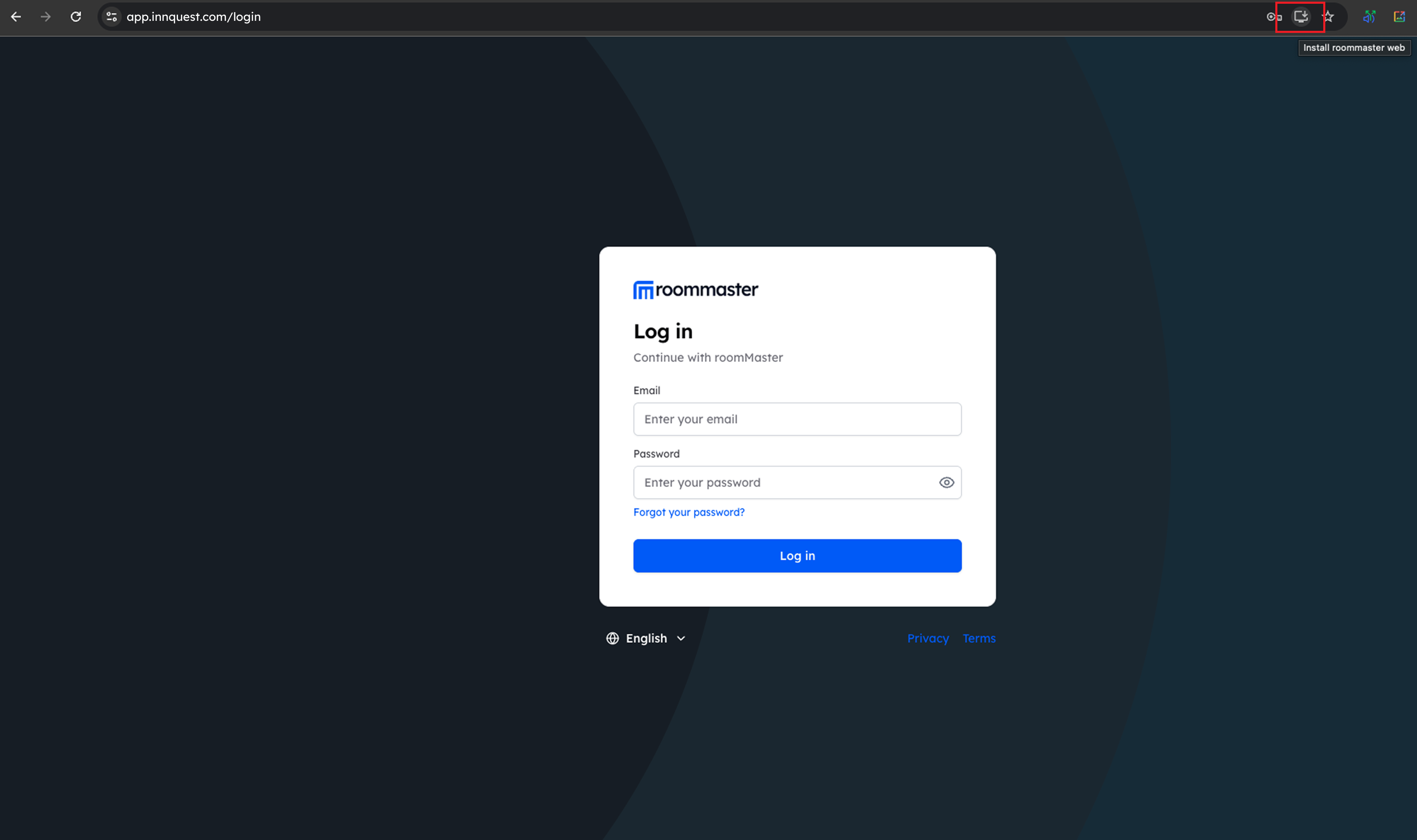
Chrome:
- Look for the Install button in the address bar
- Click Install or Install roommaster Web
- Click Install in the confirmation dialog
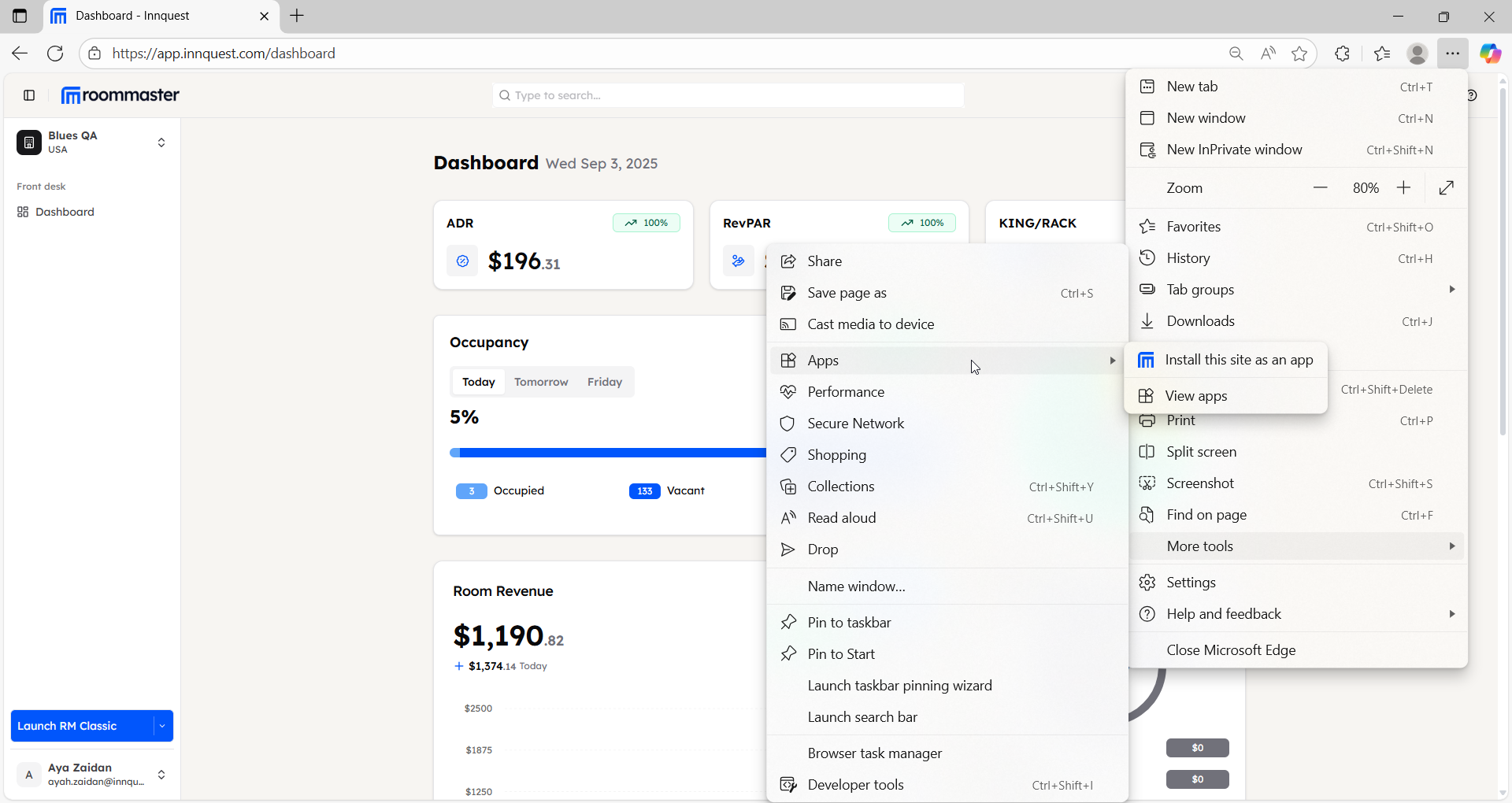
Edge:
- Click the three dots menu in the top right corner
- Go to More tools > Apps > Install this site as an app
- Click Install in the confirmation dialog
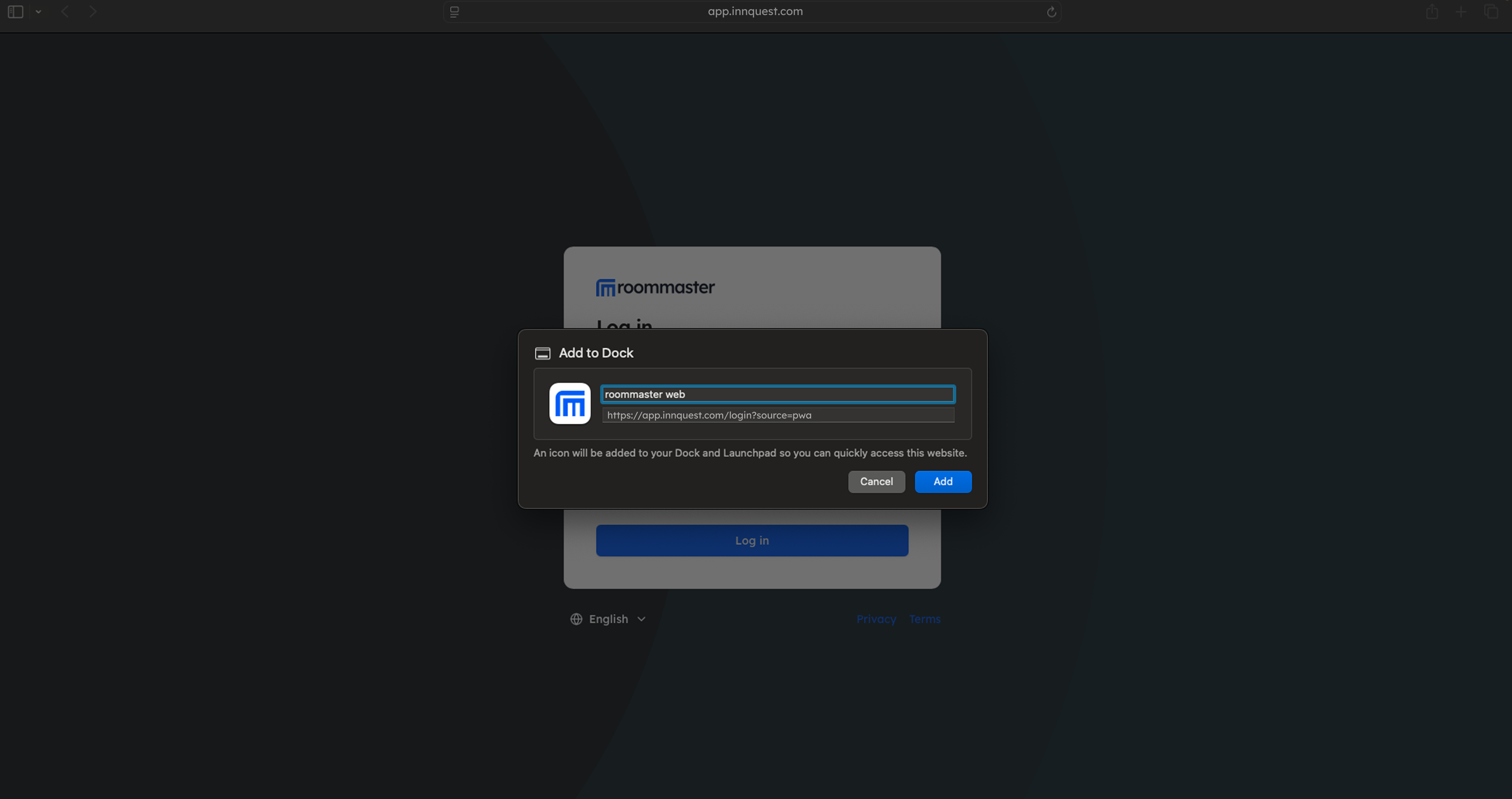
Safari (macOS):
- Click Share button in the toolbar
- Select Add to Dock or Add to Home Screen
Step 3: Launch the PWA
After installation, you can launch roommaster Web from:
- Your desktop shortcut
- Your taskbar/dock
- Your applications menu
- The Start menu (Windows)
Troubleshooting
PWA Not Installing
- Check browser compatibility - Ensure you're using a supported browser
- Clear browser cache - Try clearing your browser's cache and cookies
- Check permissions - Ensure your browser allows PWA installation
- Update browser - Make sure you're using the latest browser version
Support
For PWA installation assistance, please contact our support team at support@roommaster.com or visit our Knowledge Base.