Staff
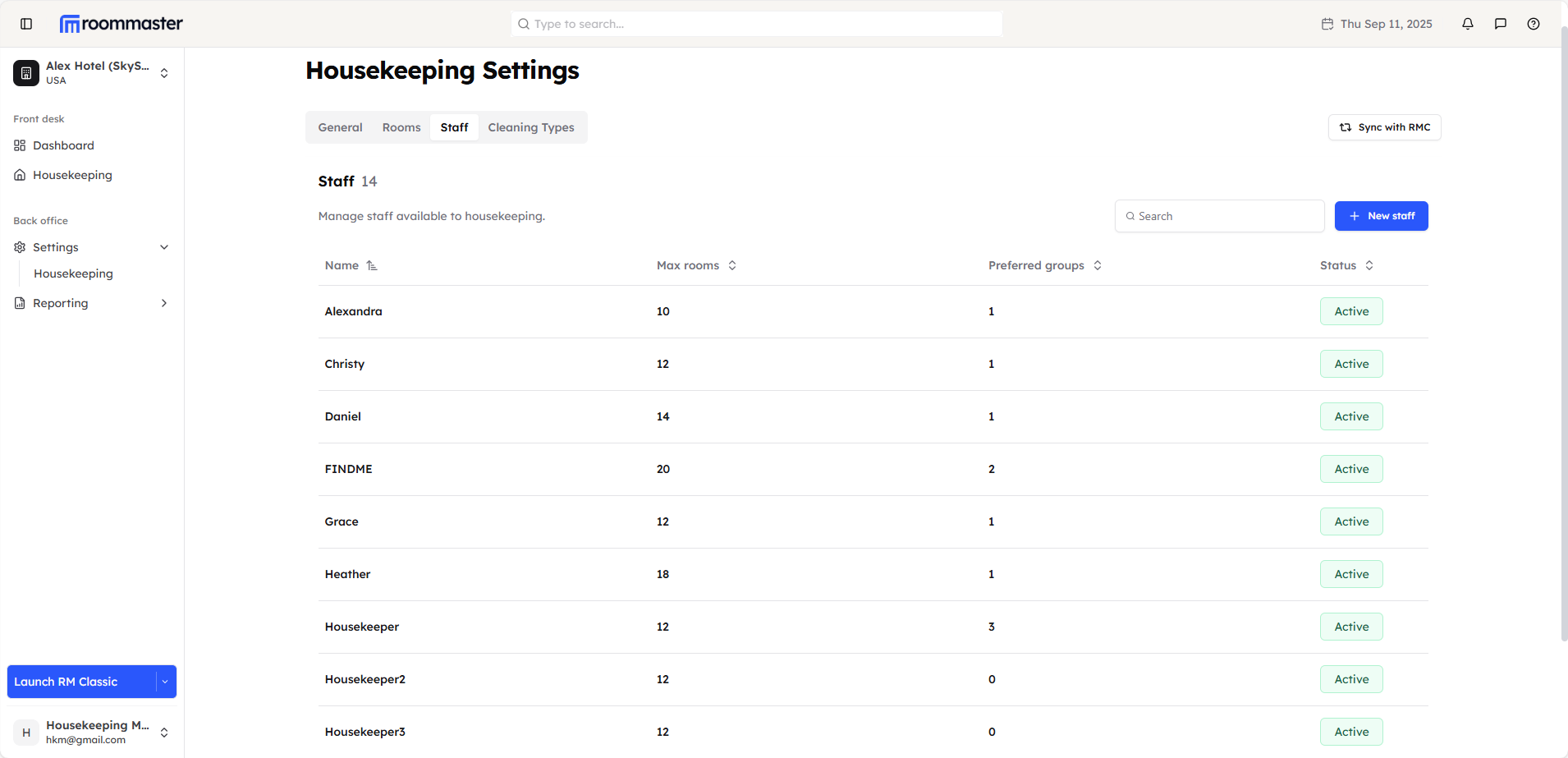
This article explains how to manage housekeeping staff through the Staff tab in Housekeeping Settings. The staff page displays all housekeeping staff imported from RMC, plus the ability to create new staff and manage existing ones.
Staff Overview
In the Staff tab, you will see all the housekeeping staff that you imported from RMC. The table displays:
- Staff name
- Maximum workload capacity
- Preferred groups to clean
- Current status (Active/Inactive)
Creating New Staff
To add a new housekeeping staff member:
- Click on the + New Staff button
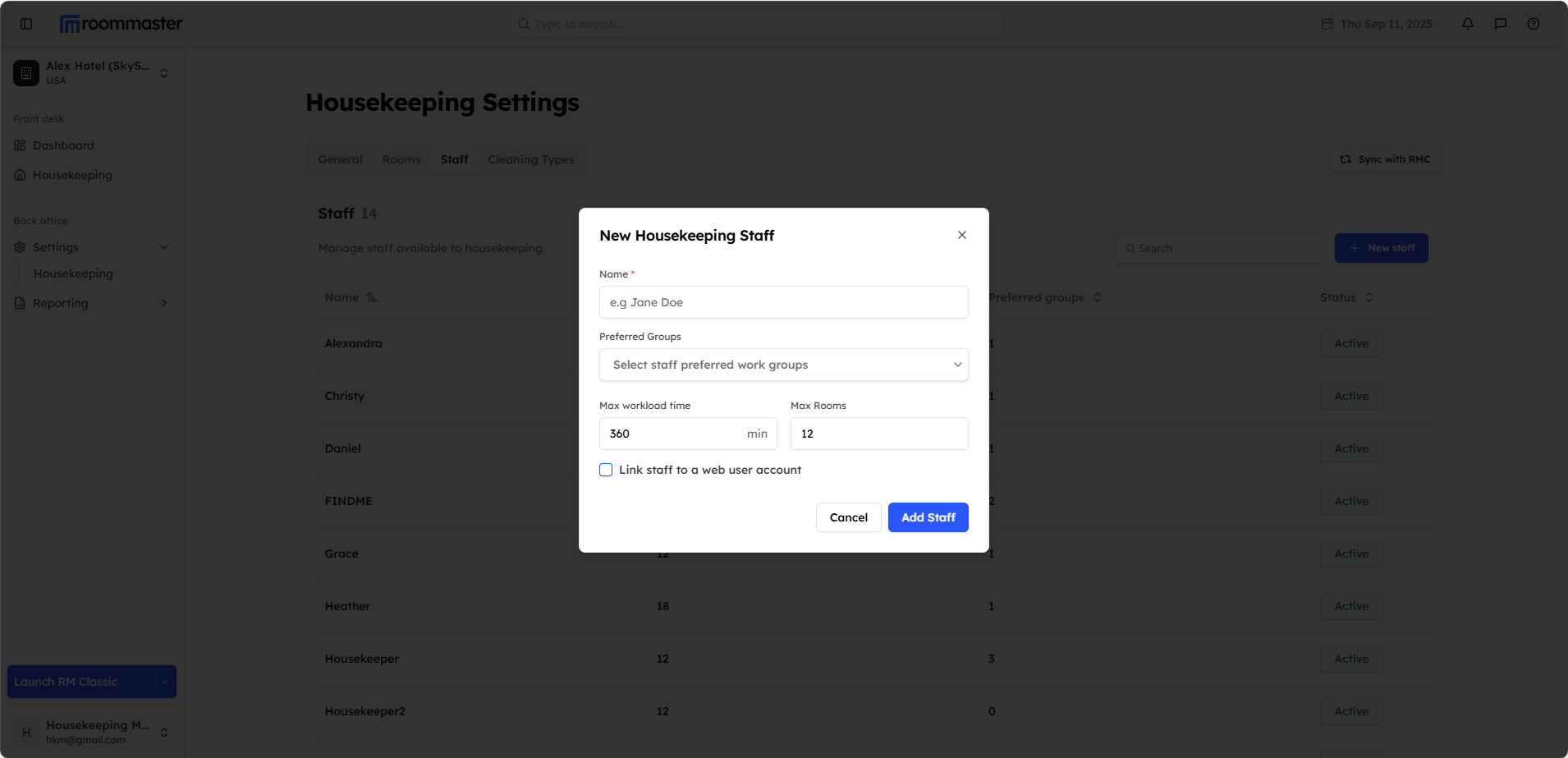
- A modal will display with fields to fill in:
- Staff Name - Full name of the housekeeping staff member
- Preferred Groups - Groups/zones the group prefers to clean
- Max Workload Time - Maximum cleaning time capacity
- Max Rooms - Maximum number of rooms they can clean per day
- Link Staff to Web User Account - Optional checkbox to link with roommaster web user
Linking Staff to Web User Account
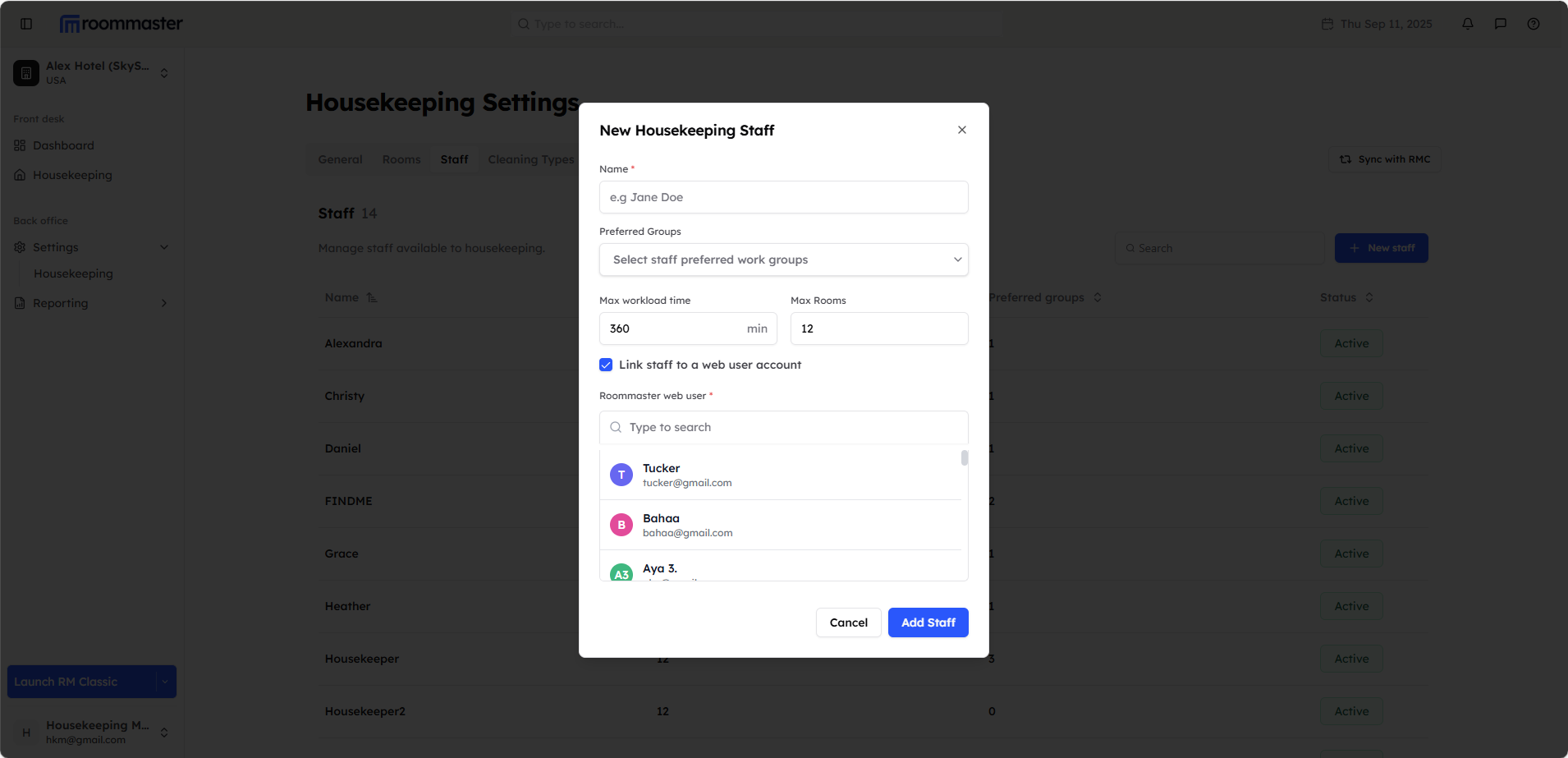
When checking the "Link staff to a web user account" box:
- You can choose an existing roommaster web user account
- This creates a connection between the staff member and their web profile
- Refer to the Housekeeper Account Setup guide for detailed linking instructions
Editing Staff Information
To modify existing staff details:
- Click on the staff member's name in the table
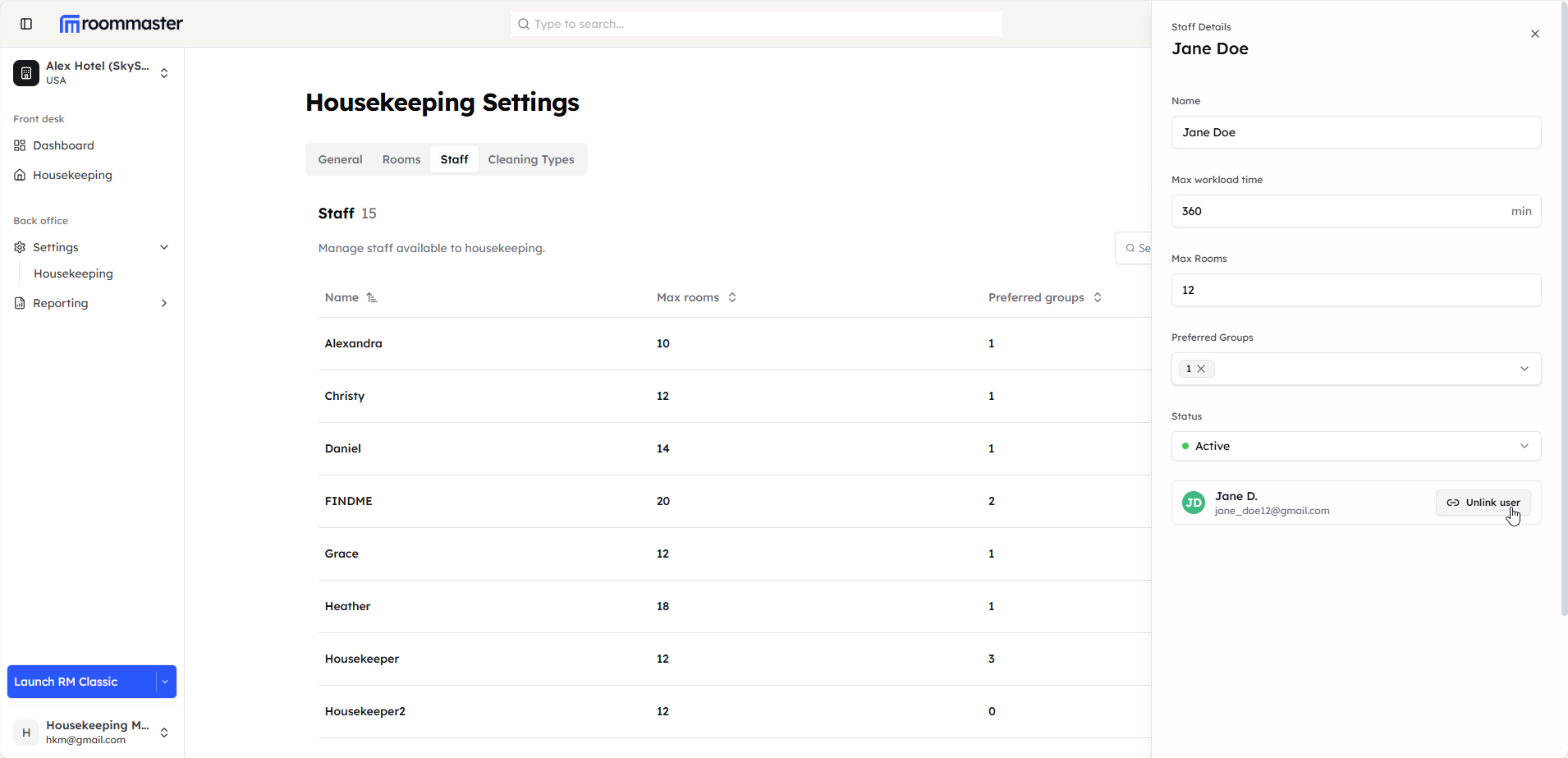
- A side panel will open showing staff details
- You can edit the following fields:
- Staff Name - Update the full name
- Max Workload Time - Adjust cleaning time capacity
- Max Rooms - Modify daily room cleaning limit
- Preferred Groups - Change zone/group preferences
- Status - Switch between Active/Inactive
Staff Status Management
Activating/Deactivating Staff
- Active Status - Staff member can be assigned to room cleaning tasks
- Inactive Status - Staff member cannot receive task assignments
Linking and Unlinking Web Users
Link Staff to Web User
From the staff details panel, you can connect staff members to roommaster web user accounts for seamless access management.
Refer to the Housekeeper Account Setup page for detailed instructions on linking and managing staff accounts.
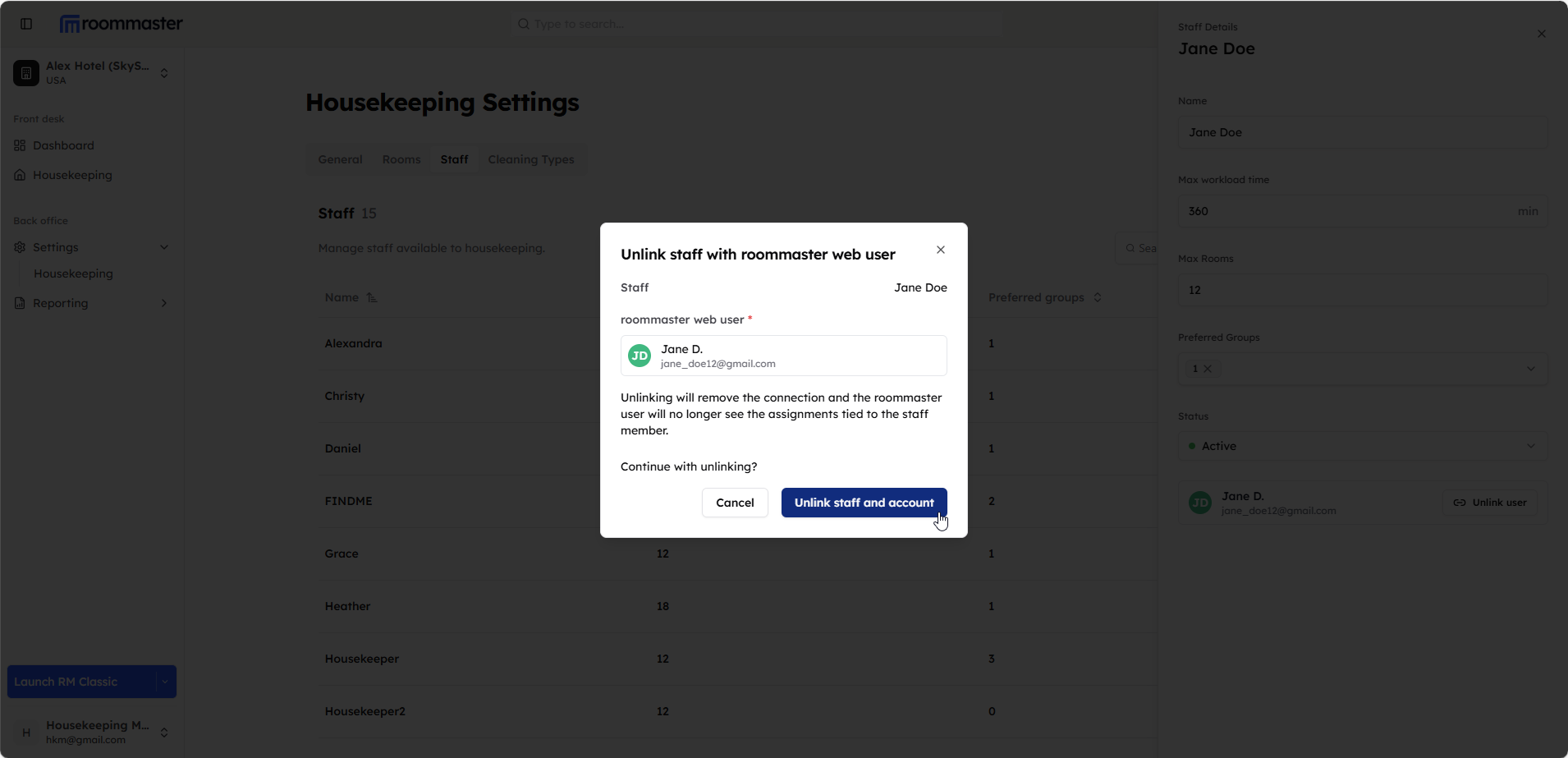
Unlinking Staff from Web User
To disconnect staff from their web user account:
- Go to the staff member you want to unlink in the staff table
- Click on the Unlink button
- A confirmation modal will be displayed
- Click Unlink Staff to complete the process
- The staff will be unlinked from the roommaster web user
Still Need Help?
If you're having trouble managing staff:
- Ensure you have the proper permissions for staff management
- Check the Housekeeper Account Setup for user account linking details
- Contact support at support@roommaster.com or visit our Knowledge Base