Housekeeper Account Setup
This article provides a step-by-step guide for creating and configuring staff accounts specifically for housekeeping personnel. This process involves two main steps: creating the user account in roommaster cloud and linking it to the housekeeping staff profile in roommaster web.
Overview
The housekeeper account setup process ensures that:
- Housekeeping staff have appropriate access permissions
- Staff accounts are properly linked to their housekeeping profiles
Prerequisites
- Manager-level access to roommaster cloud
- Housekeeping module must be imported and configured
Step 1: Create User Account in roommaster cloud
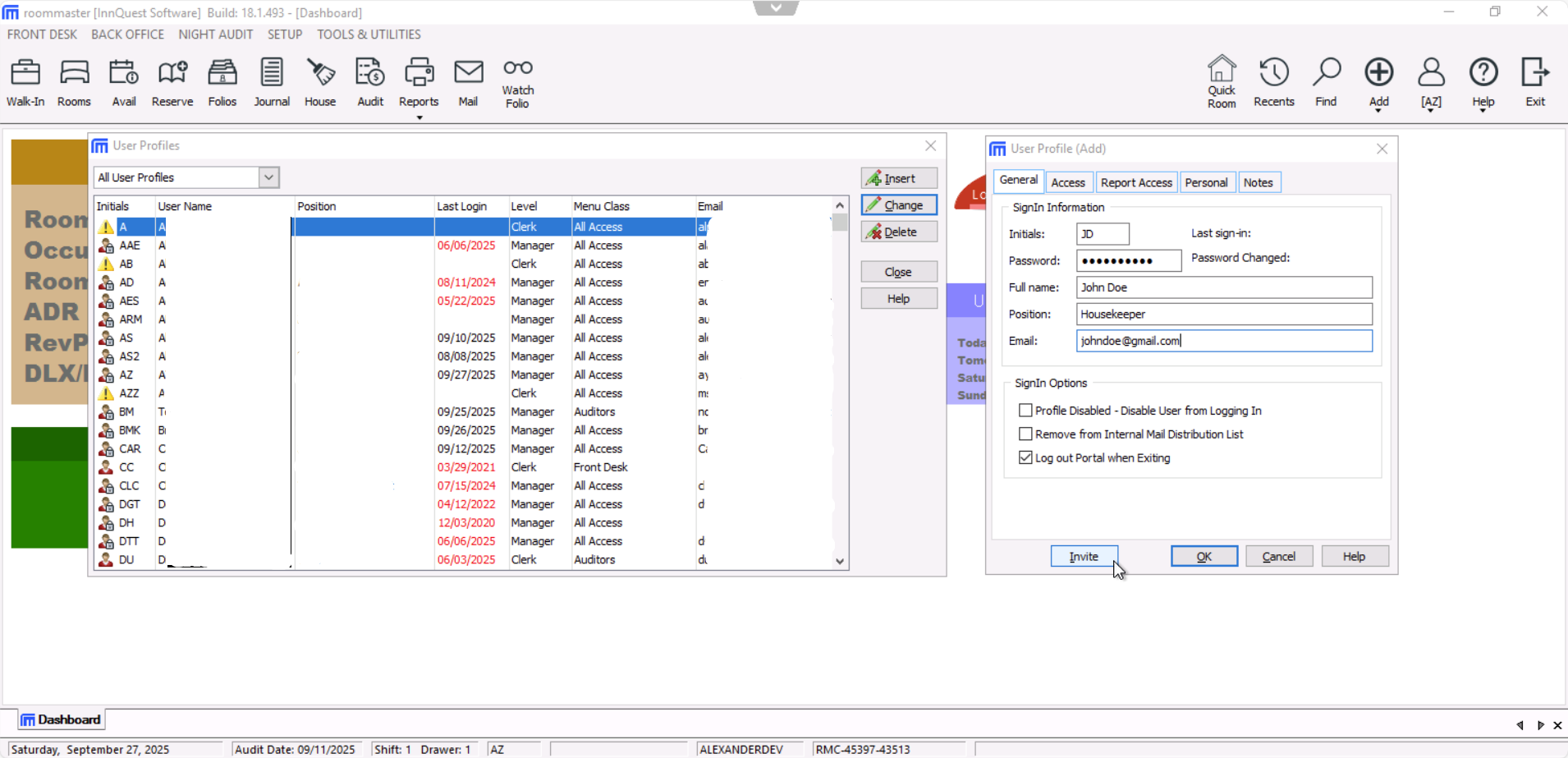
1.1 Launch roommaster cloud and create new user
- Launch the roommaster cloud application
- Navigate to User Profiles
- Click Insert to create a new user account
1.2 Fill Housekeeper Information
- Complete the housekeeper's basic information in the required fields.
1.3 Configure Access Permissions
- Navigate to the Access tab
- Set the Menu Class to "Housekeeper"
- In the Special Permissions section, remove all default user permissions
- Set "Assign room during reservation" to No Access
- Navigate to the Report Access tab
- Uncheck all given permissions to restrict report access
1.5 Send Invitation
- Click the Invite button at the bottom of the modal
- The housekeeper will receive an invitation email
1.6 Housekeeper Account Creation
The housekeeper must:
- Follow the process in the invitation email
- Create their account
- Accept the property's invitation
Step 2: Link Account in roommaster web
2.1 Navigate to Housekeeping Settings
- Go to roommaster web
- Navigate to Housekeeping Settings
- Open the Staff tab
2.2 Check for Existing Staff Profile
- Review the staff table to check if the housekeeper already has a profile (imported from roommaster cloud)
- If the profile exists, proceed to Step 2.4
- If no profile exists, proceed to Step 2.3
2.3 Create New Staff Profile (if needed)
- Click "+ New Staff" button
- Fill in the required staff information:
- Staff name
- Maximum rooms per day
- Preferred group
- Status (Active)
- Click Add Staff to save
2.4 Link Staff to roommaster web User
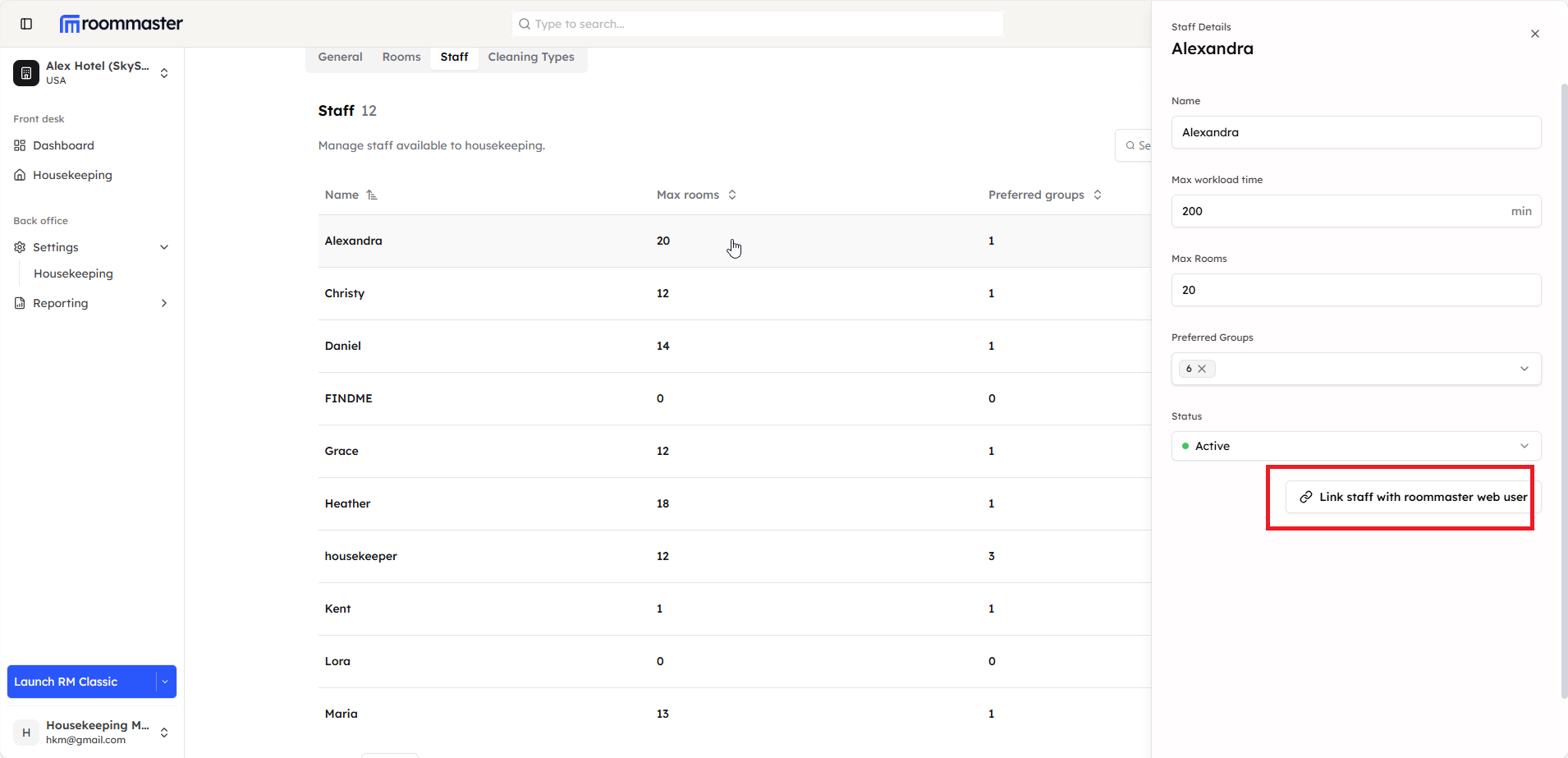
- Click on the staff member to open a side panel with the staff information
- Click "Link staff to roommaster web user" button
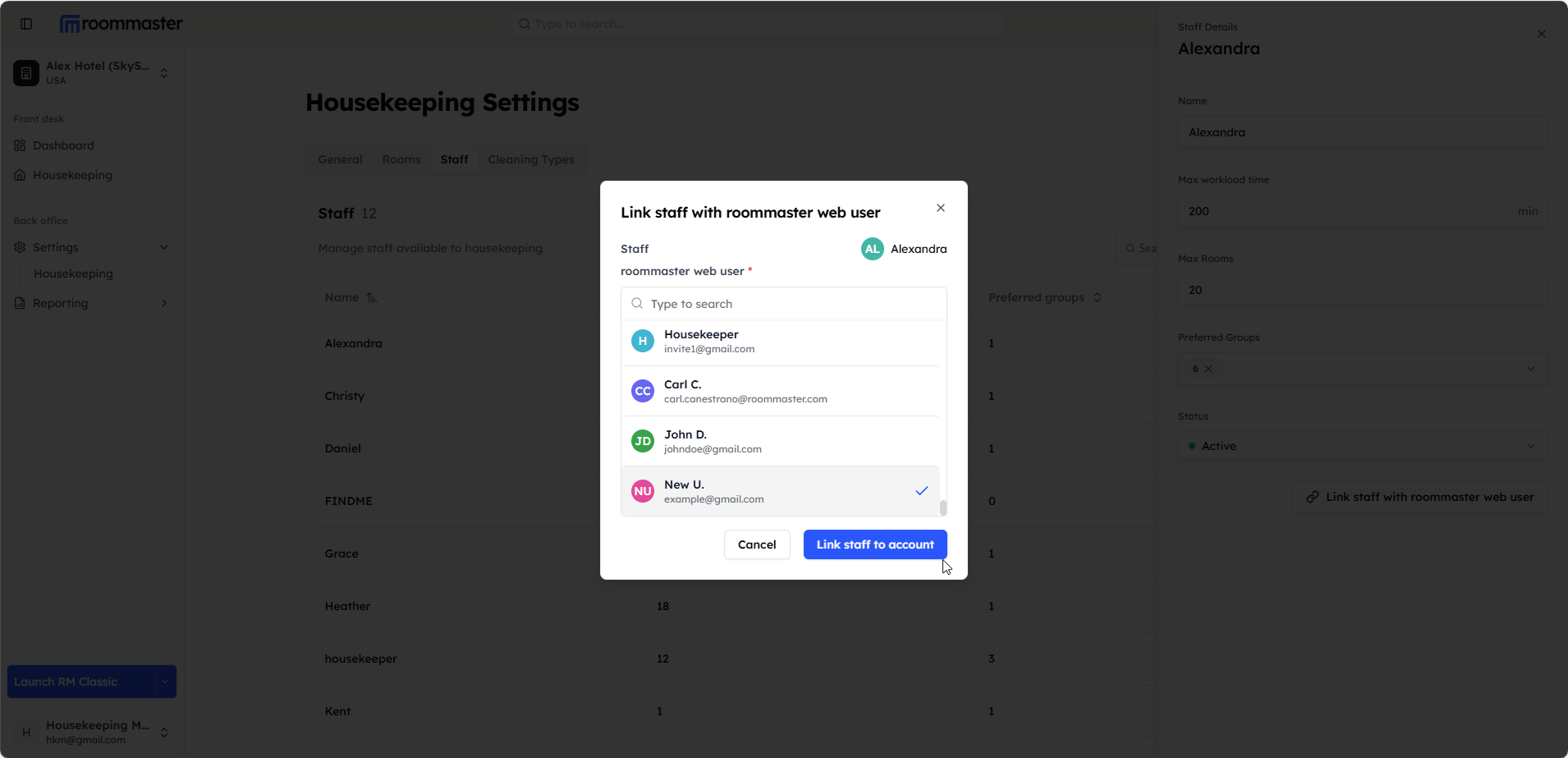
- A modal will open showing:
- The housekeeper's username
- List of available roommaster web users
- Select the appropriate roommaster web user account
- Click "Link staff to account"
Validation Steps
Verify Account Linking
To confirm the account setup is complete and functional:
- Refresh the page in roommaster web
- Open the staff's profile for the housekeeper
- Check the bottom of the profile - the email of the roommaster web user should be displayed
- Test login - the housekeeper should be able to log into roommaster web with their credentials
- Verify permissions - confirm the housekeeper only has access to housekeeping functions
warning
- Never assign administrative permissions to housekeeper accounts
Still Need Help?
If you're having trouble with the housekeeper account setup process:
- Ensure you have the proper manager-level permissions
- Verify the housekeeping module is properly imported
- Contact support at Support@roommaster.com or visit our Knowledge Base