Auto-Assignment Wizard
Overview
The Auto-Assignment Wizard helps users quickly and efficiently assign rooms to housekeeping staff based on predefined rules and configurations. The wizard guides the user through a step-by-step process to select rooms, choose staff, apply assignment logic, and review or adjust the final assignments before confirming.
Accessing Auto-Assignment
Click the Auto-Assignment button from the housekeeping screen.
The Auto-Assignment Wizard opens and starts at Step 1.
Step 1: Select Rooms
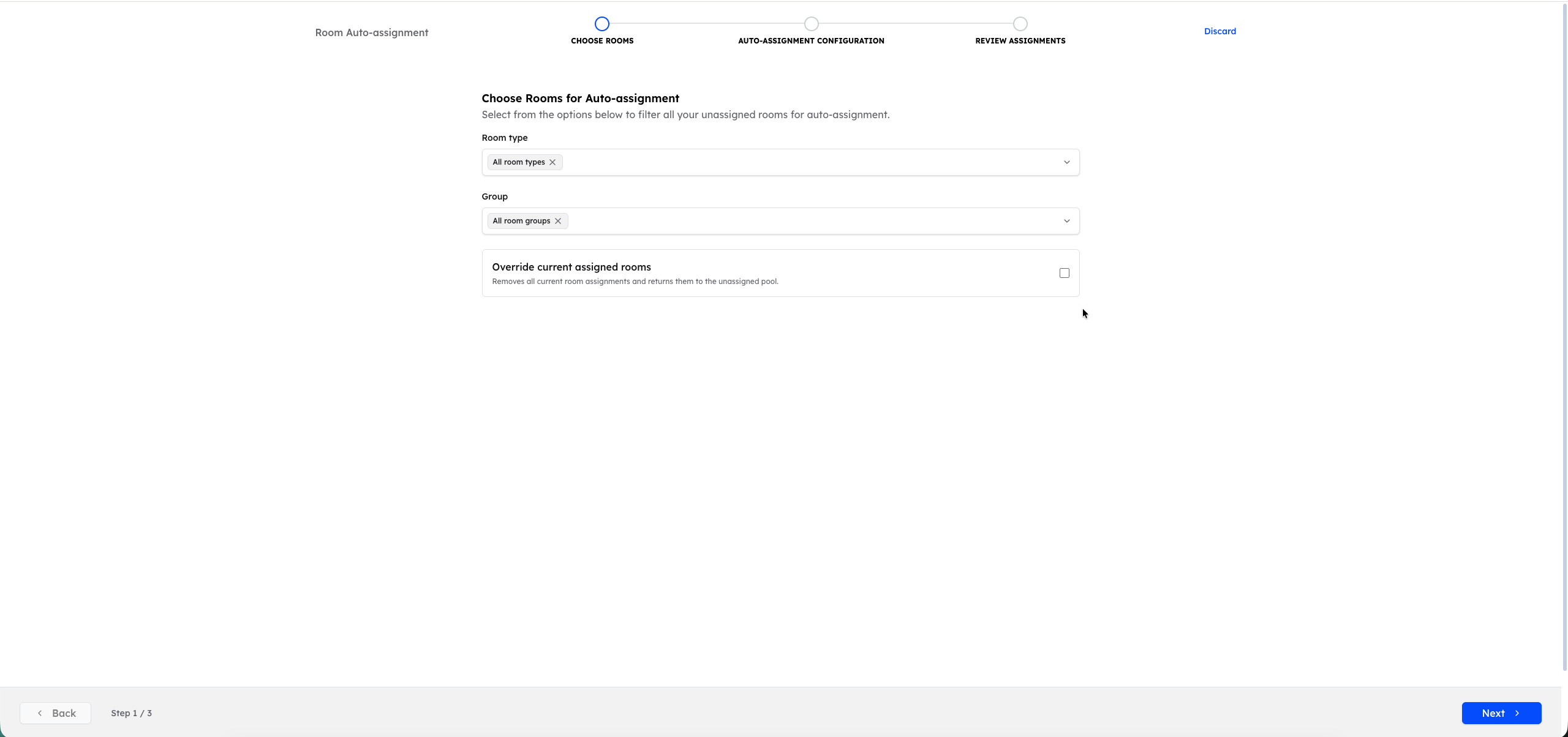
In the first step, the user defines which rooms will be included in the auto-assignment process.
Room Selection Options
- Room Types: Select the room types that need to be cleaned.
- Room Groups: Select the room groups to include in the assignment.
Override Current Assignments
Override Current Assigned Rooms option:
- When enabled, all existing room assignments are removed.
- Rooms are returned to the Unassigned Rooms pool.
- The system then reassigns rooms based on the selected auto-assignment configuration.
Click Next to proceed to Step 2.
Step 2: Select Staff & Assignment Configuration
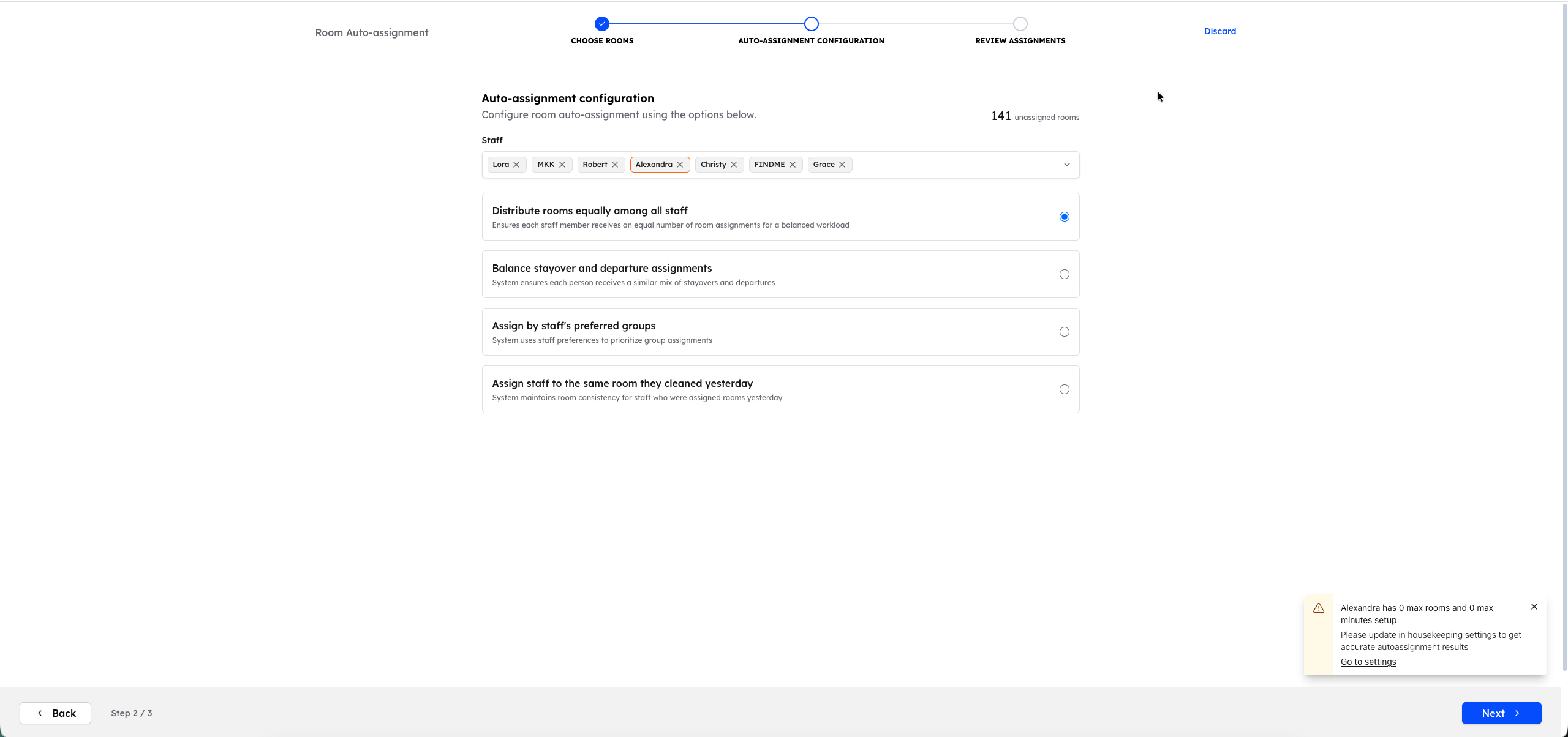
In this step, the user selects the staff members who will receive room assignments and chooses how rooms should be distributed.
Staff Selection
Select the housekeeping staff to be included in the auto-assignment.
Auto-Assignment Configuration Options
The user can choose one of the following assignment strategies:
Distribute Rooms Equally Among All Staff
- Ensures each staff member receives an equal number of rooms.
- Designed to create a balanced workload.
Balanced Stayover and Departure Assignments
- Ensures each staff member receives a similar mix of stayover and departure rooms.
Assign by Staff's Preferred Group
- Uses staff preferences to prioritize room group assignments.
Assign Staff to the Same Rooms Cleaned Yesterday
- Maintains room consistency by assigning staff to rooms they cleaned the previous day, when possible.
Staff Configuration Validation
If a housekeeper is not properly configured (missing a maximum room limit or maximum time limit):
- A pop-up is displayed indicating that the housekeeper must be configured before rooms can be assigned.
Click Next to proceed to Step 3.
Step 3: Review Assignments
The final step allows the user to review, adjust, and finalize room assignments.
Assignment Overview
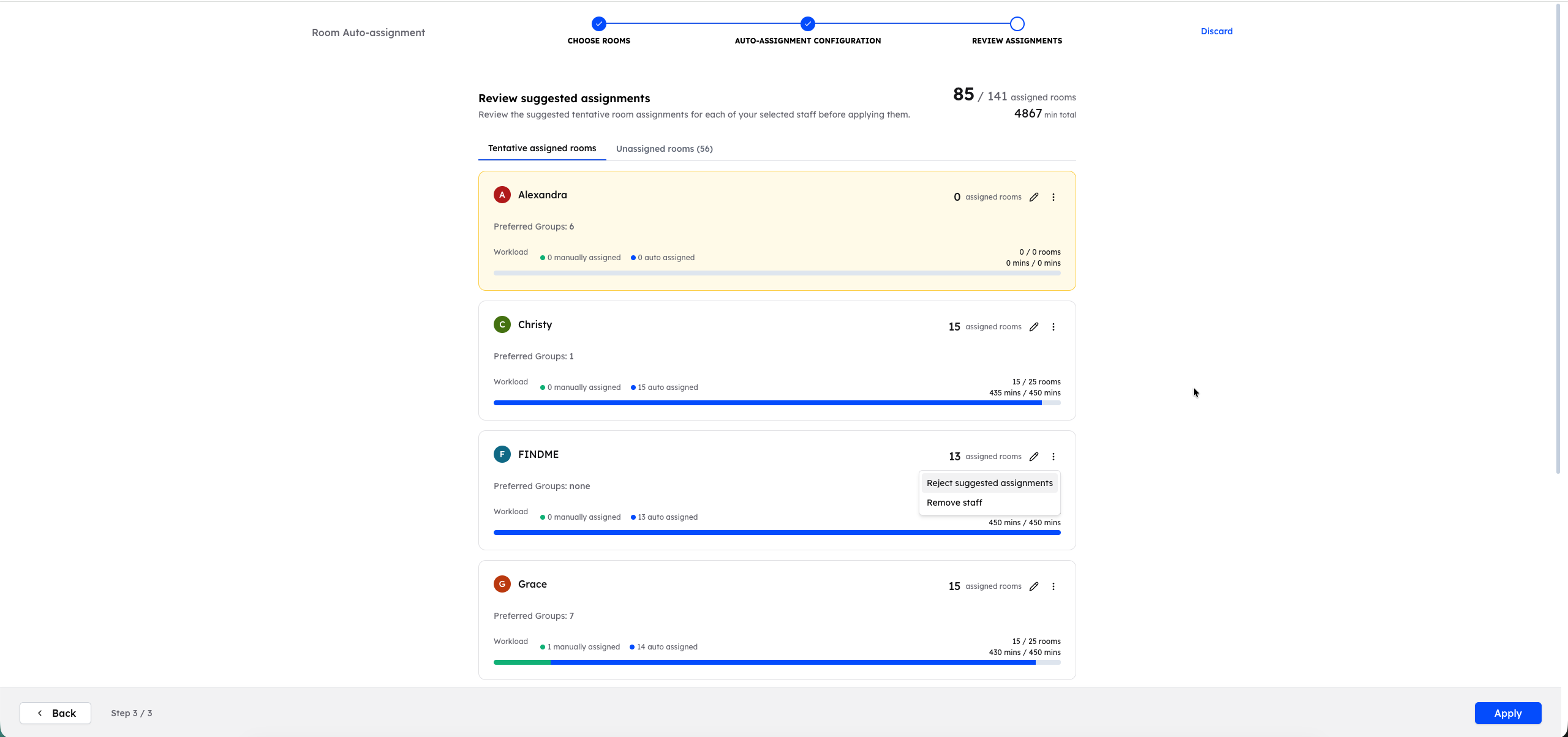
- Rooms are distributed among staff based on the selected auto-assignment configuration.
- Housekeepers who are not properly configured will appear with zero assigned rooms.
- Users can still manually assign rooms to these housekeepers if needed.
Viewing Assigned Rooms
Click on an individual housekeeper to view the list of rooms assigned to them.
Manual Adjustments
The following actions are available in the review step:
Transfer a Room
- Move a room from one housekeeper to another.
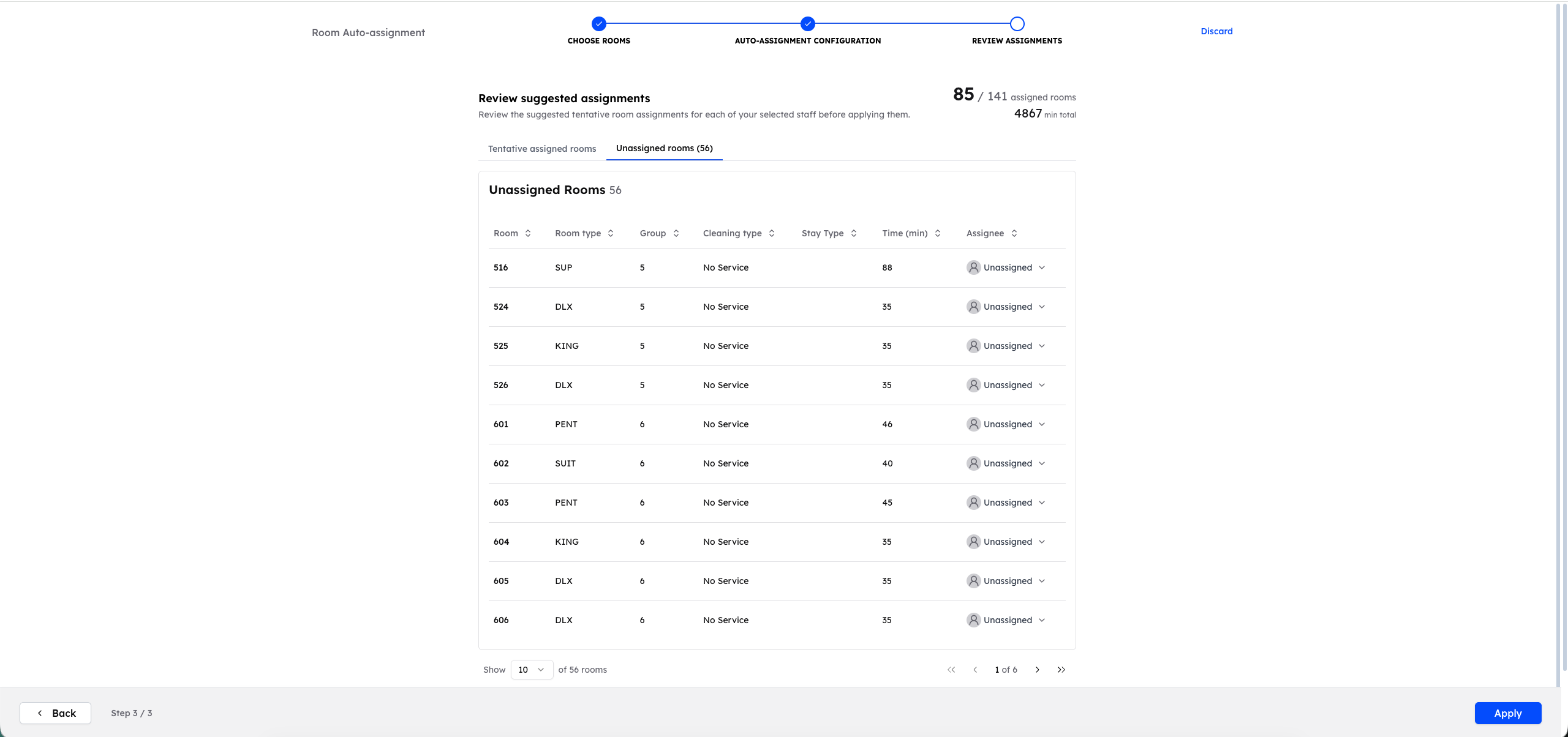
Remove a Room from a Housekeeper
- The room is removed from the staff member and returned to the Unassigned Rooms tab.
Remove a Staff Member
- Removes the staff member from the assignment list.
- All rooms assigned to that staff member are returned to the unassigned room pool.
Reject Suggested Assignment
- Removes all rooms assigned to a specific housekeeper.
- All removed rooms are returned to the unassigned room pool.
Finalizing Assignments
After reviewing and adjusting assignments, the user can proceed to confirm and apply the auto-assignment.
The Auto-Assignment Wizard provides flexibility by combining automated logic with manual control, ensuring assignments can be tailored to operational needs.