Marking Rooms as Clean/Dirty
This article explains how to manually mark rooms as clean or dirty in the roommaster Web housekeeping module without going through the standard task workflow.
Overview
The marking rooms as clean/dirty feature allows housekeeping managers to quickly update room statuses without creating tasks or assigning housekeepers. This is useful for situations where rooms need immediate status changes without going through the complete housekeeping workflow.
Mark Room as Dirty
When Available
The "Mark as Dirty" button is available when:
- Room Status: Clean
- Task Status: No active task
Process
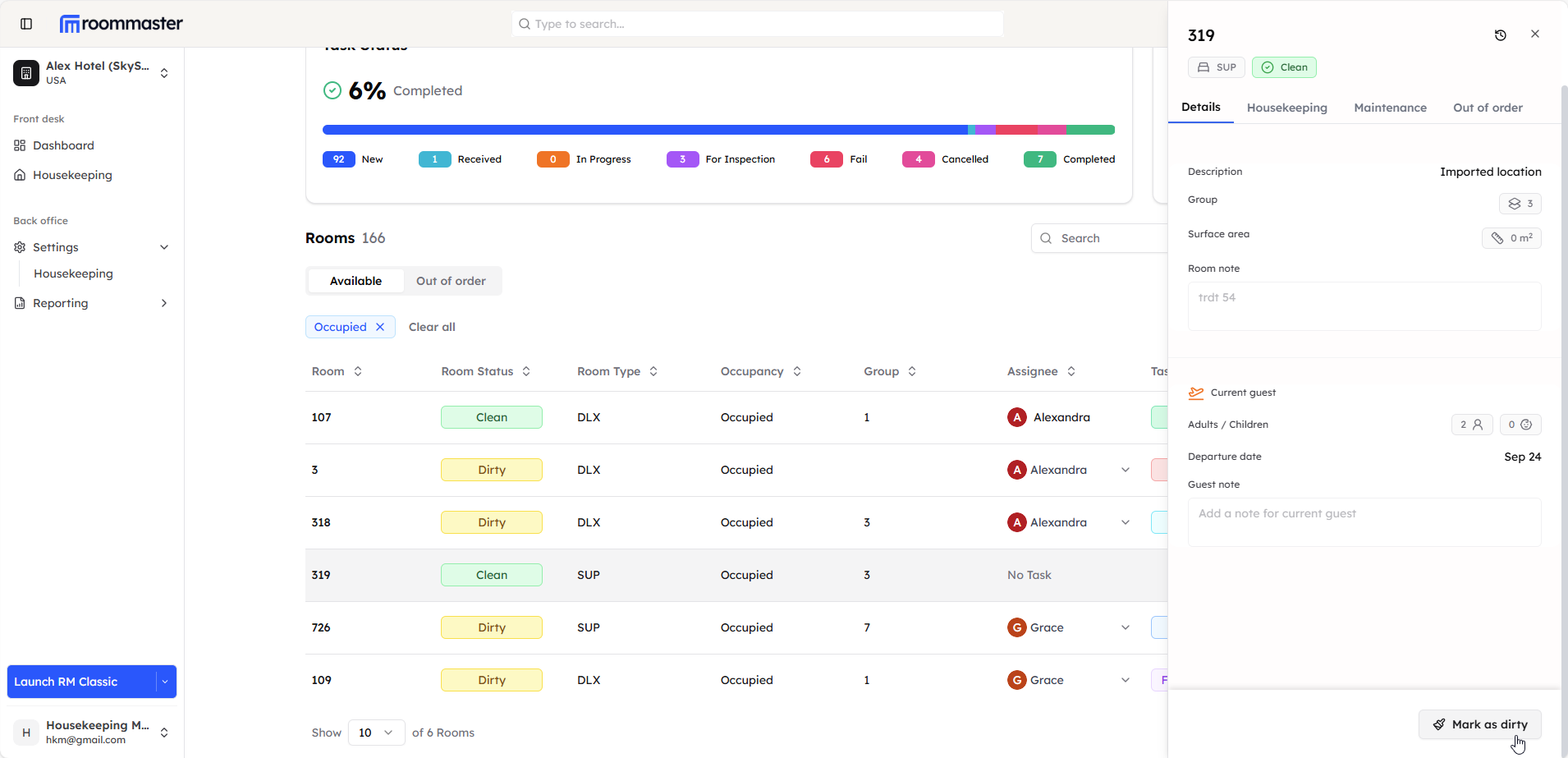
- Navigate to Room List - Go to the room list view
- Click on Room - Click on the room you want to mark as dirty
- Open Room Details - The room side panel will open showing room information
- Access Details Tab - Navigate to the details tab of the room side panel
- Click Mark as Dirty - Click the "Mark as Dirty" button
Result
After clicking "Mark as Dirty":
- Room Status - Changes from "Clean" to "Dirty"
- No Task Created - No housekeeping task is automatically created
- No Assignment - Room is not assigned to any housekeeper
- Manual Management - Room can be manually assigned later if needed
Mark Room as Clean
When Available
The "Mark Room as Clean" button is available when:
- Room Status: Dirty
- Room Occupancy: Vacant (not occupied)
- Task Status: No active housekeeping task OR has a cancelled task
Process
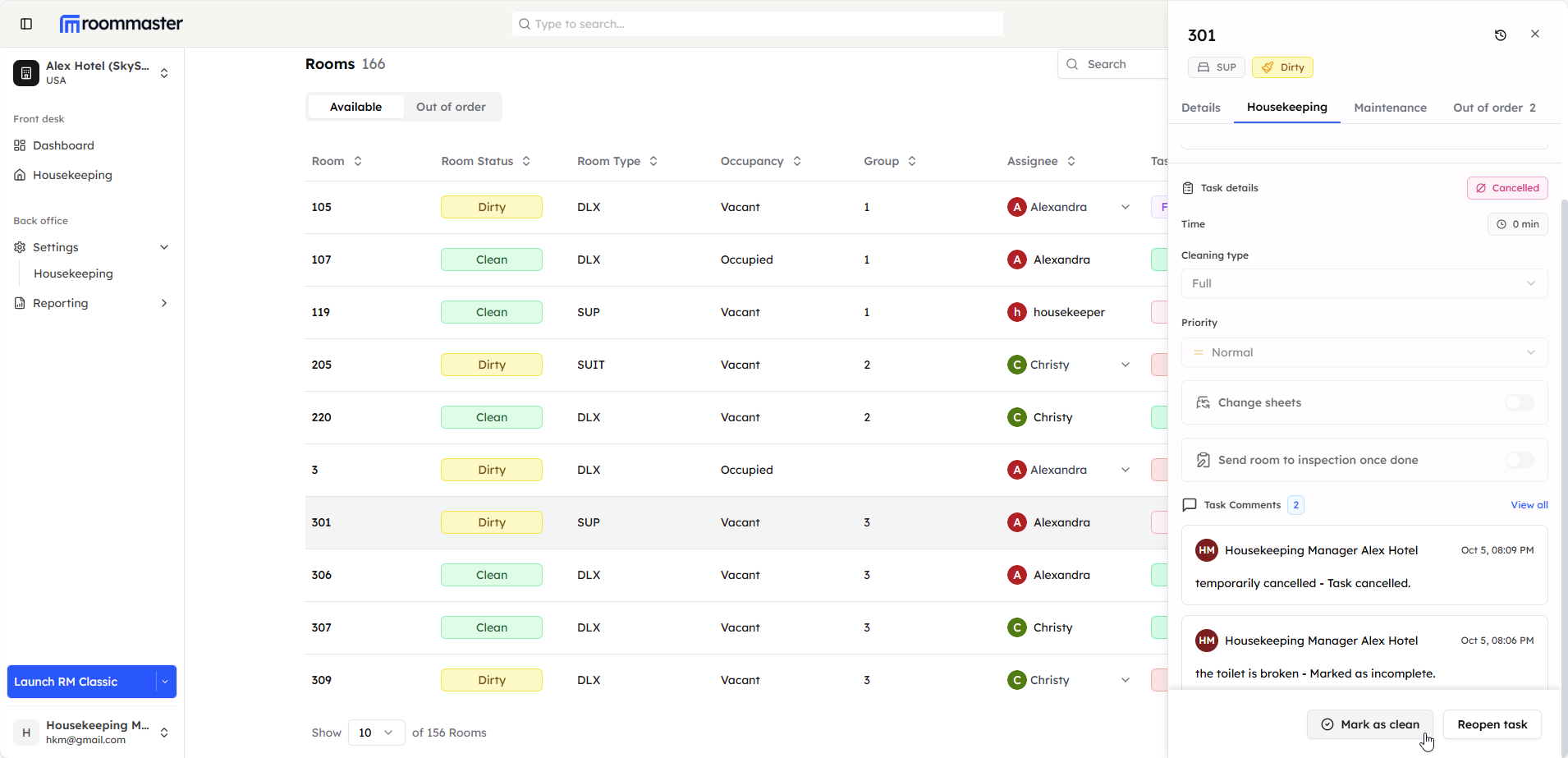
- Navigate to Room List - Go to the room list view
- Click on Room - Click on the room you want to mark as clean
- Open Room Details - The room side panel will open showing room information
- Access Housekeeping Tab - Navigate to the housekeeping tab
- Click Mark as Clean - Click the "Mark Room as Clean" button at the bottom of the housekeeping tab
Result
After clicking "Mark Room as Clean":
- Room Status - Changes from "Dirty" to "Clean"
- No Task Required - No housekeeping task completion is required, and if task is cancelled, the task status remains the same
- Immediate Update - Room status is updated immediately
Use Cases
Mark as Dirty Scenarios
- Guest Complaints - Room needs immediate attention due to guest complaints
- Maintenance Issues - Room requires maintenance work
- Quick Status Change - Need to quickly update room status without task creation
- Emergency Situations - Urgent situations requiring immediate room status change
Mark as Clean Scenarios
- Maintenance Complete - Maintenance work has been completed
- Third Party Cleaning - Cleaning was done by a third party contractor
- Quick Cleanup - Minor cleaning completed without formal task
- Status Correction - Correcting room status that was marked dirty in error
- Emergency Cleanup - Quick cleanup completed outside normal workflow
Important Notes
System Restrictions
- Mark as Dirty - Only available for clean rooms without active tasks
- Mark as Clean - Only available for dirty, vacant rooms without active tasks
- Occupancy Check - Mark as clean requires room to be vacant
- Task Status - Both options require no active housekeeping tasks
Troubleshooting
Button Not Available
- Check Room Status - Ensure room meets the required status conditions
- Verify Occupancy - For mark as clean, ensure room is vacant
- Review Tasks - Check if there are any active housekeeping tasks
- System Refresh - Refresh the page if buttons don't appear
Still Need Help?
For additional assistance with marking rooms as clean or dirty:
- Contact support at support@roommaster.com
- Visit our Knowledge Base