Complete - Incomplete Tasks
This article explains how to complete or mark tasks as incomplete in the roommaster Web housekeeping module.
Overview
When you open a room that has a task, you have the option to complete the task or mark it as incomplete. These actions are available in the housekeeping tab and will affect both the task status and room status accordingly.
Manager Actions: As a housekeeping manager, you can perform these actions on behalf of housekeepers. This allows you to manage task completion and ensure proper workflow when housekeepers are unavailable or when you need to override task statuses for operational reasons.
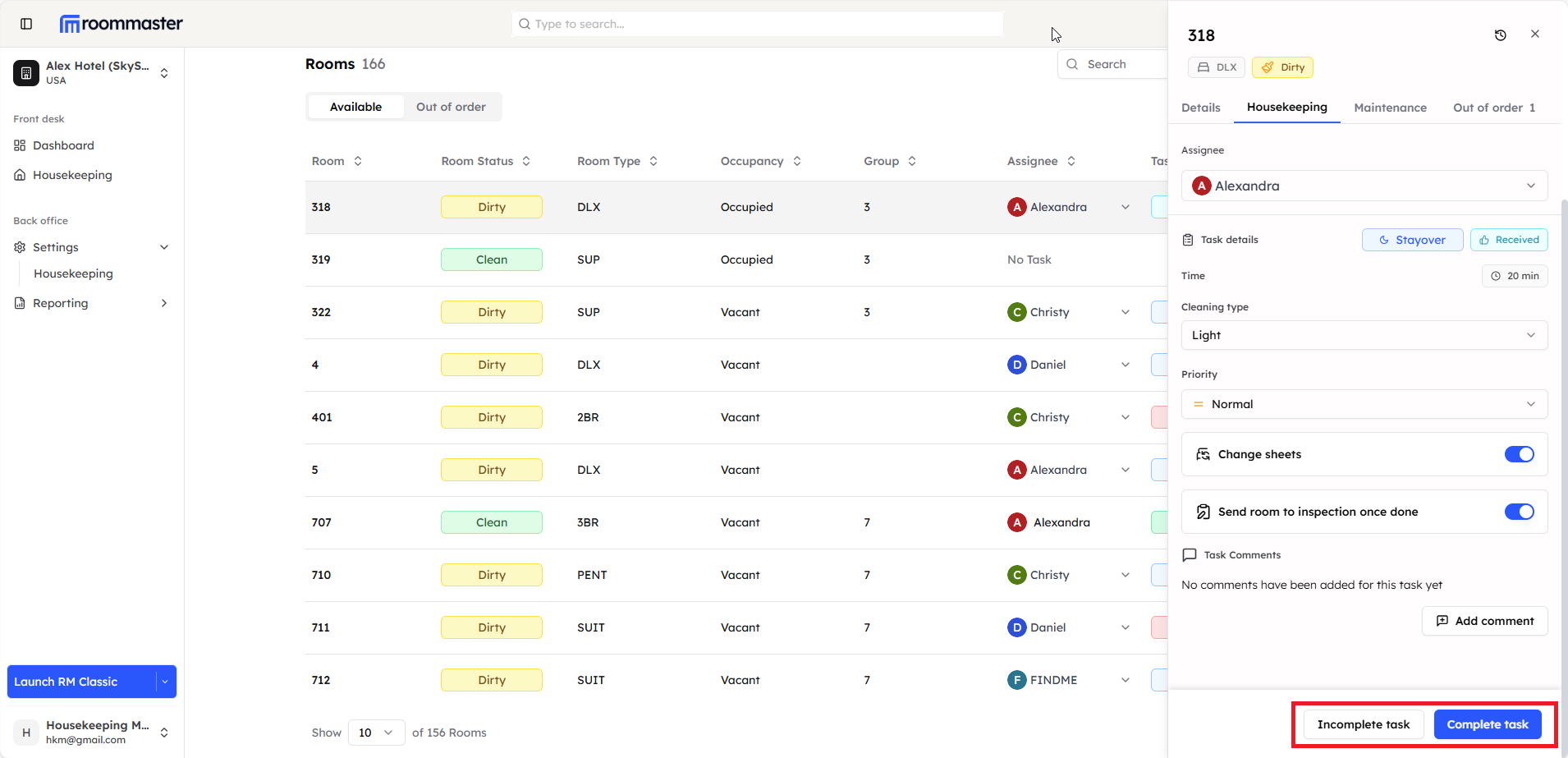
Completing a Task
Access Task Details
- Navigate to Room List - Go to the room list view
- Click on Room - Click on the room that has the task you want to complete
Complete Process
- Click Complete Button - Click the "Complete" button in the housekeeping tab
- Task Status Update - The task status will change based on inspection settings:
- Completed - If inspection is turned off for that room
- For Inspection - If inspection is turned on for that room
Room Status Update
After completing a task:
- Room Status: Clean - If task status becomes "Completed"
- Room Status: Dirty - If task status becomes "For Inspection"
Marking a Task as Incomplete
Access Task Details
- Navigate to Room List - Go to the room list view
- Click on Room - Click on the room that has the task you want to mark as incomplete
Incomplete Process
- Click Incomplete Button - Click the "Incomplete" button in the housekeeping tab
- Modal Opens - A modal will open requiring you to enter a reason
- Enter Reason - Provide a reason for marking the task as incomplete
- Confirm - Click to confirm the incomplete status
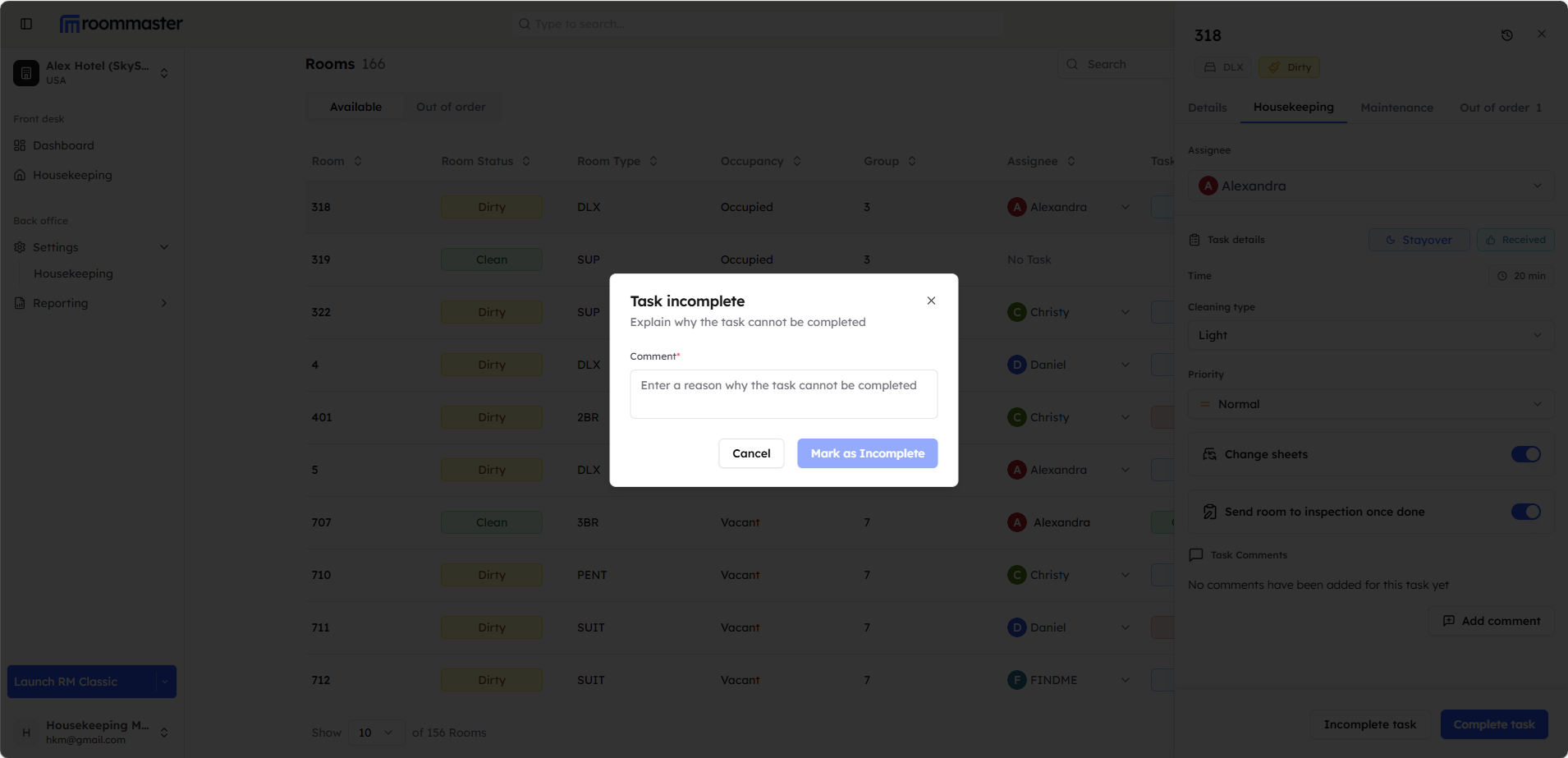
Status Updates
After marking a task as incomplete:
- Task Status - Changes to "Failed"
- Room Status - Remains "Dirty"
Post-Incomplete Actions
After marking a task as incomplete, you have two options:
Option 1: Cancel Task
- Refer to Cancel Task Page - Follow the process outlined in the cancel task documentation
- Task Status - Will change to "Cancelled"
- Room Status - Remains "Dirty"
Option 2: Keep Task Open
- Task Status - Remains "Failed"
- Room Status - Remains "Dirty"
- Future Action - Task can be completed later or reassigned
Best Practices
- Clear Reasons - Always provide detailed reasons when marking tasks as incomplete
- Timely Action - Complete or mark tasks as incomplete promptly
- Follow-up - Monitor incomplete tasks to ensure they are eventually completed
- Communication - Inform relevant staff about task status changes
Still Need Help?
For additional assistance with completing or marking tasks as incomplete:
- Contact support at support@roommaster.com
- Visit our Knowledge Base