Out of Order
This article explains how to manage rooms using the out of order feature in the roommaster Web housekeeping module for housekeeping managers.
Overview
The Out of Order feature allows housekeeping managers to temporarily remove rooms from active housekeeping operations for maintenance, repairs, or other reasons. During the OOO period, the room cannot be assigned to any housekeeping tasks. The system provides comprehensive tools for scheduling, managing, and tracking OOO periods with full historical records.
Important Note: Rooms in OOO status are moved to the Out of Order tab and cannot be used for housekeeping assignments until the OOO period ends.
Setting a Room to Out of Order
When Available
You can set a room to Out of Order:
- Starting Today - OOO periods can begin on the current date for:
- Vacant rooms
- Occupied rooms with a scheduled checkout today
- Occupied rooms where guests will be moved to another room
- Future Dates - Schedule OOO periods to start on future dates
Process
To place a room out of order:
-
Select a Room - Click on the room from the room list
-
Open Side Panel - The room record details side panel will open
-
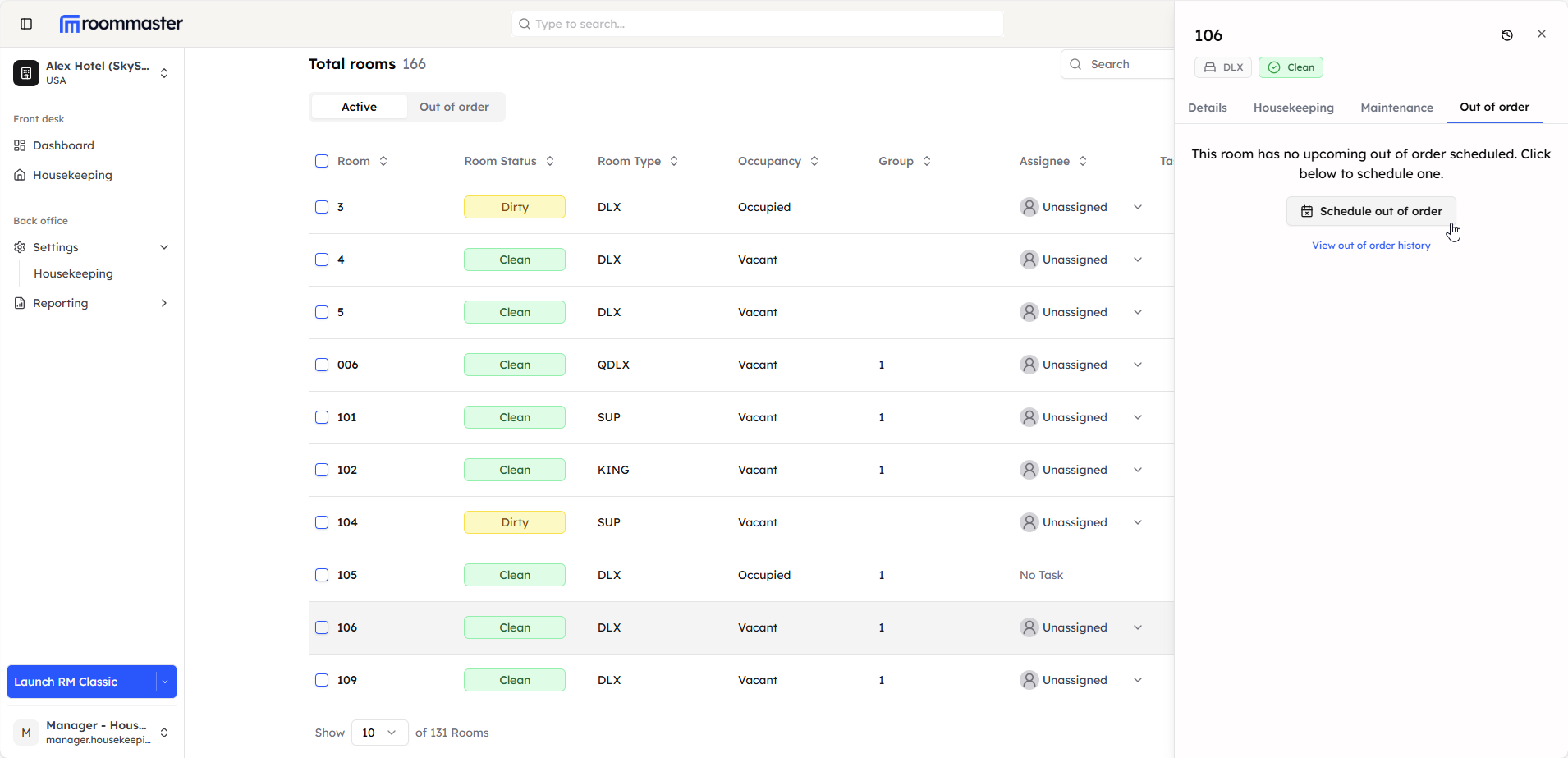
Navigate to Out of Order Tab - Click on the Out of Order tab in the side panel
-
Click Schedule Out of Order - Click the Schedule Out of Order button
-
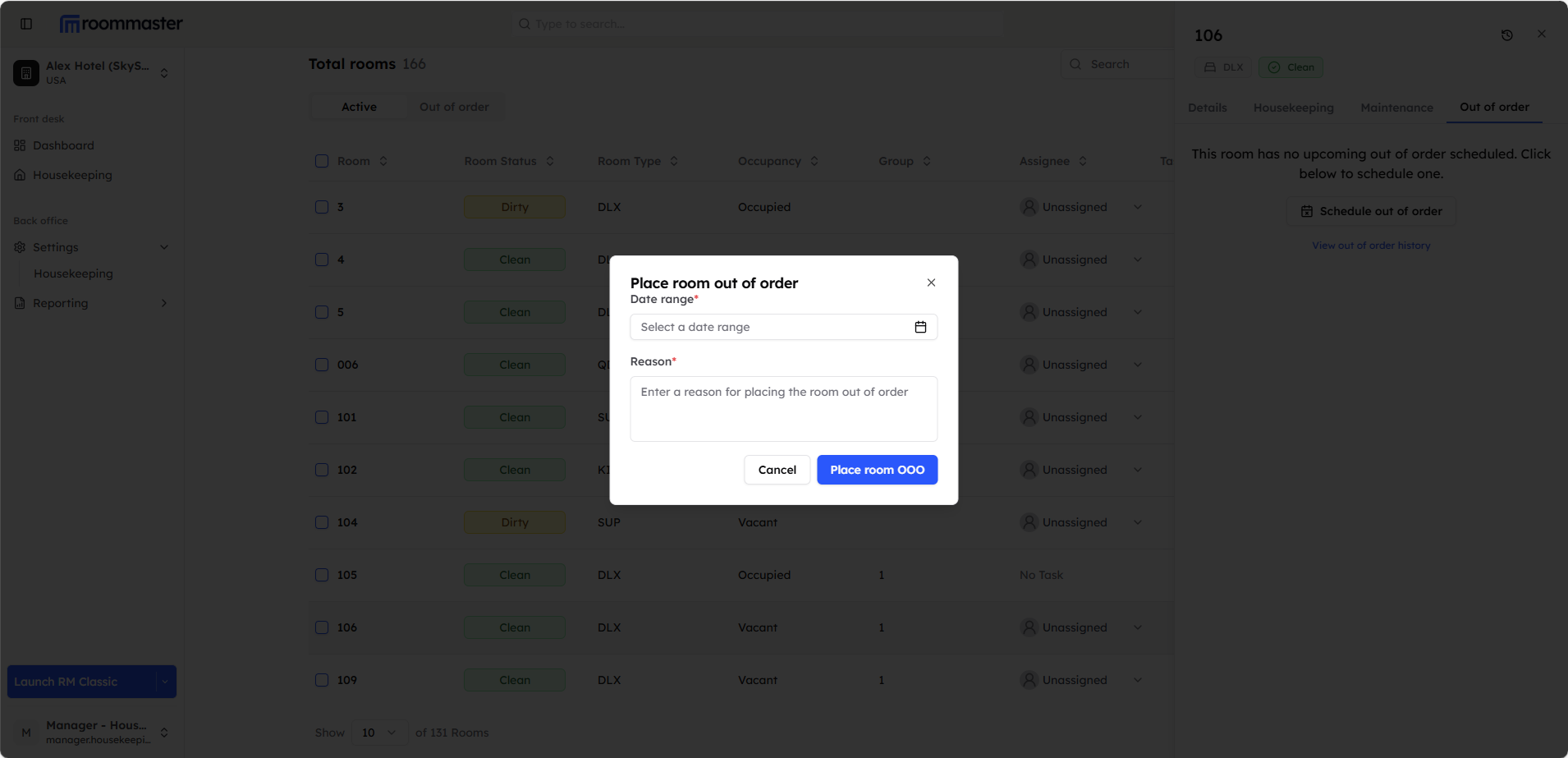
Complete the Form - The Place Room Out of Order modal opens with the following fields:
- Date Range - Select the start and end dates for the OOO period
- Reason - Enter the reason for placing the room out of order (required)
-
Date range Restrictions
- No past dates can be selected
- Date range cannot overlap with existing reservations
- Date range cannot overlap with another OOO period
-
Place Room OOO - Click the Place Room OOO button to confirm, or click Cancel to close the modal
Result
After scheduling a room out of order:
- Today's OOO - If the start date is today, the room will be moved to the OOO tab and an OOO card appears with Edit and Make Available buttons
- Future OOO - If the start date is in the future, the card appears in the Scheduled OOO section with Edit and Cancel Scheduled OOO buttons
- OOO Counter - The OOO counter becomes visible on the OOO tab showing the number of OOO rooms
- Active Tasks Cancelled - If the room has an active task, the task status will be automatically changed to cancelled
Managing Out of Order Periods
Editing an OOO Period
To edit an existing OOO period, you can use one of the following methods:
Method 1: From Room Side Panel
-
Go to OOO Tab - Navigate to the main OOO tab in the housekeeping module
-
Locate the Room - Find the room in the OOO room list
-
Click on the Room - Click on the room to open the side panel
-
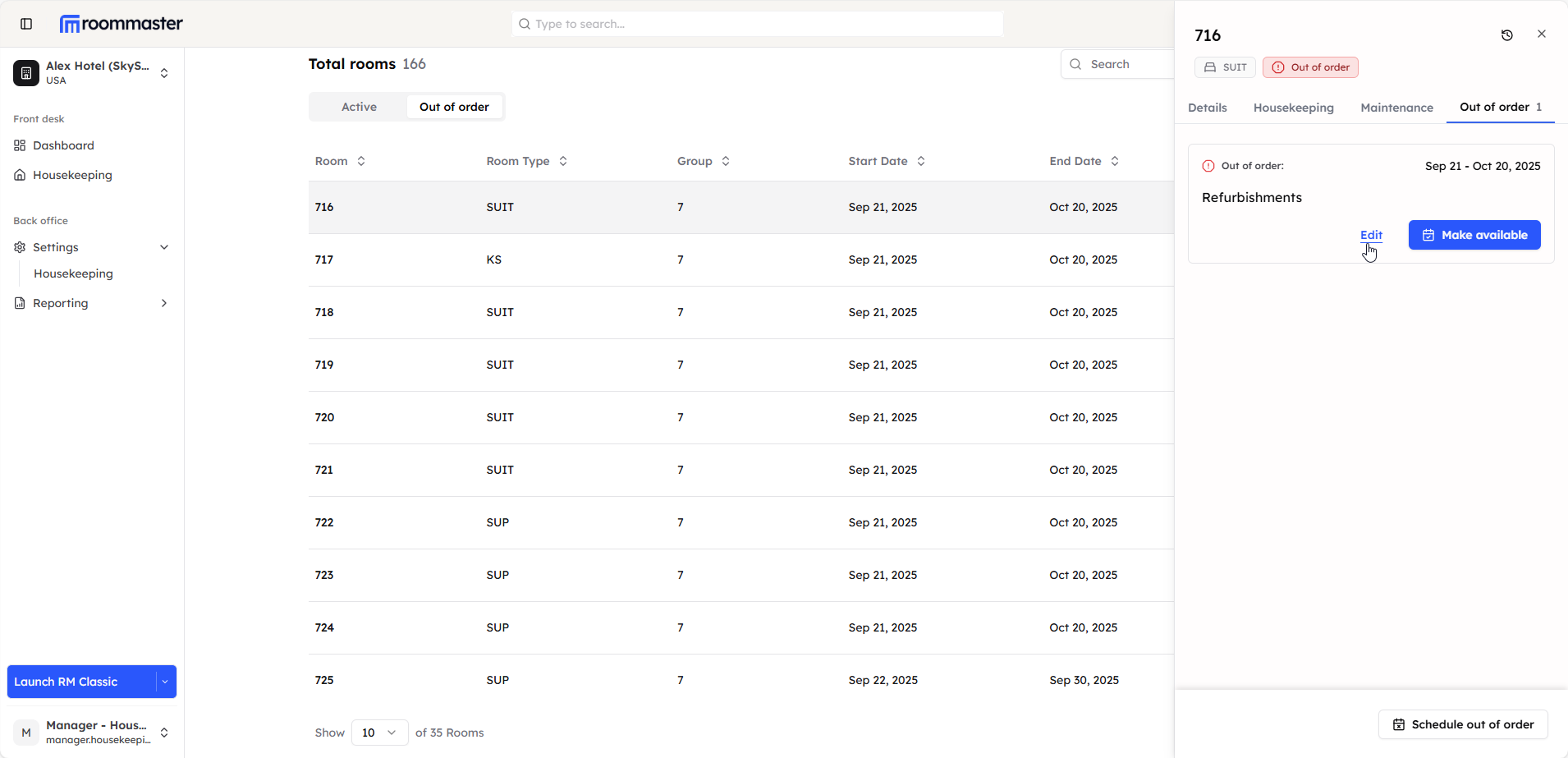
Open OOO Tab - Click on the Out of Order tab in the side panel
-
Click Edit Button - Click the Edit button
Method 2: From OOO Room List
-
Go to OOO Tab - Navigate to the main OOO tab in the housekeeping module
-
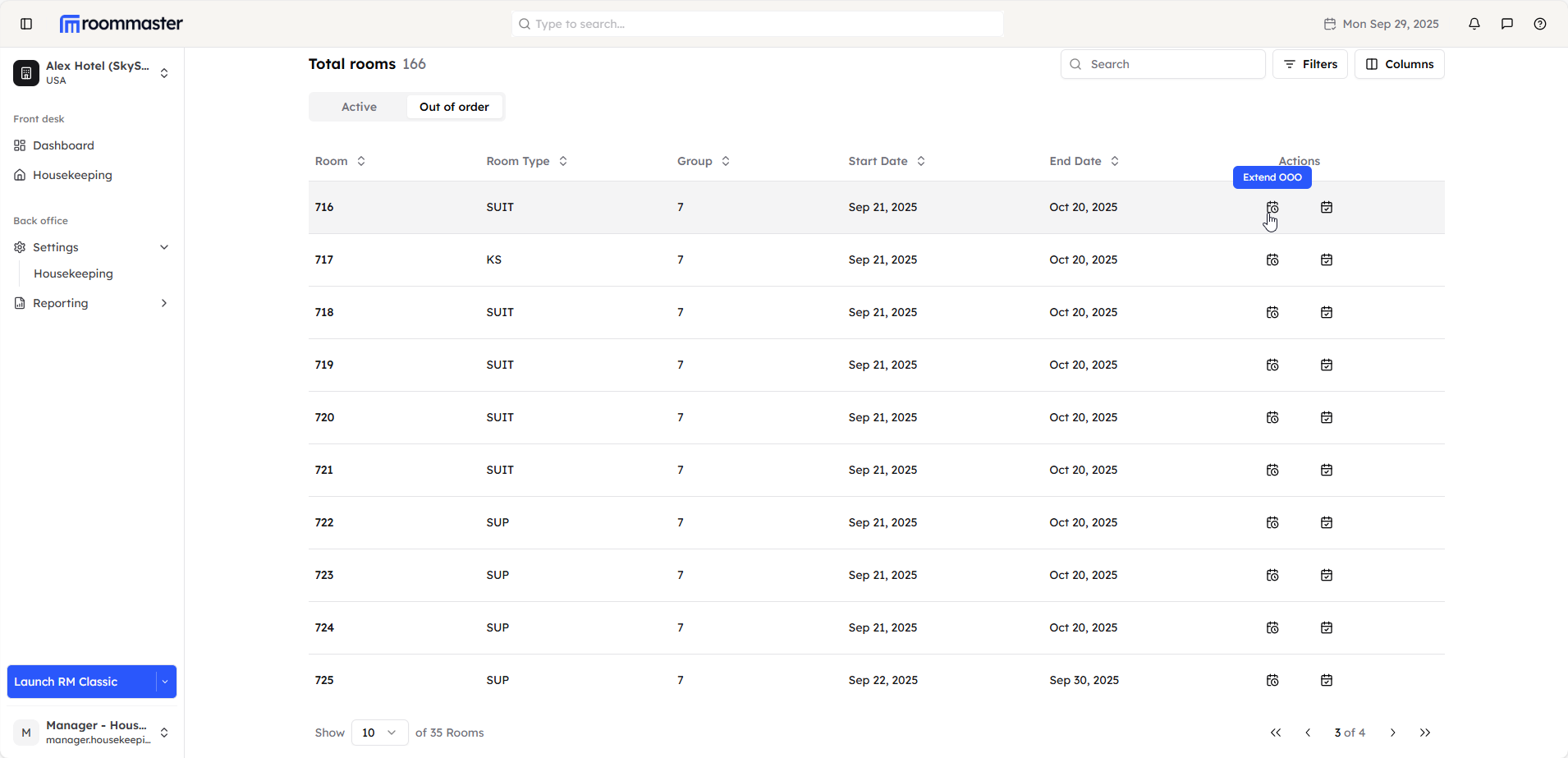
Locate the Room - Find the room in the OOO room list
-
Click Extend Button - Click the Extend button directly from the list
Editing Options:
You can modify:
- End Date - Change when the OOO period will end
- Reason - Update the reason for the OOO status
Note: The start date cannot be edited once an OOO period is created.
Ending an OOO Period
To end an OOO period:
-
Click the Make Available button from:
- The action button in the OOO table, or
- The Make Available button on the reminder banner
-
Select Status - A dialog opens with the following choices:
- Make the room Available & Clean - Room is ready for occupancy
- Make the room Available & Dirty - Room needs cleaning
- You can choose to assign the room right away
- Or leave it unassigned
-
Confirm Selection - Choose the appropriate status to make the room available
Result
After managing the OOO period:
- Extended Period - Room remains in OOO status until the new end date
- Available Status - Room returns to active status with the selected state (Clean or Dirty)
- Task Assignment - Room becomes available for housekeeping task assignments
Cancelling Scheduled OOO
For OOO periods scheduled to start in the future, the room remains in the active room list:
-
Select the Room - Find and click on the room from the active room list
-
Open Side Panel - The room record details side panel will open
-
Navigate to OOO Tab - Click on the Out of Order tab in the side panel
-
Click Cancel Scheduled OOO - Click the Cancel Scheduled OOO button
-
Confirm the Status - Confirm the cancellation to remove the scheduled OOO
Result
After cancelling scheduled OOO:
- The scheduled OOO is removed
- The room remains in its current status in the active room list
OOO Period Ending Today
Single Room Ending Today
When a single room's OOO period ends today, a reminder banner appears in the Housekeeping module with Extend and Make Available buttons. The end date on the OOO tab appears in red as a visual indicator.
Multiple Rooms Ending Today
When multiple rooms have OOO periods ending today, a reminder banner appears in the Housekeeping module displaying information only without action buttons. Users must manually handle each room from the OOO tab, where end dates appear in red.
Viewing Out of Order History
Accessing OOO History
To view the complete out of order history for a room:
-
Select Room - Click on the room to open the side panel
-
Open History - Click the History button or click the View Out of Order History link
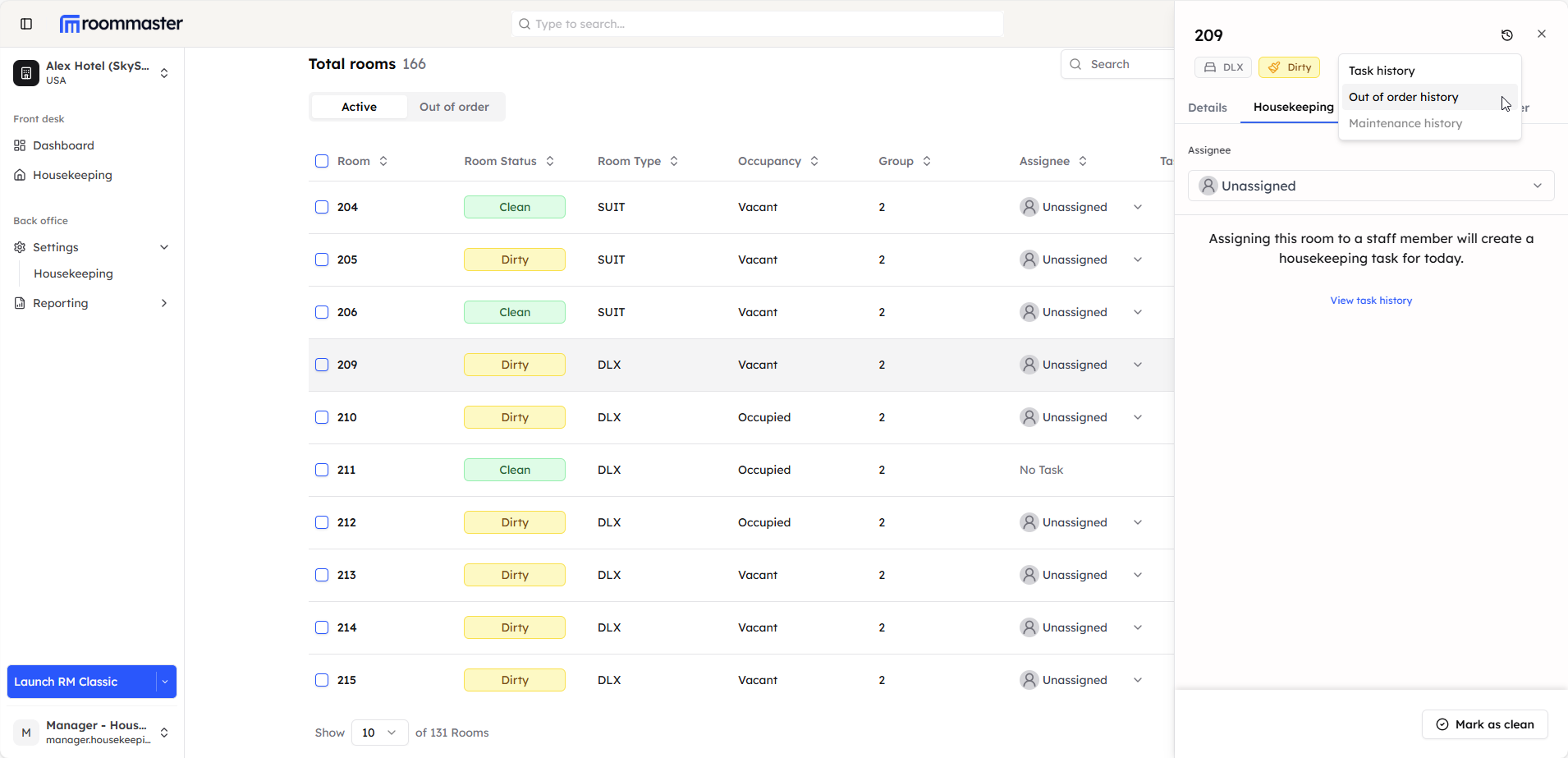
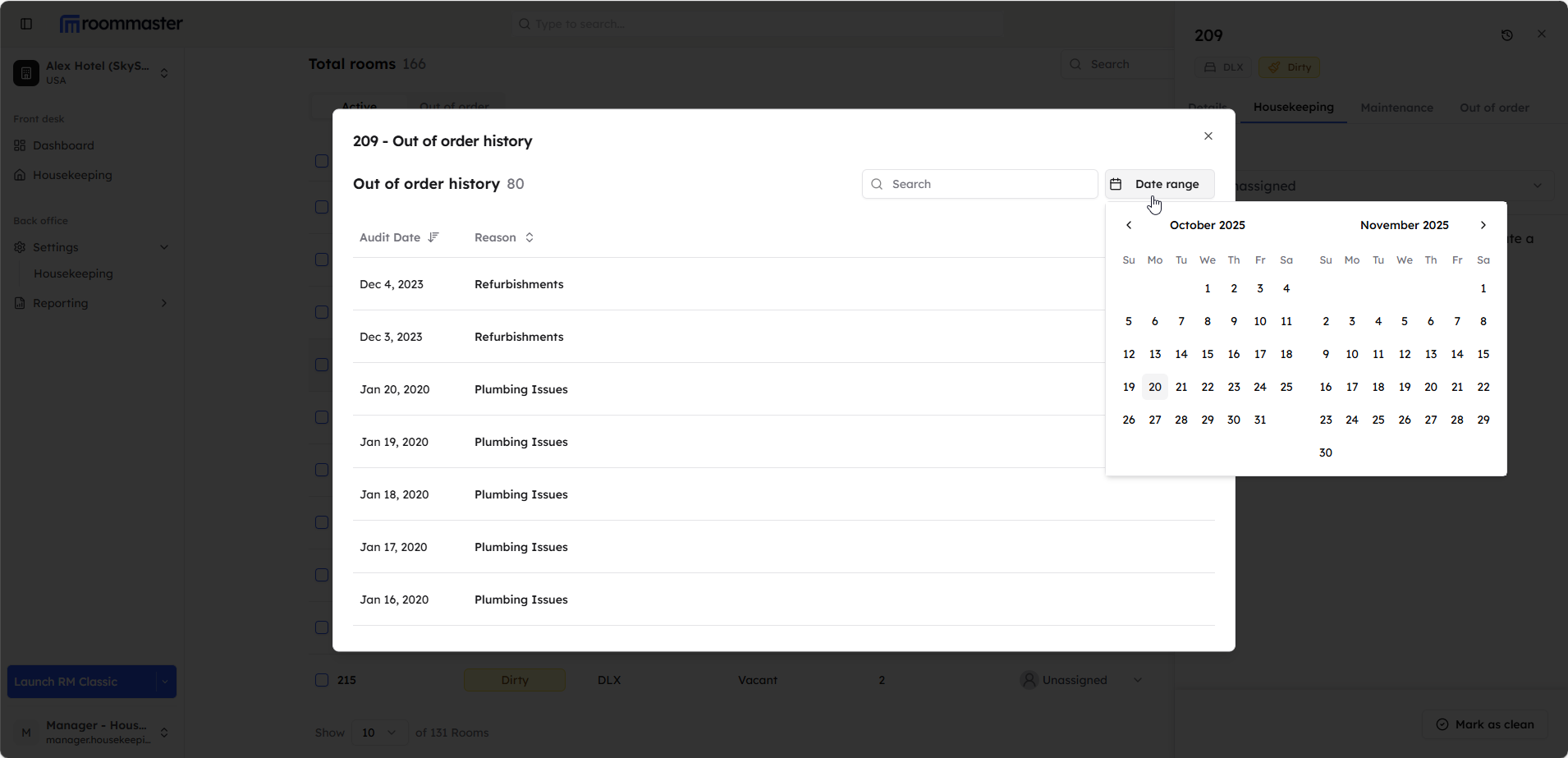
- View OOO History Modal - The Out of Order History modal opens
The OOO History modal displays both current and previous out of order records in a table format with Audit Date and Reason columns. You can sort, search, and filter records using the date range picker. The counter updates to reflect the number of records displayed.
Troubleshooting
Common Issues
Cannot Schedule OOO
- Check Date Range - Ensure dates do not include past dates
- Verify Reservations - Confirm the date range does not overlap with any reservations
- Review Existing OOO - Check that no other OOO period overlaps with the selected dates
- Required Fields - Ensure the Reason field is completed
OOO Status Not Applied
- Occupied Room - If room is occupied, OOO applies after guest checkout
- Future Start Date - If start date is in the future, the room moves to Scheduled OOO section
- Refresh Page - Refresh the page to see updated OOO status
- Check Permissions - Verify you have the necessary permissions to manage OOO status
History Not Displaying
- Check Room Selection - Ensure you have selected the correct room
- Verify History Exists - Confirm the room has previous OOO records
- Apply Filters - Check if filters are excluding records from view
- Date Range - Adjust date range filters to include all historical periods
Still Need Help?
For additional assistance with Out of Order management:
- Contact support at support@roommaster.com
- Visit our Knowledge Base
- Check your internet connection and refresh for real-time updates