Room List Overview
This article explains how to use the Room List feature in the roommaster Web housekeeping module, providing comprehensive room management capabilities for housekeeping managers.
Watch the Room List Overview tutorial to see these workflows in action: roommaster Web Room List Overview.
Overview
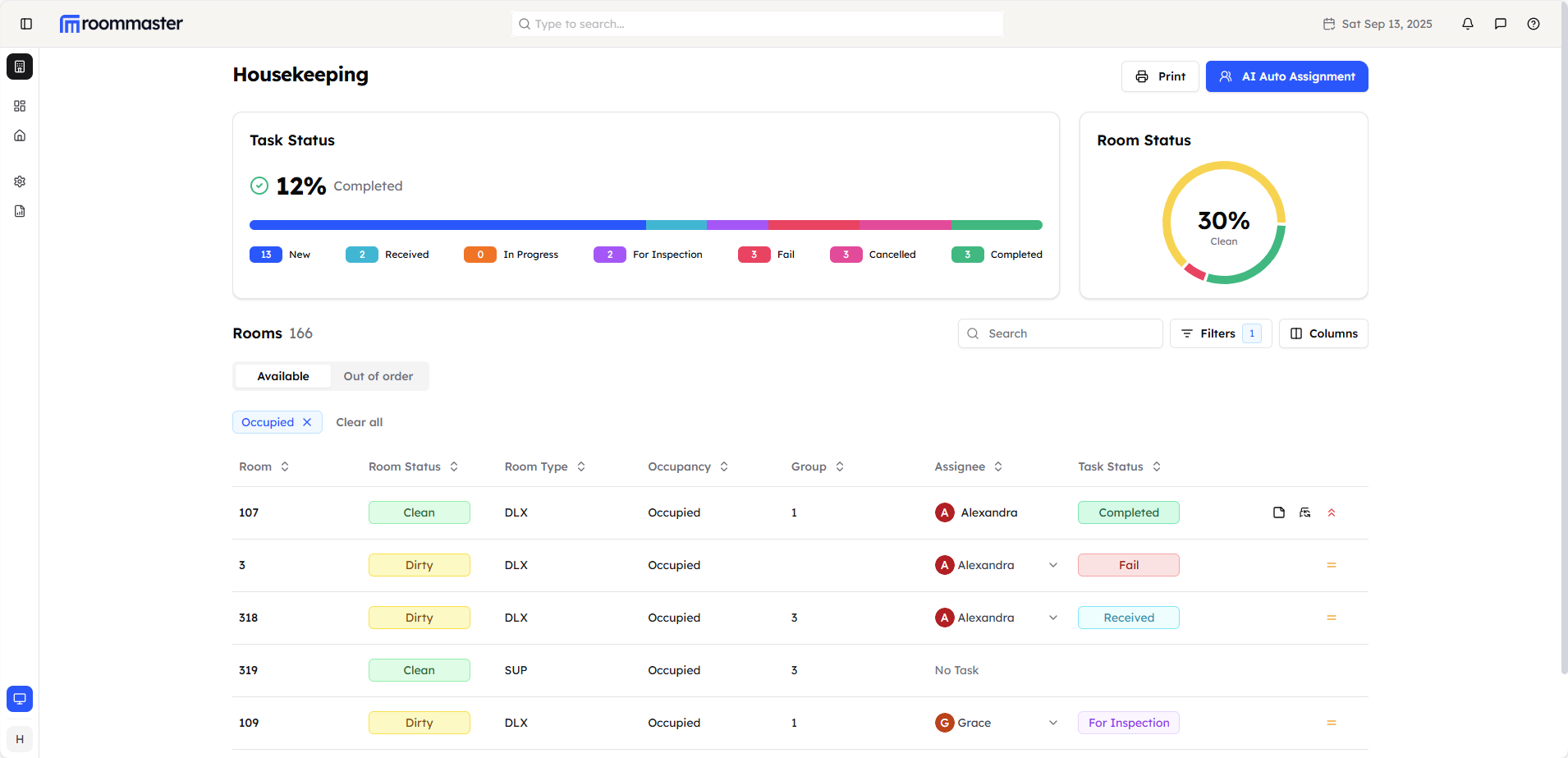
The roommaster Web housekeeping module presents you with two main widgets: Task Status and Room Status. These widgets provide at-a-glance information about your property's housekeeping operations, while the Room List gives you detailed management capabilities for all rooms.
Dashboard Widgets
Task Status Widget
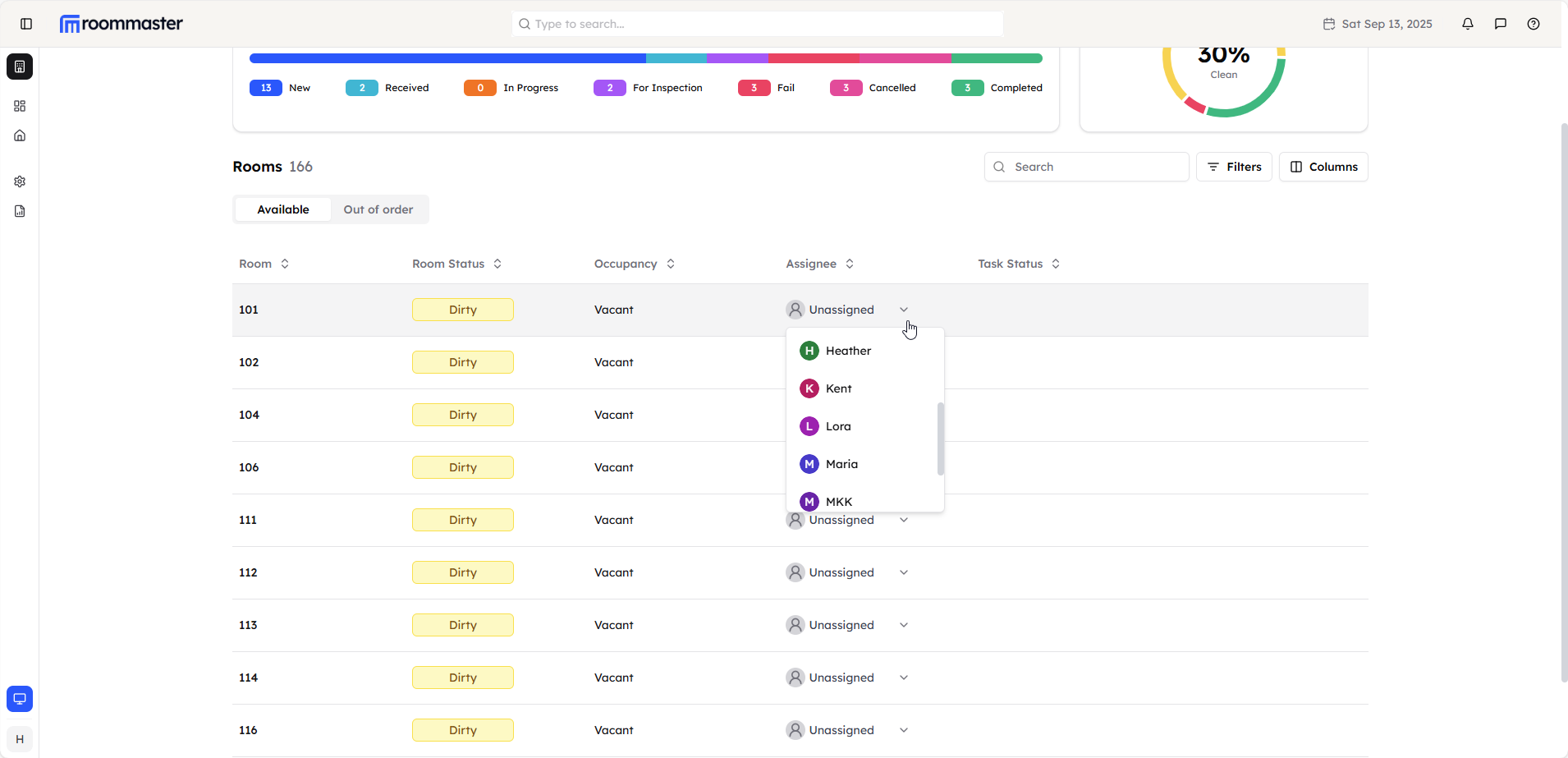
The Task Status widget shows you how many tasks are completed and displays the current state of all tasks:
- New - Tasks that have just been created by the assignment of the room
- Received - Tasks that have been acknowledged and opened by the housekeeper assigned to it
- In Progress - Tasks currently being performed by housekeepers
- For Inspection - Tasks completed and awaiting inspection
- Fail - Tasks that have failed either because the housekeeper marked the task as incomplete or because the task failed inspection, requiring re-cleaning
- Cancelled - Tasks that have been cancelled
- Completed - Tasks that have been successfully finished
Room Status Widget
The Room Status widget displays the current state of all rooms in your property:
- Clean - Rooms that are ready for occupancy
- Dirty - Rooms that require cleaning
- Out of Order - Rooms that are unavailable due to maintenance or other issues
Room List Features
The Room List presents you with a comprehensive table view of all rooms available in your property, allowing you to efficiently manage and monitor room operations.
Room Information Display
The room list table displays comprehensive information for each room including:
- Room Number - Unique room identifier
- Room Type - Classification (Standard, Deluxe, Suite, etc.)
- Room Group/Zone - Area or section assignment
- Current Status - Clean, Dirty, or Out of Order
- Occupancy - Whether the room is Occupied or Vacant
- Assignee - Assigned housekeeping staff member
- Task Status - Current cleaning task status
- Priority - Task priority level (High, Normal)
- Arrival Today - Indicates if there's a guest arrival scheduled for today
- Checkout - Shows if there's a guest checkout scheduled for today
- Change Sheets - Indicates if the room needs sheet changes today
- Guest Housekeeping Notes - Special instructions or notes for housekeeping staff
Navigation and Search
- Table Navigation - Navigate through the complete list of rooms using standard table controls
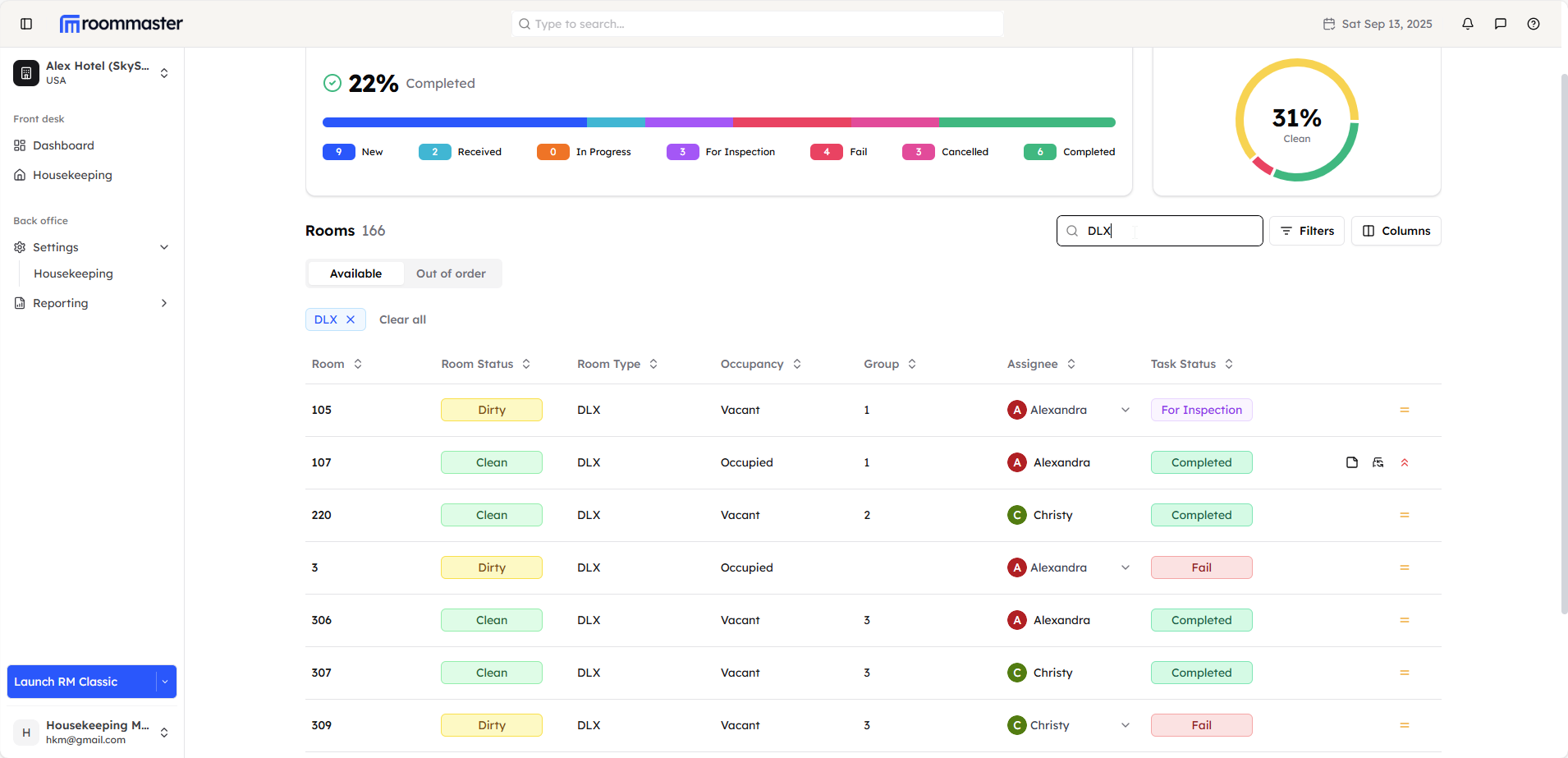
- Search Functionality - Use the search feature to quickly find specific rooms by room number or other criteria
Filtering Options
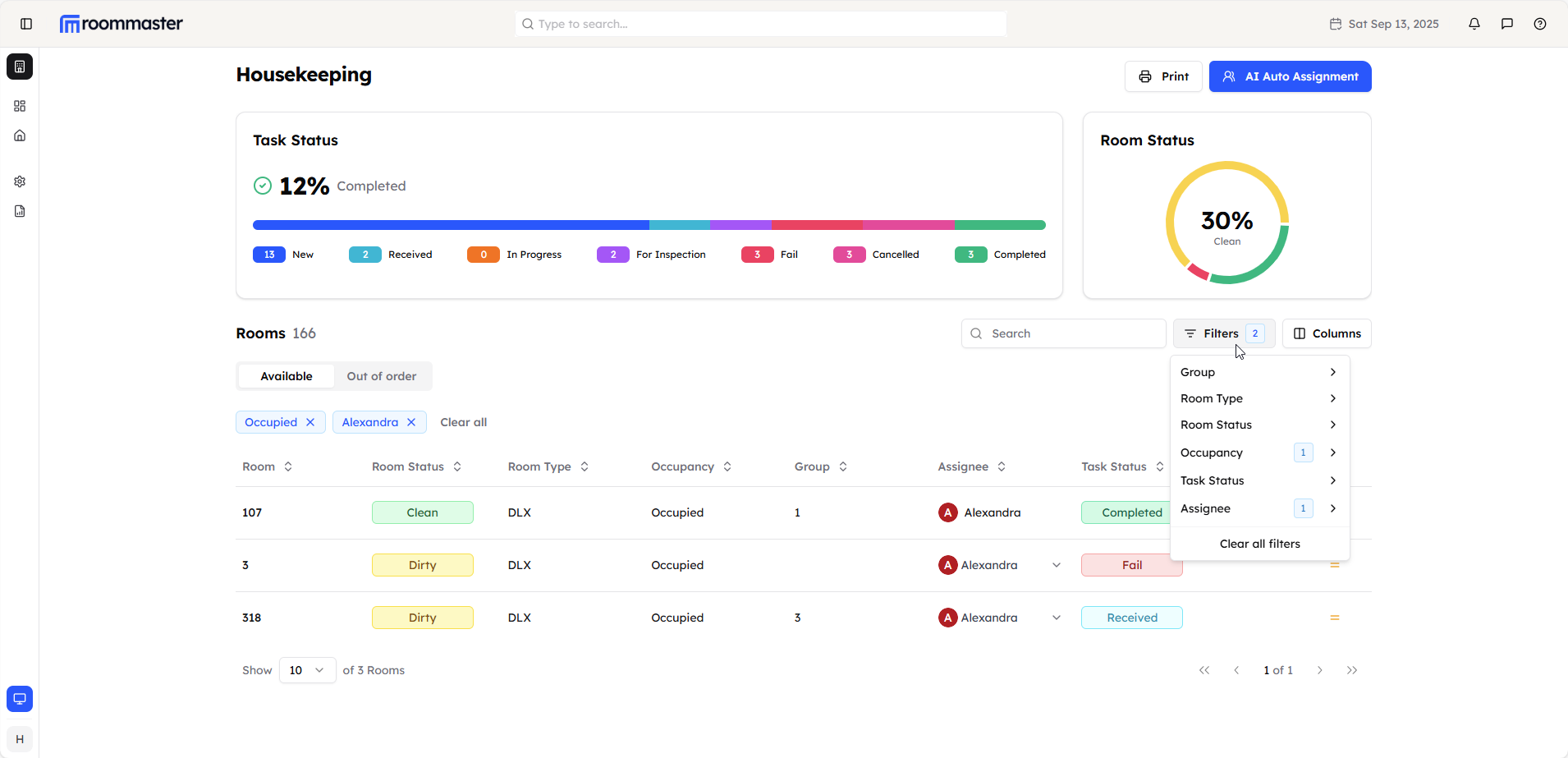
You can filter the room list table by multiple criteria:
- Room Status - Filter by Clean or Dirty
- Room Type - Filter by specific room classifications (Standard, Deluxe, Suite, etc.)
- Occupancy - Filter by Occupied or Vacant rooms
- Group - Filter by room groups or zones
- Assignee - Filter by assigned housekeeping staff (if tasks are assigned)
- Task Status - Filter by the current status of cleaning tasks
Column Management
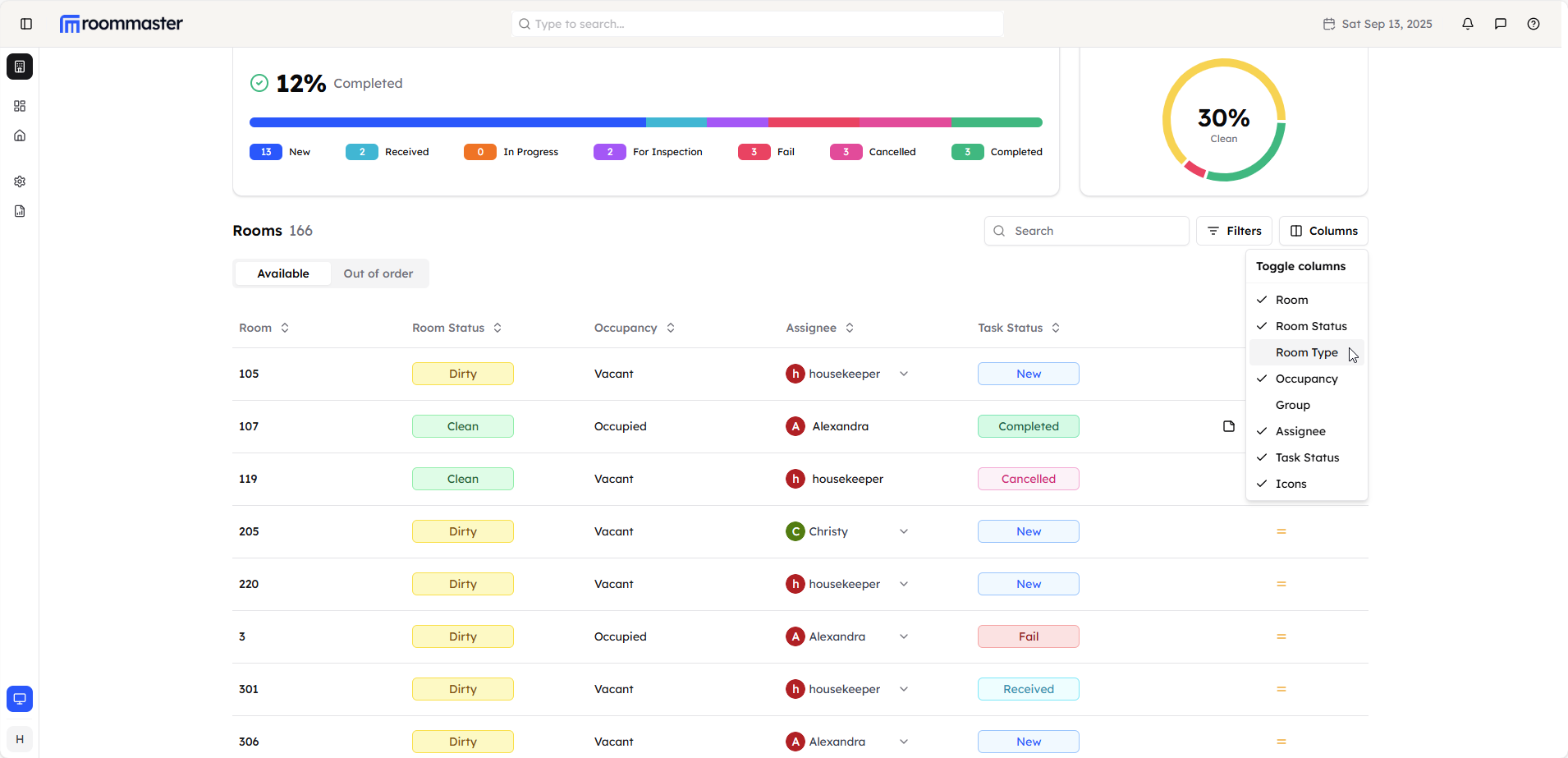
- Customizable Display - Click the columns button to show/hide specific columns
- Personalized View - Uncheck any columns you don't want to monitor
- Optimized Interface - Focus on the information most relevant to your needs
Room Assignment
Direct Assignment from Room List
You can assign rooms directly from the room list table:
- Locate Unassigned Rooms - Look for the unassigned caret under the Assignee column
- Click the Caret - Click on the unassigned caret for the specific room you want to assign
- Select Housekeeper - A list of available housekeepers will be displayed
- Choose Assignee - Select the appropriate housekeeper from the list
- Task Creation - When you select a housekeeper, a task will be automatically created
- Task Status - The newly created task will have a status of "New"
Best Practices
Daily Operations
- Widget Monitoring - Start each day by reviewing the Task Status and Room Status widgets
- Priority Management - Focus on high-priority rooms and early check-outs
- Efficient Filtering - Use filters to focus on specific room groups or statuses
- Column Customization - Hide unnecessary columns to streamline your view
Still Need Help?
For additional assistance with Room List functionality:
- Contact support at support@roommaster.com
- Visit our Knowledge Base