Rooms Tab
This article explains how to, as a housekeeping manager, comply with and use the Rooms Tab for room housekeeping management, in the roommaster mobile app.
See the full workflow in action in the roommaster Web mobile guide for housekeeping managers: Mobile guide for housekeeping managers.
Overview
The Rooms Tab provides comprehensive room information and management tools for housekeeping managers. This centralized view allows managers to access all relevant room details, task statuses, and management functions in one place. As a housekeeping manager, you will have access to all rooms of the property in the rooms tab.
Rooms Tab Features
The room tab provides an at-a-glance view of all information needed regarding all the rooms of the property.
Room Card Information
- Room Number - The unique identifier for the room
- Room Type - Classification of the room (DLX, SUP, QDLX...)
- Room Group (Zone) - The area or zone where the room is located
- Stay Type - Type of guest stay (Check-out, Stay-over, etc.)
- Priority Level - Task priority (High, Medium)
- Change Sheets Required - Indicates if bed linens need to be changed
- Arrival Status - Shows if there's an arrival scheduled for today
- Room Occupancy - Current occupancy status (Vacant or Occupied)
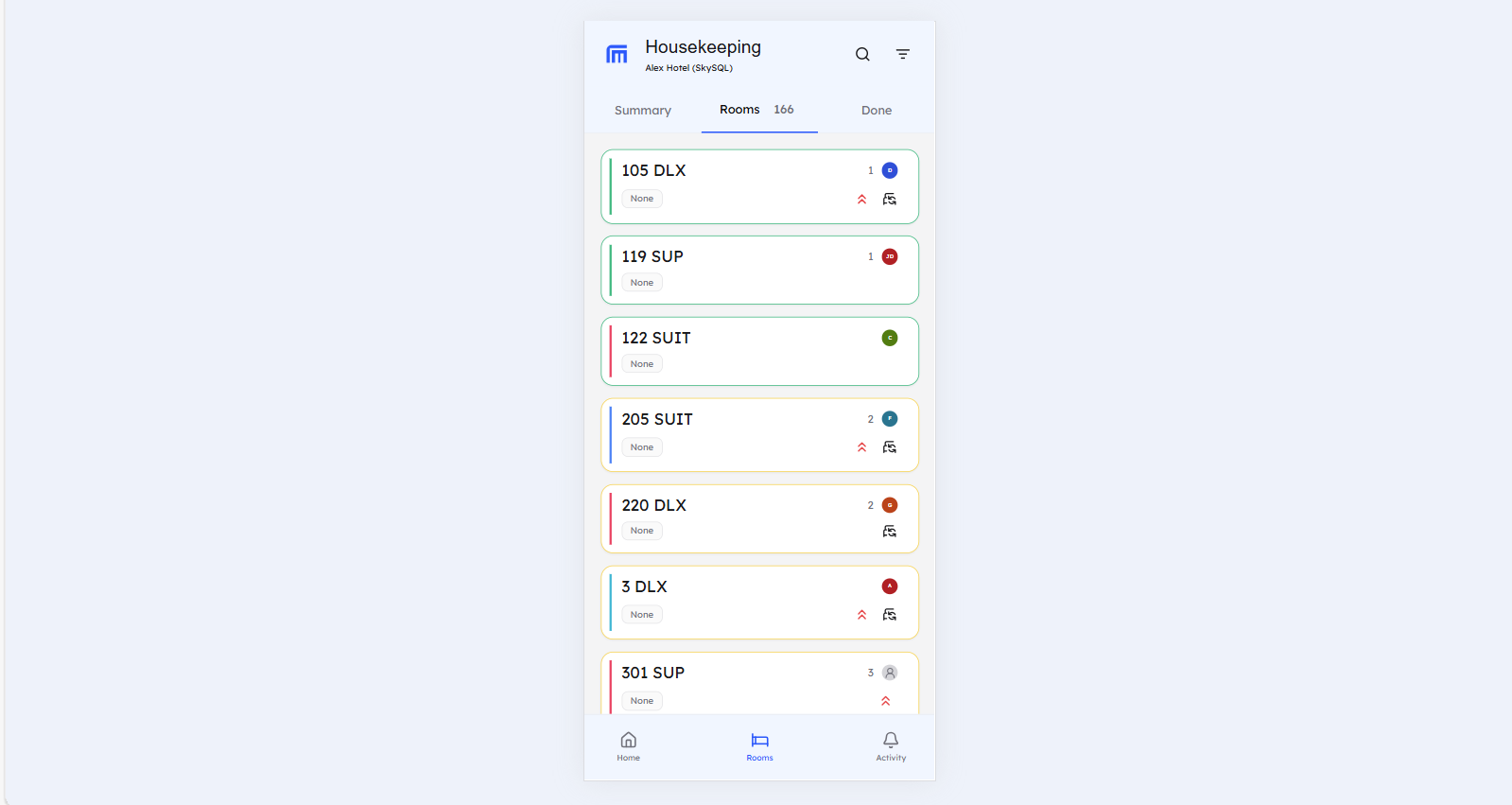
Status Indicators
1. Room Status
- Green Borders - The room is clean
- Yellow Borders - The room is dirty
- Red Borders - The room is out of order
2. Task Status
- Dark Blue Line - The task status is new
- Light Blue Line - The task status is received
- Purple Line - The task is for inspection
- Red Line - The task has failed
- Pink Line - The task has been cancelled
- Green Line - The task has been completed
Room Details Management
When clicking on a room, you reach the room details tab where you can make the following changes:
Assignee Management
- Change Assignee - You can change the assignee if the task status is:
- New
- Received
- Fail
Task Configuration
- Cleaning Type - You can modify the cleaning type if the room has not reached inspection yet
- Priority - You can change the task priority if the room has not reached inspection yet
- Change Sheets - You can update the change sheets requirement if the room has not reached inspection yet
Best Practices
- Review room information regularly
- Update room status promptly after changes
- Use comments to communicate important information
- Monitor task progress and completion times
Still Need Help?
- Check your internet connection and refresh for real-time updates
- For additional support, please contact our support team at support@roommaster.com or visit our Knowledge Base