Users tab and user management
This article explains how to use the Users tab to manage users and their access to File Storage in the roommaster Web app.
Access to the Users tab
- The Users tab is available for users with upper permissions and manager roles
- Only managers can view and manage users
Users displayed
- The Users tab lists all users who have SSO accounts and the permission to access File Storage
- Users without SSO accounts cannot access File Storage, even if they exist on roommaster Cloud (RMC)
User details displayed
For each user, the following information is shown:
- Name
- Groups they belong to
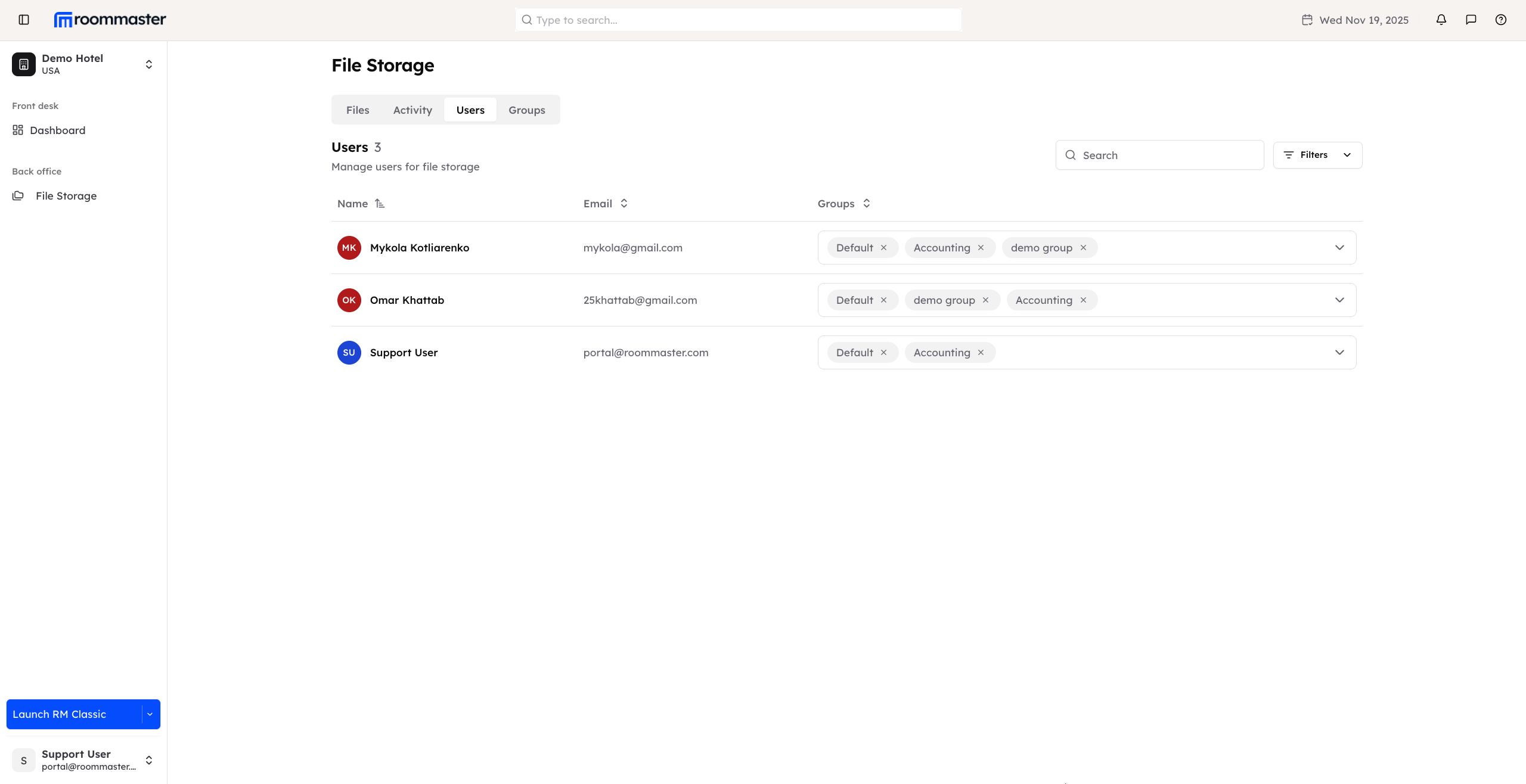
Searching and filtering users
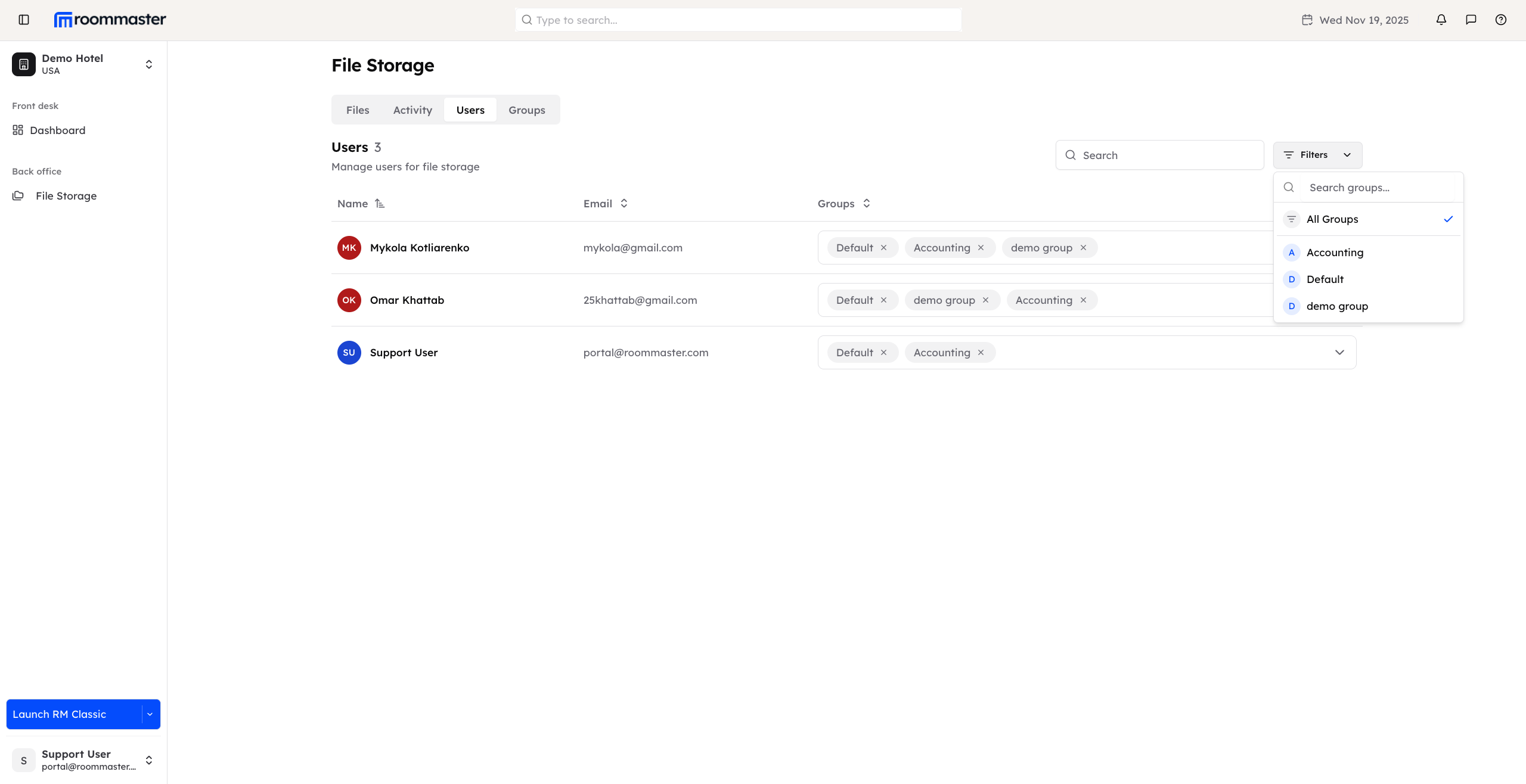
- A search bar allows you to search for specific users by name or email
- Filters allow you to display users belonging to a specific group
Managing user groups
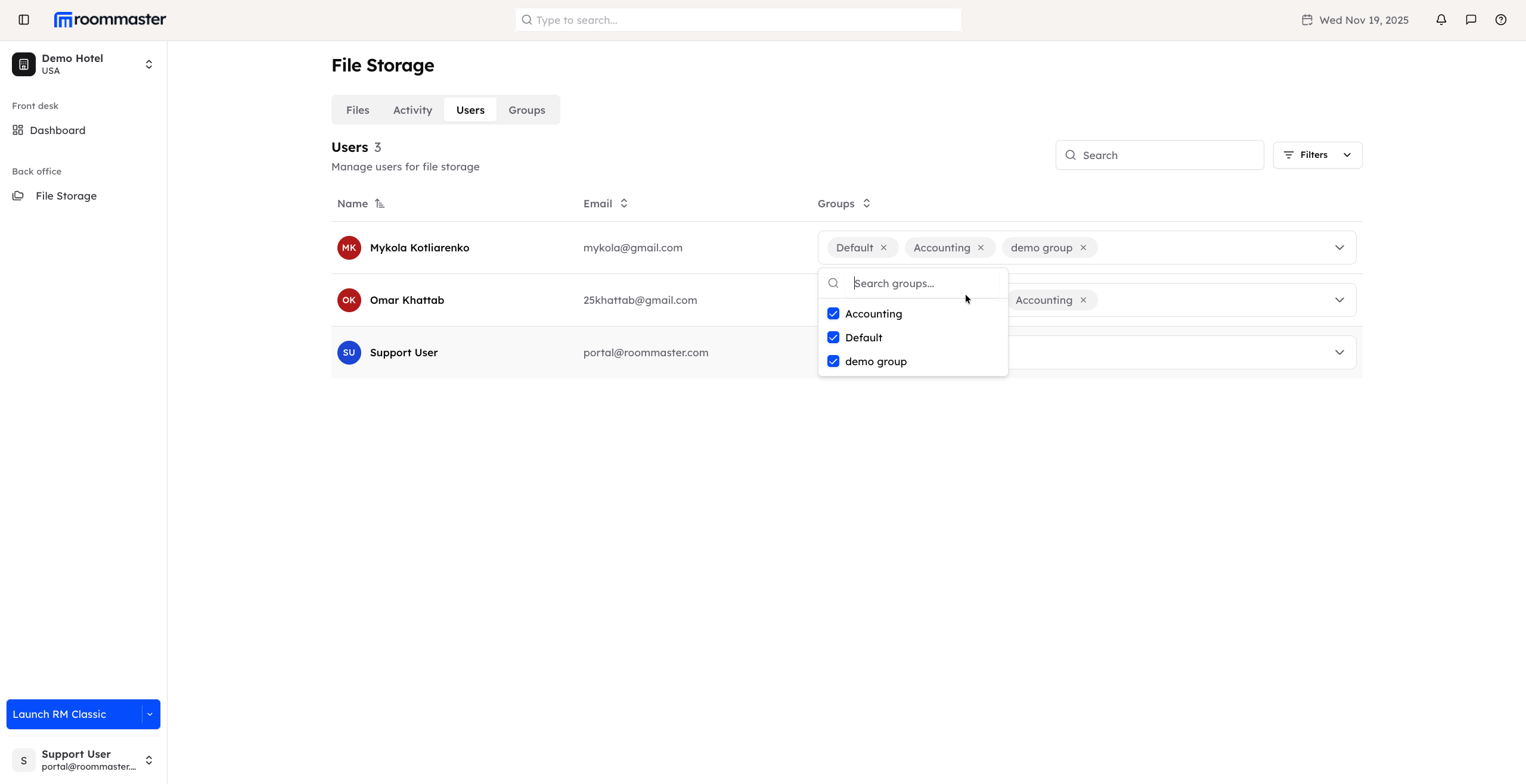
From the Users tab, you can add or remove users from groups:
- Groups drop-down: Click to add users to groups
- Removing a user from a group: Click the X on a group chip to remove the user from that group
- Users removed from a group lose access to files shared within that group
- Adding a user to a group: Grants the user access to the files shared with that group
Default group rules
- All users with File Storage access are automatically added to the default group
- Users cannot be removed from the default group
- The default group ensures that all users have baseline access to shared files
Notes
- The Users tab allows managers to efficiently control user access and file sharing within groups
- Proper group management ensures that users only have access to the files they are authorized to view
Support
For additional support, please visit our Knowledge Base or contact our support team at support@roommaster.com.