File side panel
This article explains how to use the file side panel and what information and actions are available when viewing a file.
Accessing the file side panel
- Click on any file in the files table
- The file side panel opens and displays detailed information about the selected file
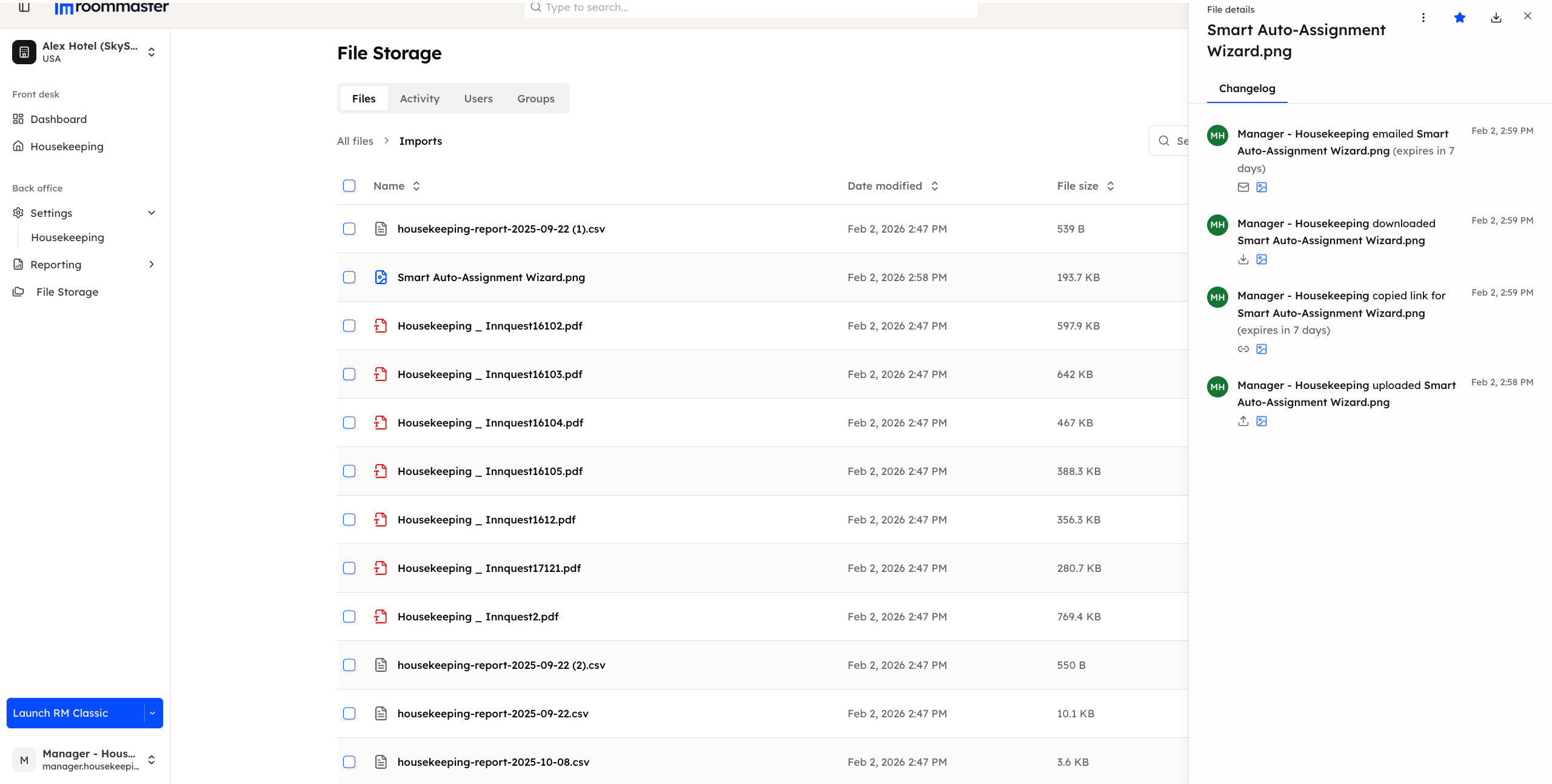
File details
The side panel displays key information about the file, including:
- File name
File changelog
The changelog records all actions performed on the file since it was uploaded. Logged actions include:
- Uploading the file
- Copying the file link
- Emailing the file
- Deleting the file
This provides a clear audit trail of how the file has been used.
Available actions from the side panel
From the file side panel, you can perform the same actions available in the main files table:
- Download the file
- Favorite or unfavorite the file
- Email the file
- Delete the file (only if the file is located in the Imports or Images root folder)
The file side panel allows you to review file activity and perform actions without leaving the current view.
Support
For additional support, please visit our Knowledge Base or contact our support team at support@roommaster.com.