Email folders and files
This article explains how to email files and folders from the roommaster Web app from the file storage module.
What you can email
- You can email both files and folders
- Sharing is done via a link that provides access to the selected file or folder
- Shared links expire after 7 days
Email a folder
- Navigate to the root folder you want to share
- Hover over the folder
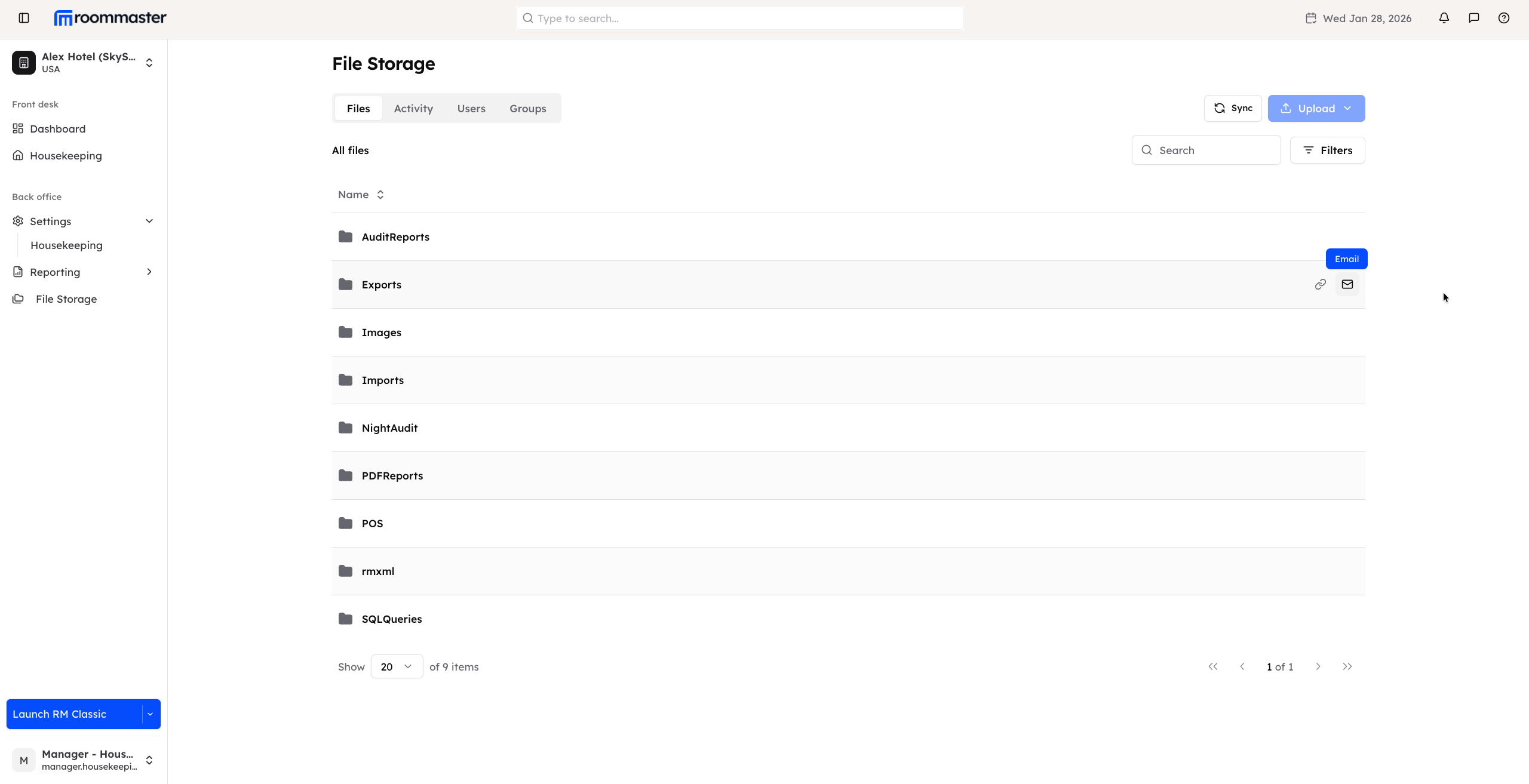
- Click the Email icon
- A warning message appears indicating that you are sharing a sensitive folder and that it may contain sensitive data
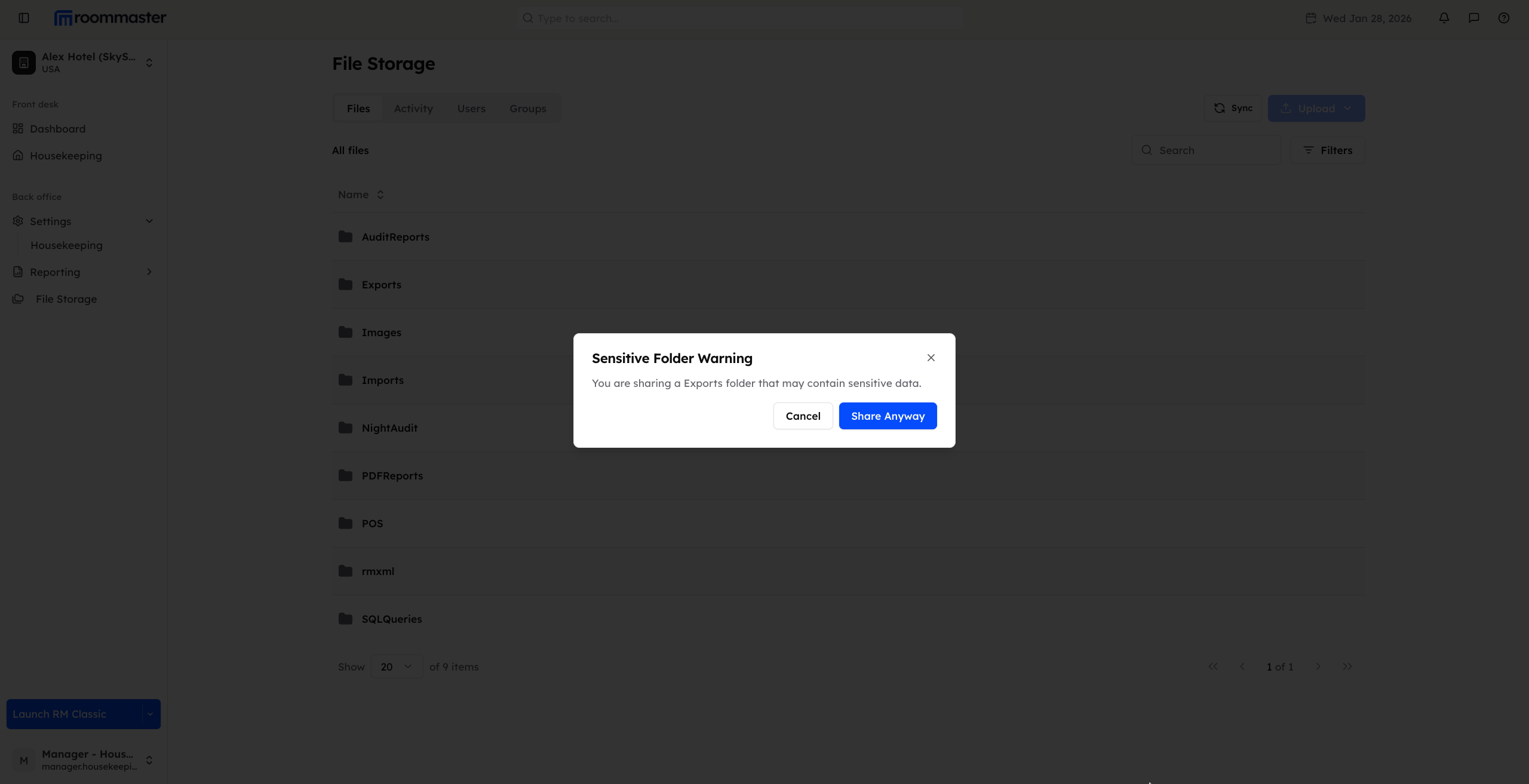
- Review the warning and click Share anyway to proceed, or cancel if you do not want to share
- Your default (local) mailbox opens with a pre-written email that includes the folder link
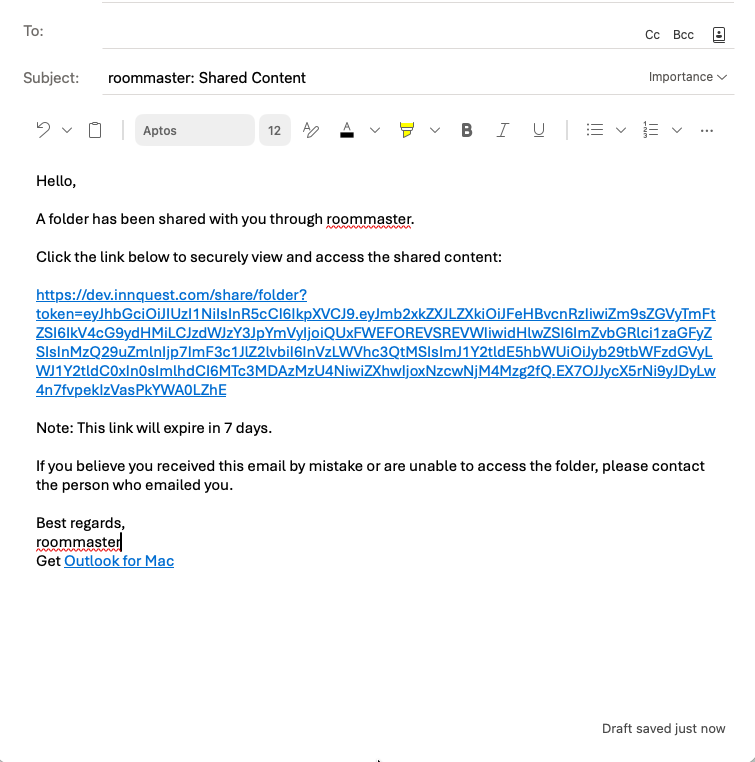
- Add the recipient's email address and click Send
The recipient will be able to access the folder using the shared link.
Email a file
- Navigate to the root folder or any specific folder that contains the file
- Hover over the file you want to email
- Click the More options (three dots) menu
- Select Email
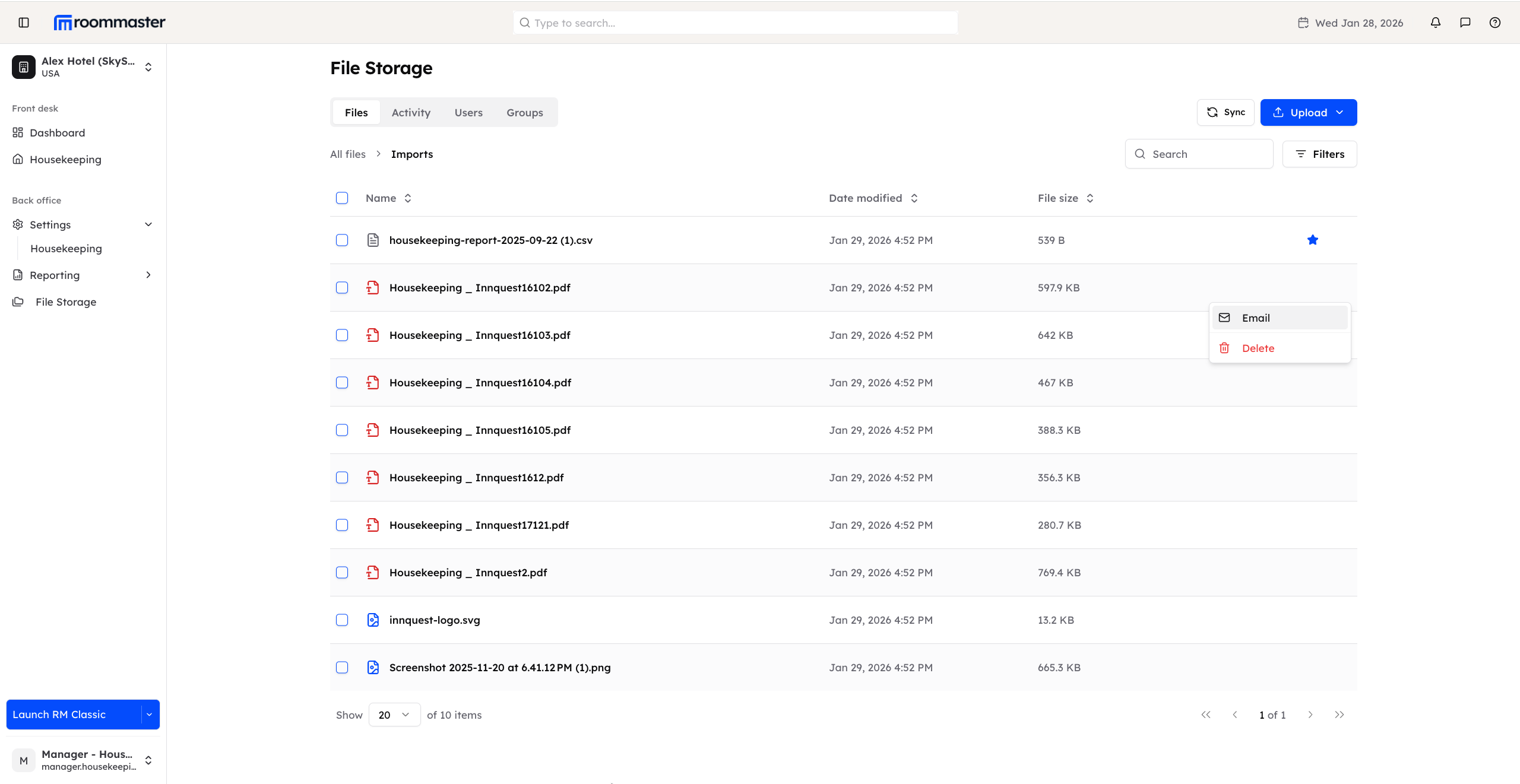
- Your default (local) mailbox opens with a pre-written email containing the file link
- Add the recipient's email address and click Send
The recipient will be able to access the file using the shared link.
Important notes
warning
- Shared links are valid for 7 days only
- It is your responsibility to ensure that the content you are sharing does not include sensitive data you do not wish to expose
- Emailing files and folders does not send the actual file as an attachment; it shares access via a link instead
Support
For additional support, please visit our Knowledge Base or contact our support team at support@roommaster.com.