Download files
This article explains how to download files from the roommaster Web app using the File Storage module, including single-file downloads, bulk downloads, and downloads via shared links.
Important notes
info
- Only files can be downloaded
- Folders cannot be downloaded
Downloading a single file
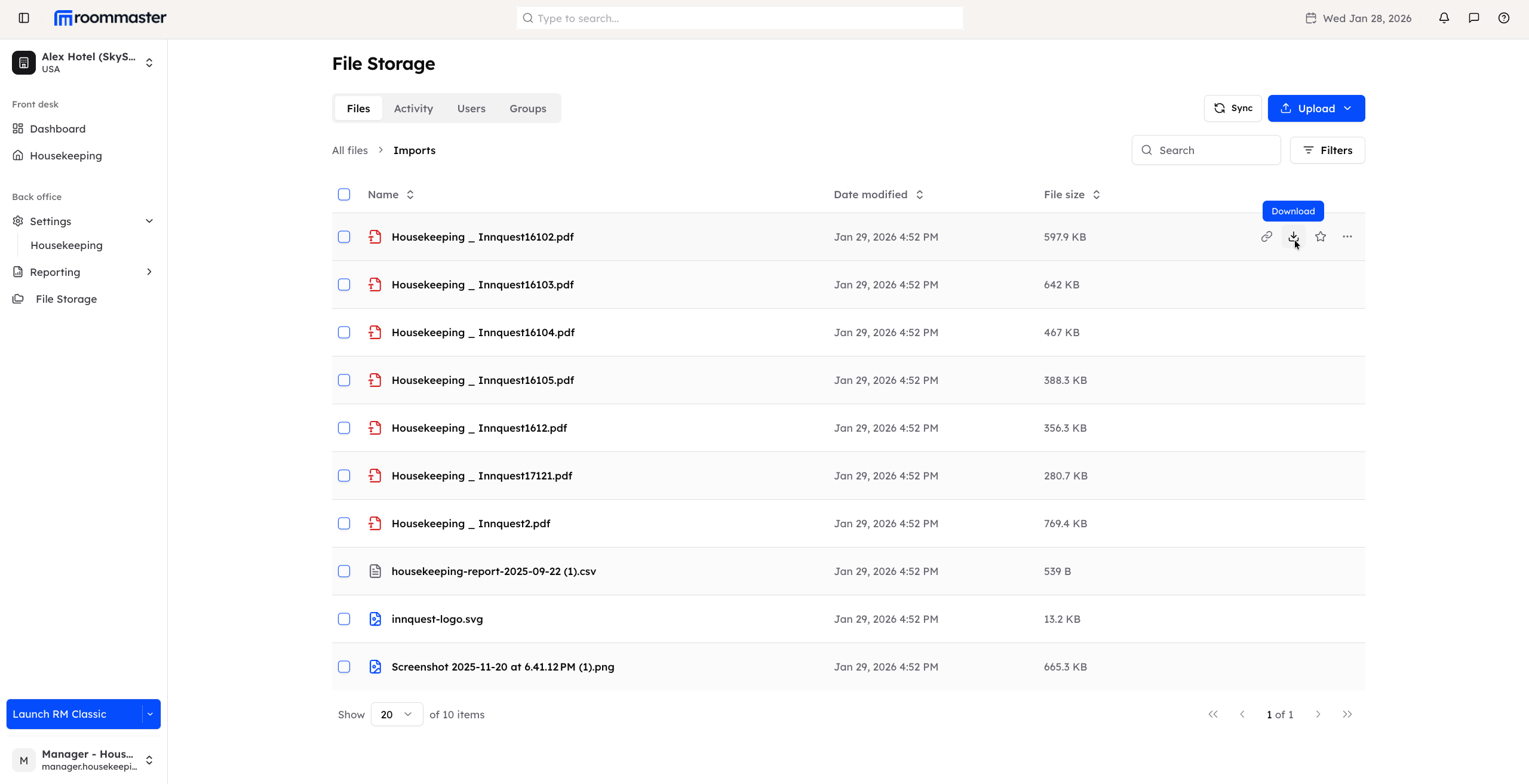
- Navigate to the folder that contains the file you want to download
- Hover over the file
- Click the Download icon that appears
- The download will start immediately, and the file will be saved to your device (for example, your file explorer or desktop)
Downloading multiple files at once
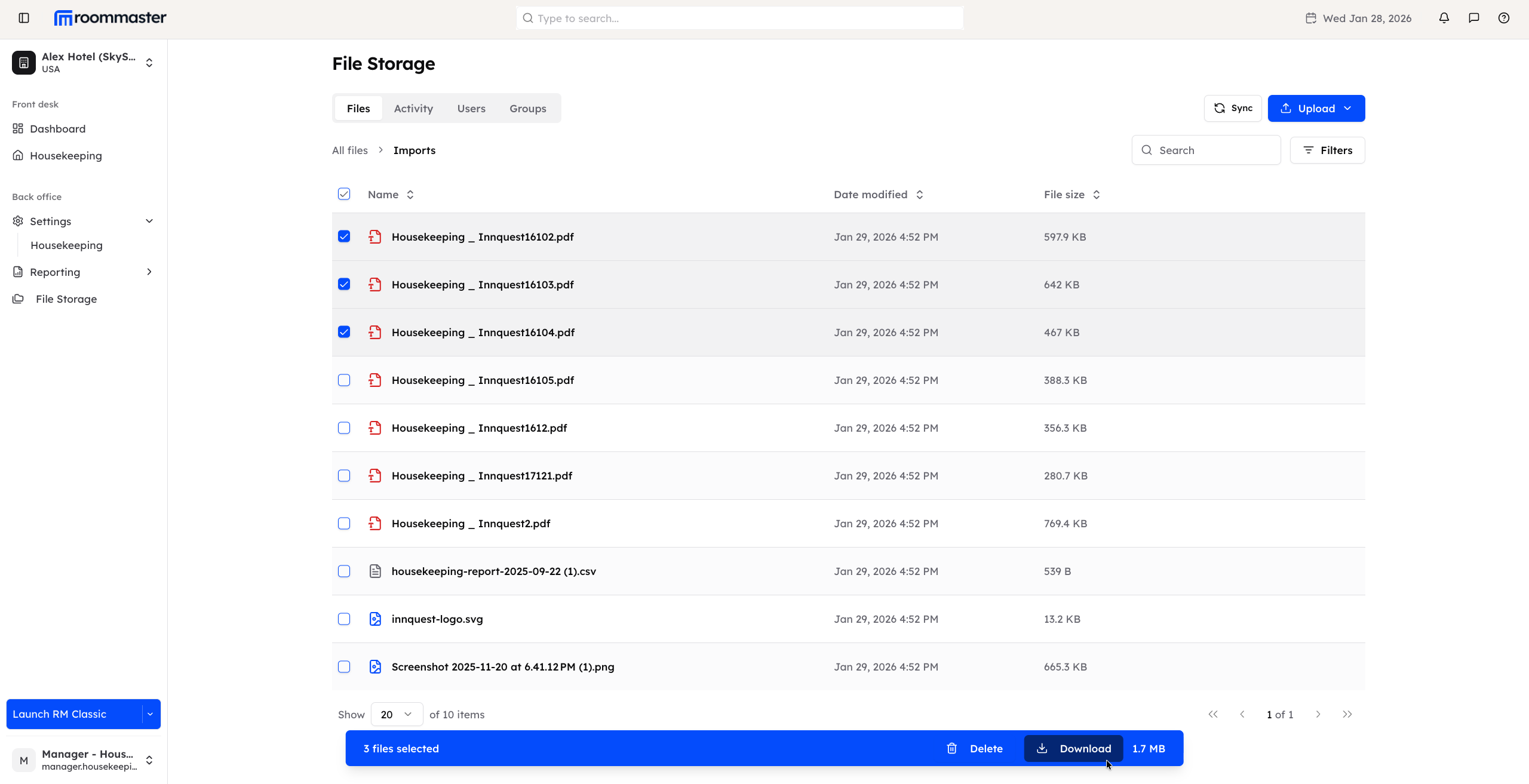
- Navigate to the folder containing the files you want to download
- Use the checkbox displayed before each file to select one or more files
- Once files are selected, an action banner appears at the bottom of the page
- The banner displays the number of selected files and a Download action
- Click Download to download all selected files at once
Downloading files via shared links
Downloading is also available through shared links:
- If a file or a folder is shared with you via a link, you can download files from that link
- The Download action is the only available action when accessing files through shared links
This ensures secure and straightforward access to files while keeping folder structures read-only.
Support
For additional support, please visit our Knowledge Base or contact our support team at support@roommaster.com.