Delete files
This article explains when and how files can be deleted in the roommaster Web app, file storage module.
Important deletion rules
info
- Only files located in the Imports folder and the Images folder can be deleted
- Files located outside the Imports and Images folders cannot be deleted
- System or first-level folders other than Imports and Images cannot be deleted
How to delete a file
- Navigate to either the Imports folder or the Images folder
- Hover over the file you want to delete
- Click the More options (three dots) icon
- Select Delete
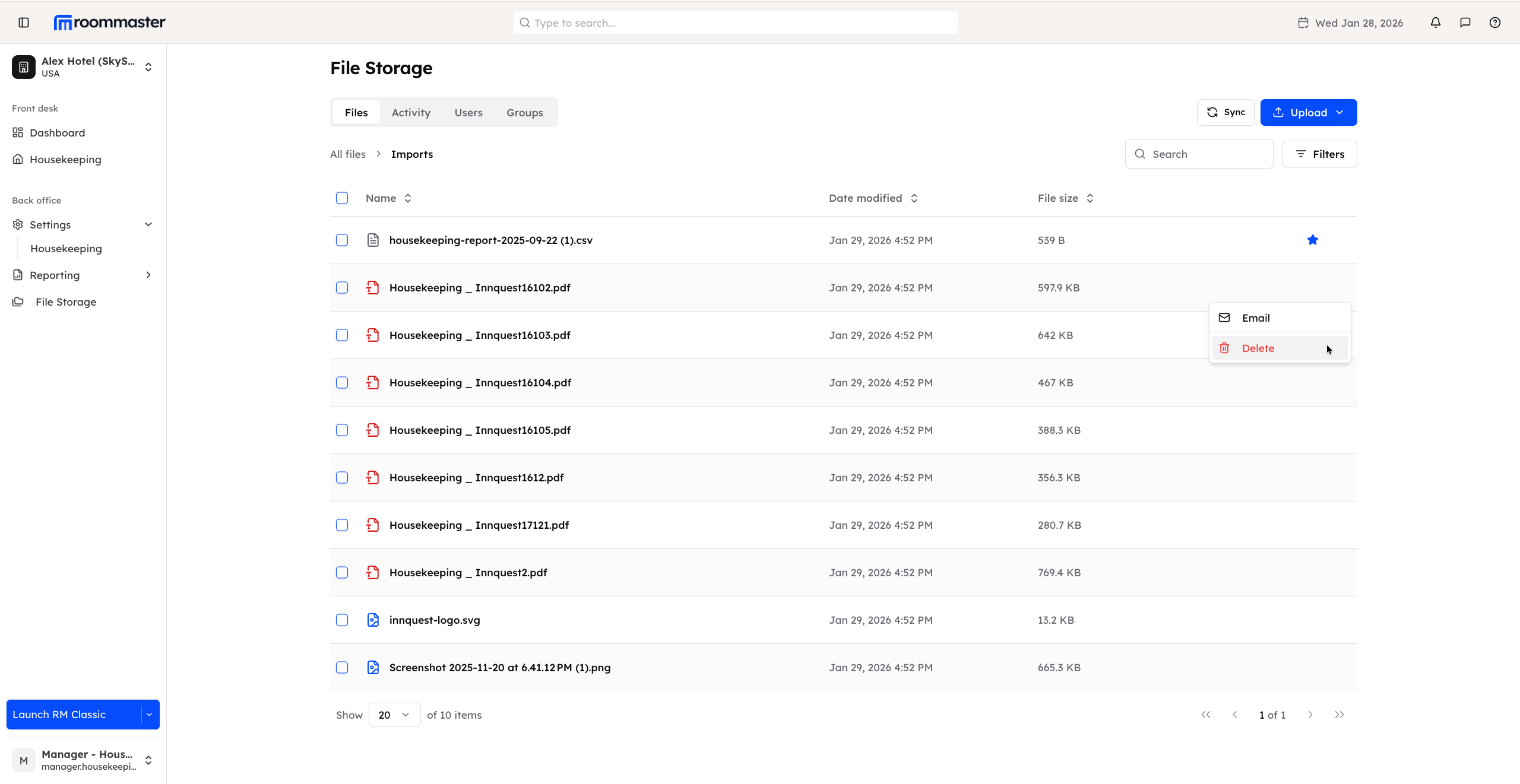
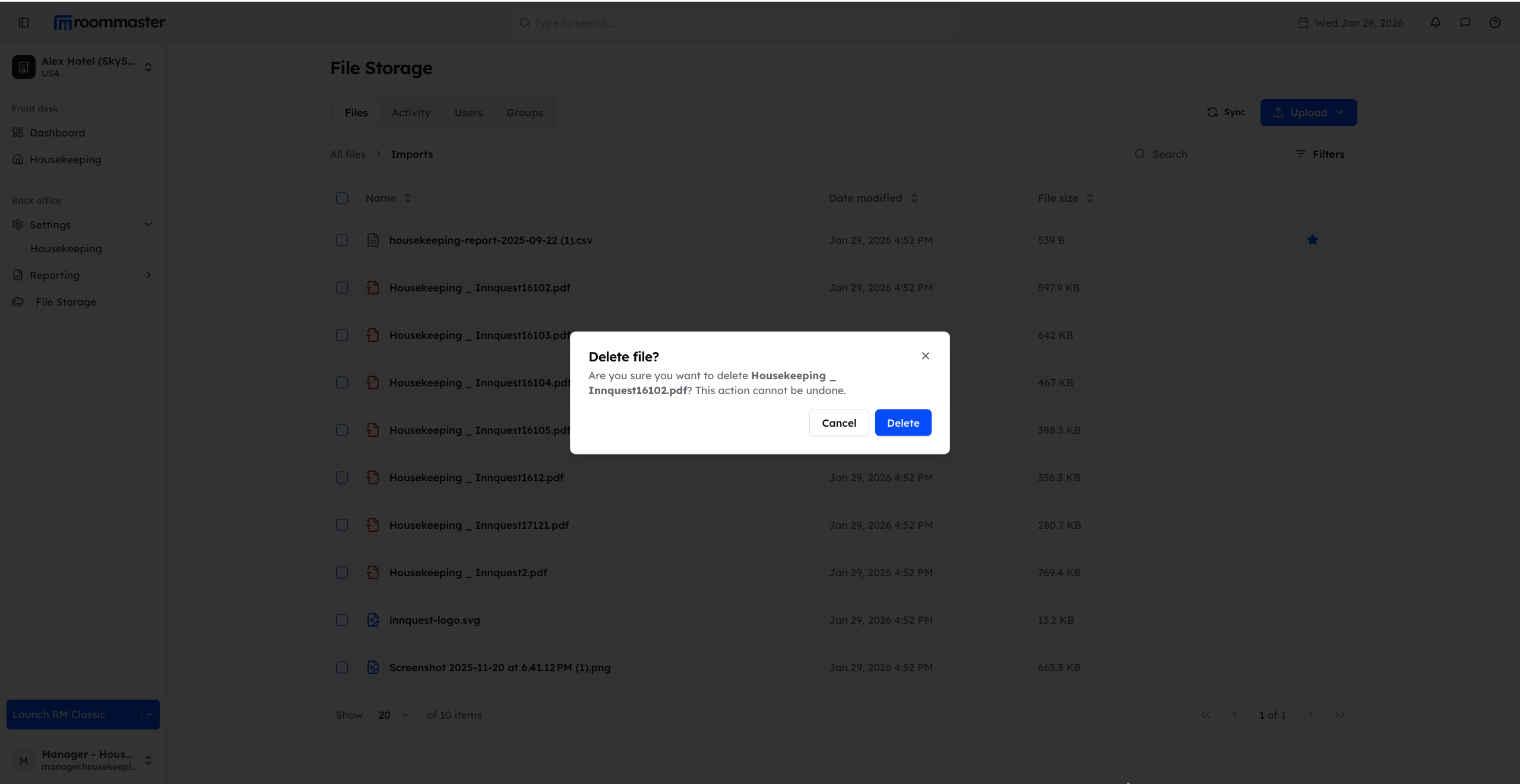
- A confirmation pop-up appears asking you to confirm the deletion
- Click Delete to permanently delete the file
- Click Cancel to stop the action and keep the file
How to delete multiple files at once
- Navigate to either the Imports folder or the Images folder
- Use the checkbox displayed before each file to select one or more files
- Once files are selected, an action banner appears at the bottom of the page
- The banner displays the number of selected files, files size and a Delete action
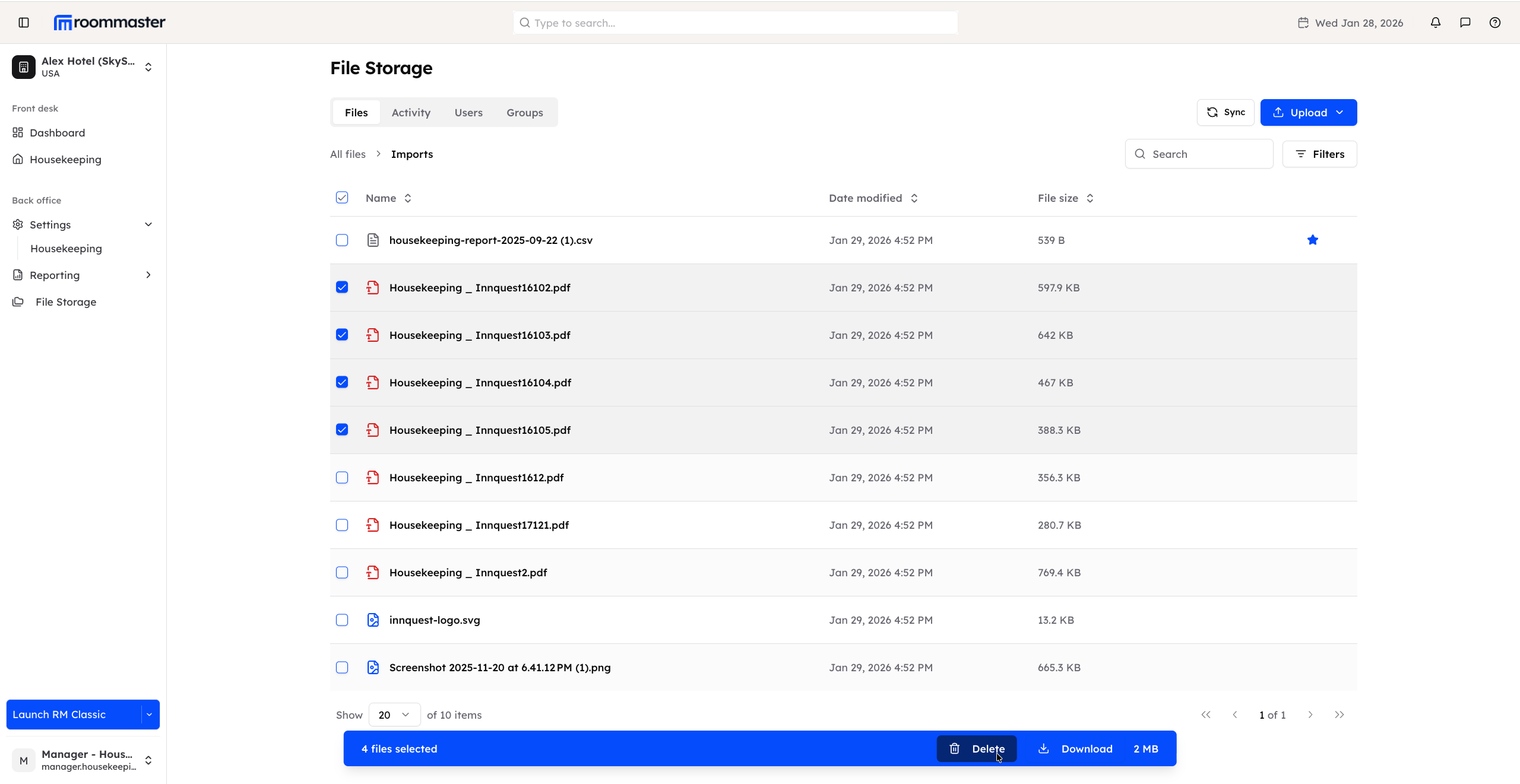
- Click Delete to delete all selected files at once
- A confirmation pop-up appears asking you to confirm the deletion
- Click Delete to permanently delete the selected files
- Click Cancel to stop the action and keep the files
Notes
- Deletion is permanent once confirmed
- If the Delete option is not visible, the file is not eligible for deletion based on its location
Support
For additional support, please visit our Knowledge Base or contact our support team at support@roommaster.com.