Copy link to folders and files
File Storage allows you to easily share files and folders by generating a shareable link. This feature lets others access content without requiring a login, as long as they have the link and it has not expired.
Copying a link from the All Files page
When you are on the Files tab within the All Files page:
- Hover over any root folder
- An action menu will appear
- Select Copy link
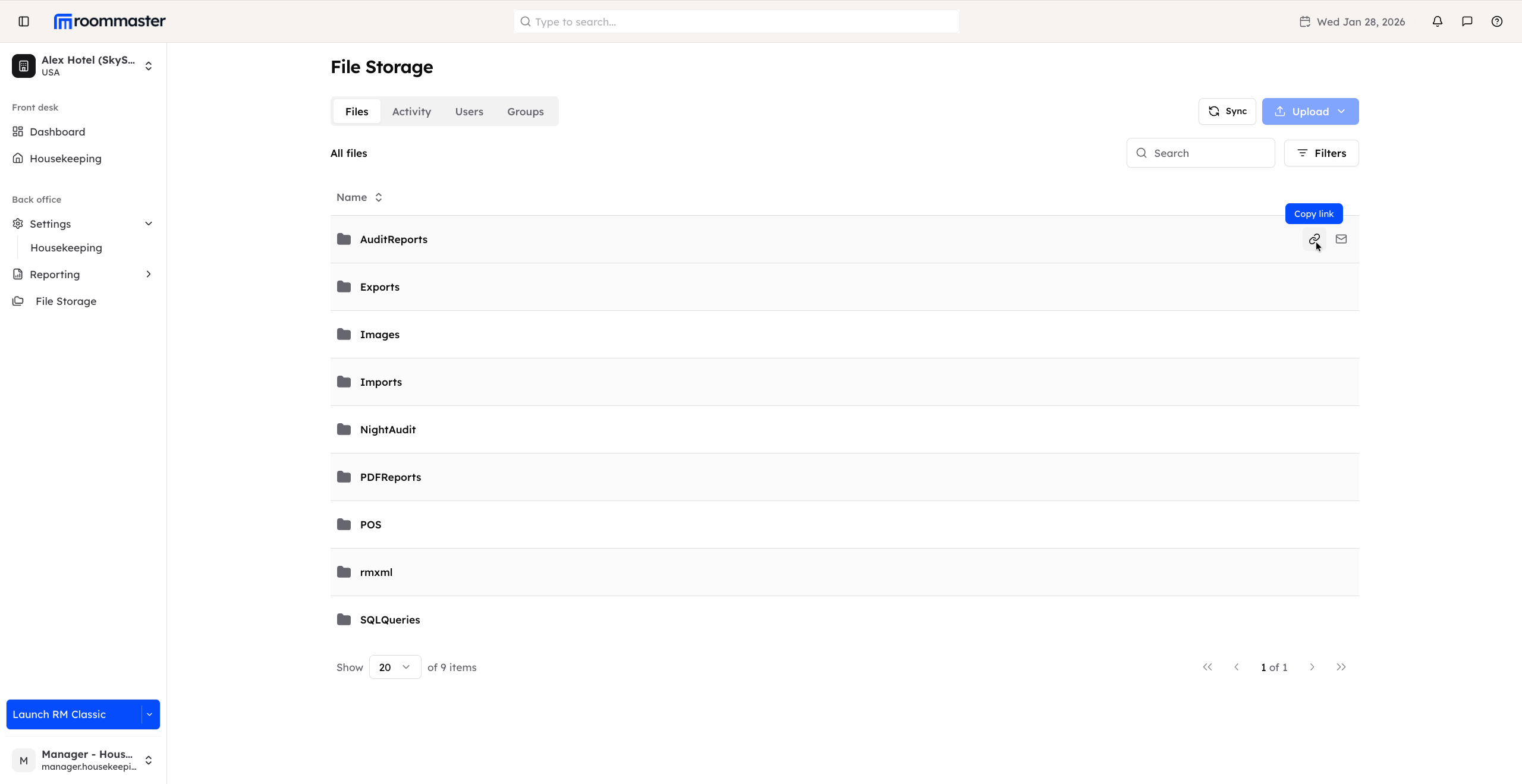
Once selected, the link is copied to your clipboard and is valid for 7 days.
Copying a link from inside a folder
You can also share individual files located inside folders:
- Open a specific folder
- Hover over the file you want to share
- Select Copy link
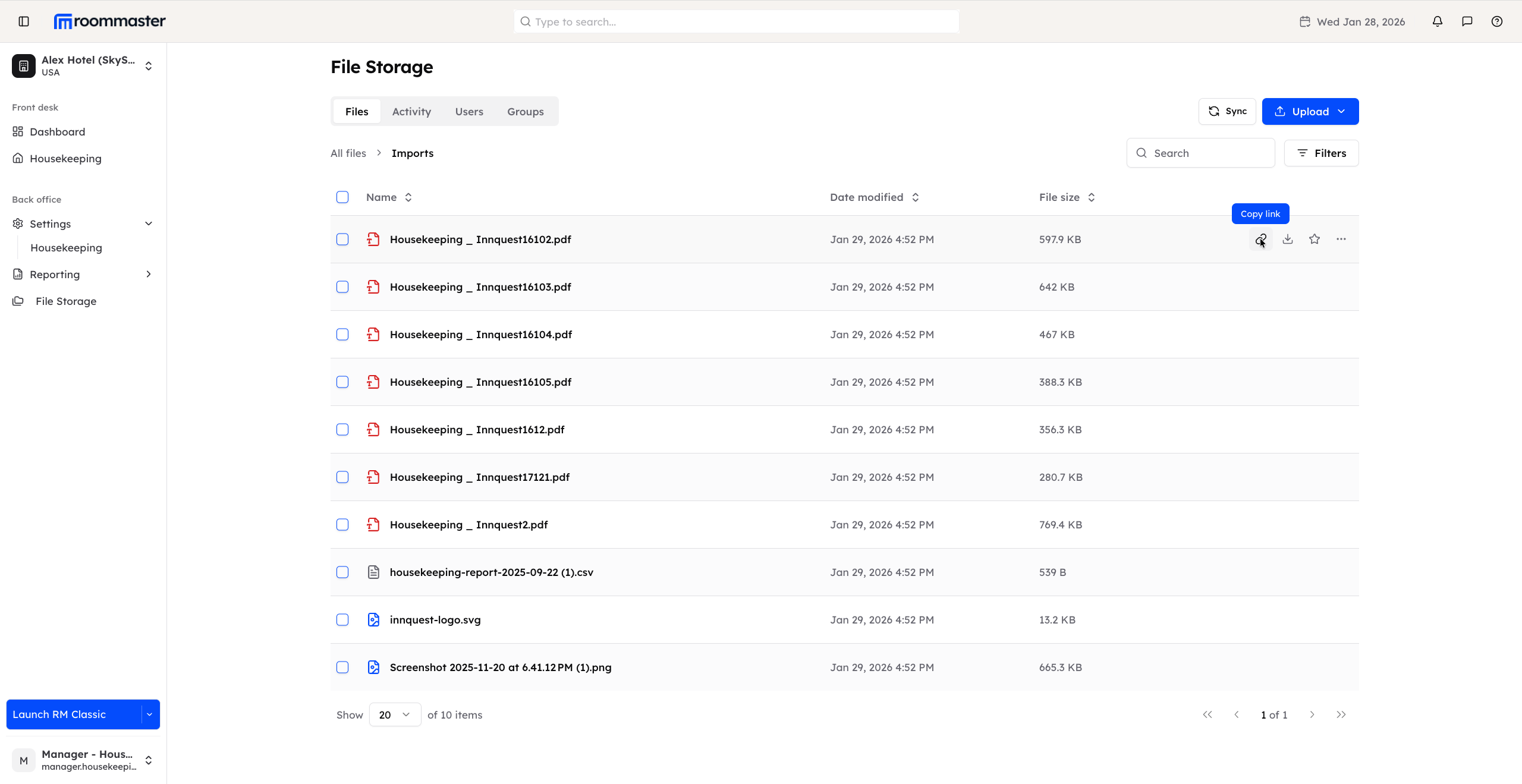
This copies a direct link to that file, which will also expire after 7 days.
What happens when you open a copied link
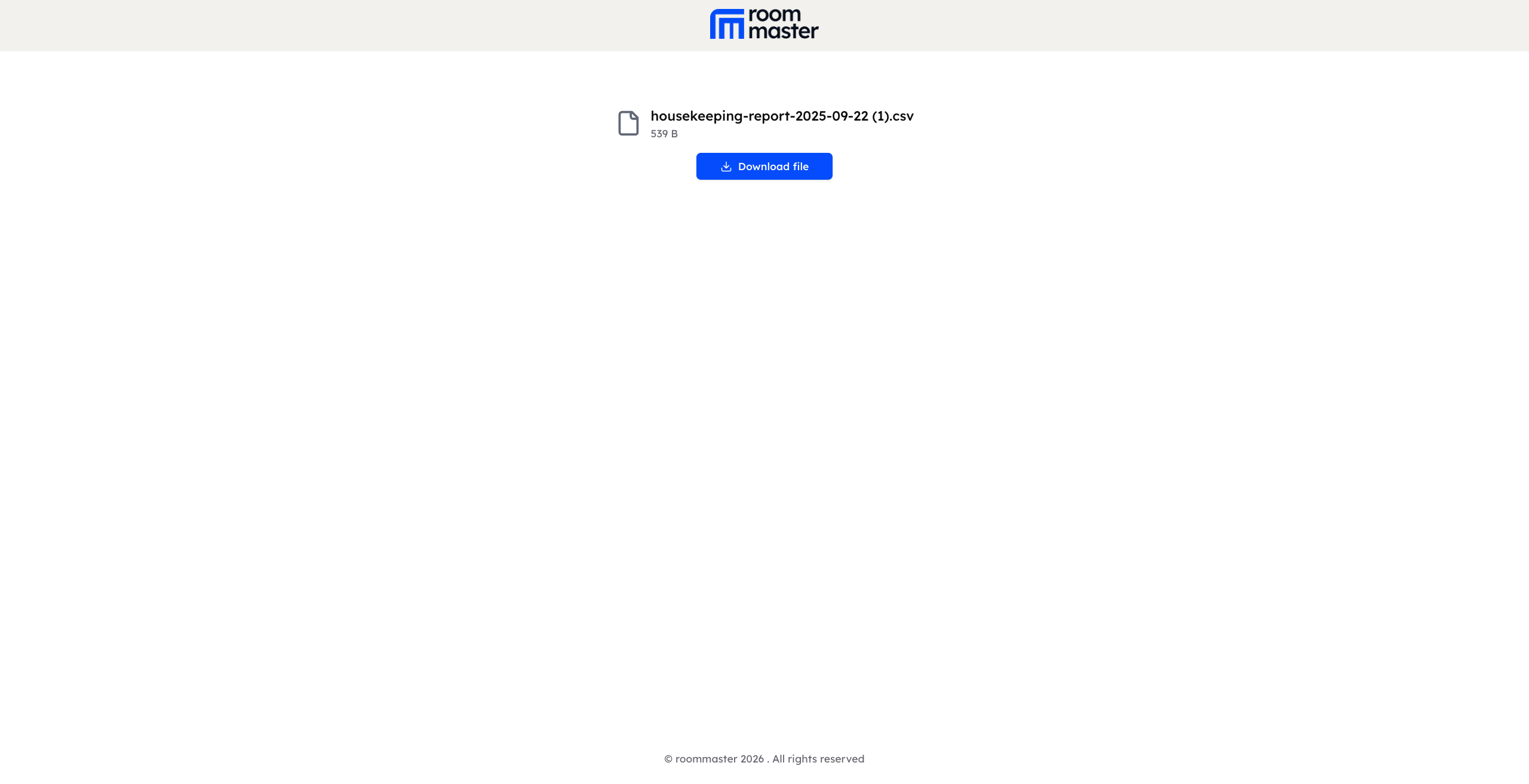
File link
- Pasting the file link into a new browser tab opens a page for that exact file
- You will be prompted to download the file in order to view it
Folder link
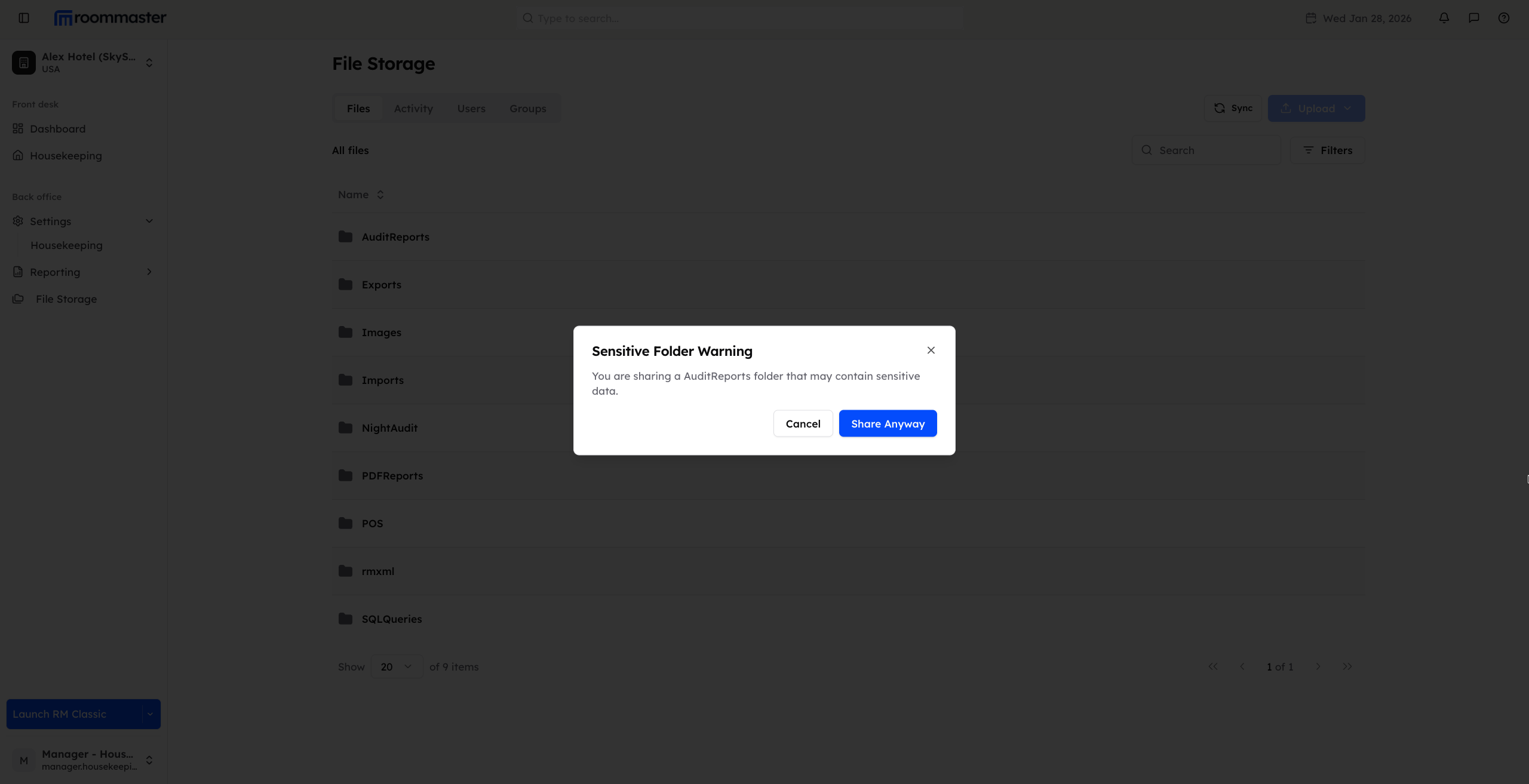
- When copying a root folder link, a warning message appears indicating that you are sharing a root folder
- You must confirm whether you want to proceed
- If you select Share anyway, the link is copied
When the folder link is opened in a browser:
- You will see the shared folder
- Clicking the folder displays all files contained within it
Link expiry behavior
- All copied links automatically expire after 7 days
- Once expired, the content will no longer be accessible
Important security notes
warning
- Anyone with the link can access the shared file or folder
- No login or authentication is required
- Avoid sharing sensitive files or folders, as access cannot be restricted once the link is shared
Support
For additional support, please visit our Knowledge Base or contact our support team at support@roommaster.com.