File Storage overview
This article provides an overview of the File Storage module in the roommaster Web app, including access rules, default folders, and first-time setup.
Quick Start
For Managers (first-time setup)
- Go to roommaster Cloud → Setup → User Profiles
- Grant the first user File Storage permission
- This triggers the import of all files from roommaster Cloud into File Storage
For All Users
- Open File Storage from the side menu
- Browse the folders shared with your groups
- Click on a folder to view its files
- Perform actions on files: Download, Copy link, Email, or Favorite
Tabs in File Storage
The File Storage module has four main tabs:
- Files – Visible to users with access to File Storage
- Activity – Visible to users with access to File Storage
- Users – Visible only to managers and users with higher permissions
- Groups – Visible only to managers and users with higher permissions
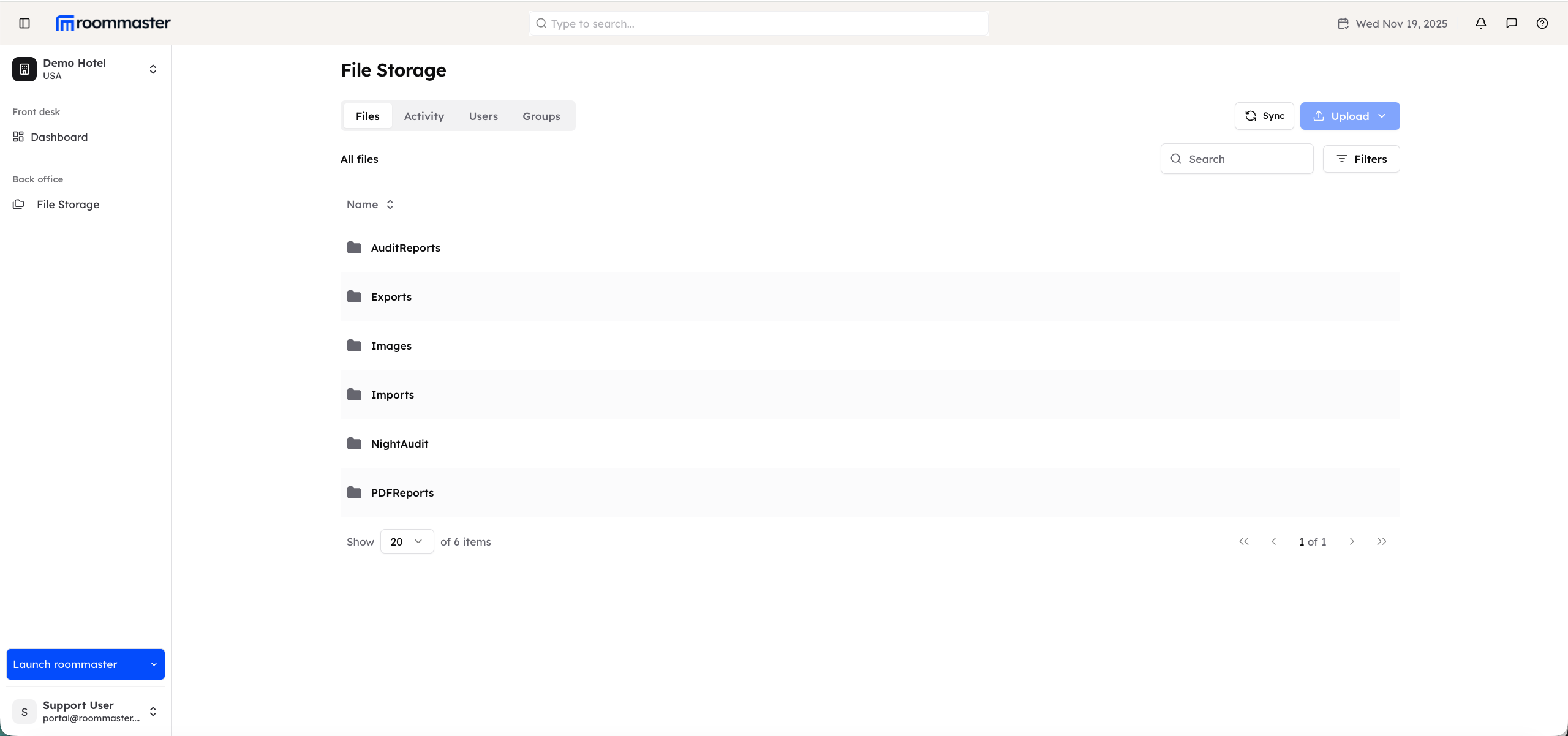
Root folders
There are nine predefined root folders in File Storage:
- Audit Reports
- Exports
- Images
- Imports
- Night Audit
- PDF Reports
- POS
- RMXML
- SQL Queries
info
- Users do not see all root folders by default
- Each user only sees the root folders that have been shared with them via the groups they are part of
- By default, users see only the folders explicitly shared with them
Files tab
- When accessing the Files tab, users see only the folders shared with them
- Clicking on a folder displays the files within that folder, showing:
- File name
- Date modified
- File size
- Users can search for files within a folder
- Users can filter files by type
Support
For additional support, please visit our Knowledge Base or contact our support team at support@roommaster.com.